How to Accept eWallet Order

Wednesday, 19 Sep 2018

Types of eWallets accepted by EzCab


How to Accept eWallet Order
Terms & Conditions

The Passenger may choose to pay with either by cash or other eWallet or any other mode of payment. In the ride that Passenger choose to pay by Touch 'n Go (TNG) eWallet, all payments due to you including tips (if any) and it will be channeled to you in agreed quantum. EzCab Sdn. Bhd. (company no. 197870-T) reserve the rights to suspend any transaction that may be illegal act, involves any criminal activity, fraud risks, deceptive or any in breach of the Terms and Conditions between EzCab and passenger may results in termination. In such scenario, you may not hold EzCab Sdn. Bhd. (company no. 197870-T) for any withhold payment, suspension or cancellation of, any payment to you. You agree that you will cooperate in any required investigation to assist EzCab in any internal investigations in place. EzCab Sdn. Bhd. (company no. 197870-T) reserve the final and conclusive decisions made in any matter.

How to accept Credit / Debit Card payment order

Wednesday, 31 Oct 2018

How to accept Credit / Debit Card payment order

Learn how to accept Credit / Debit card payment

Please select the topic below

Accepting ALIPAY Order

Accepting Credit / Debit Card Order

Step 1

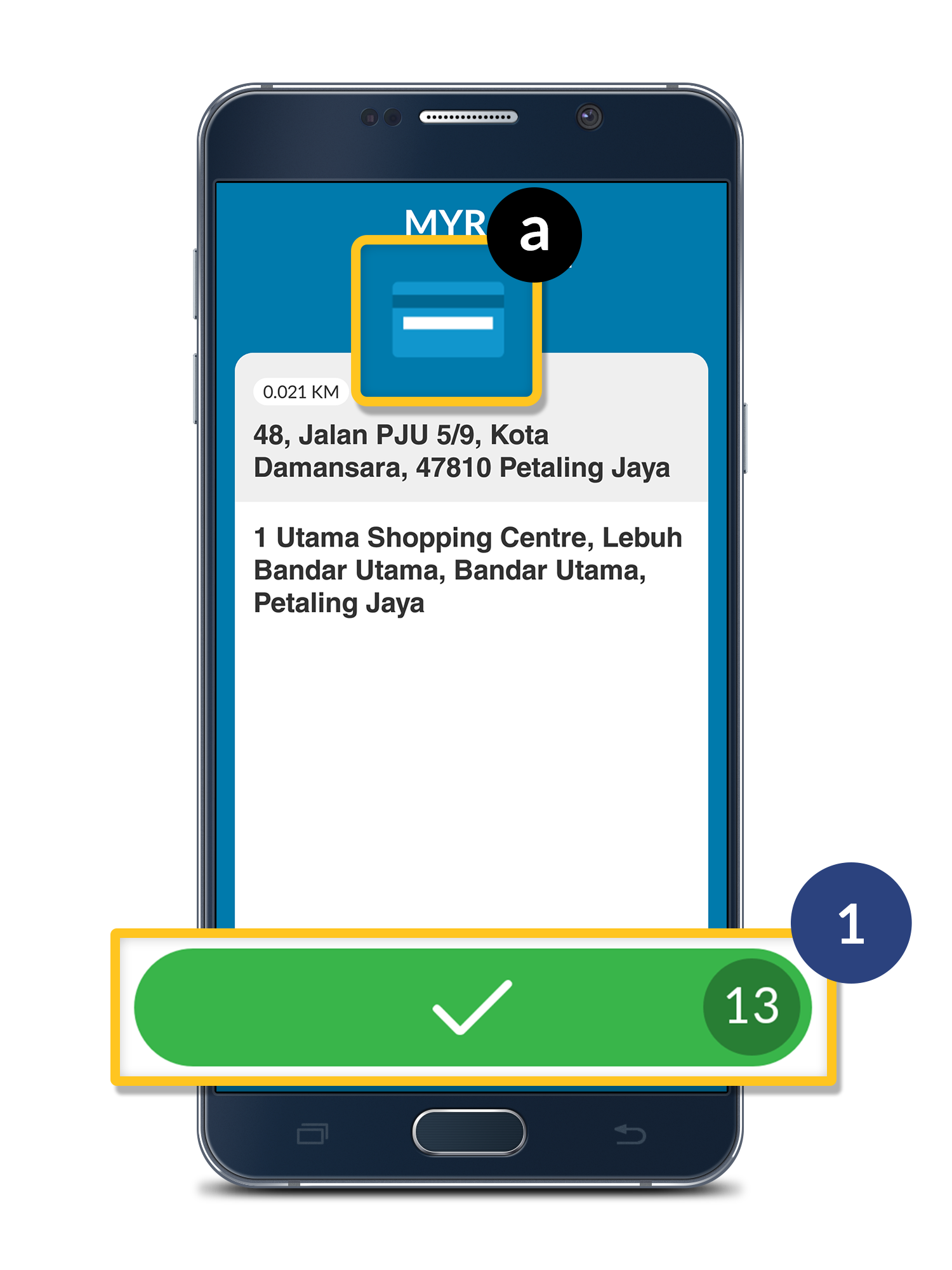
a. Payment Option — -indicates this passenger will pay with Credit / Debit card.

Click the () to accept for the order.

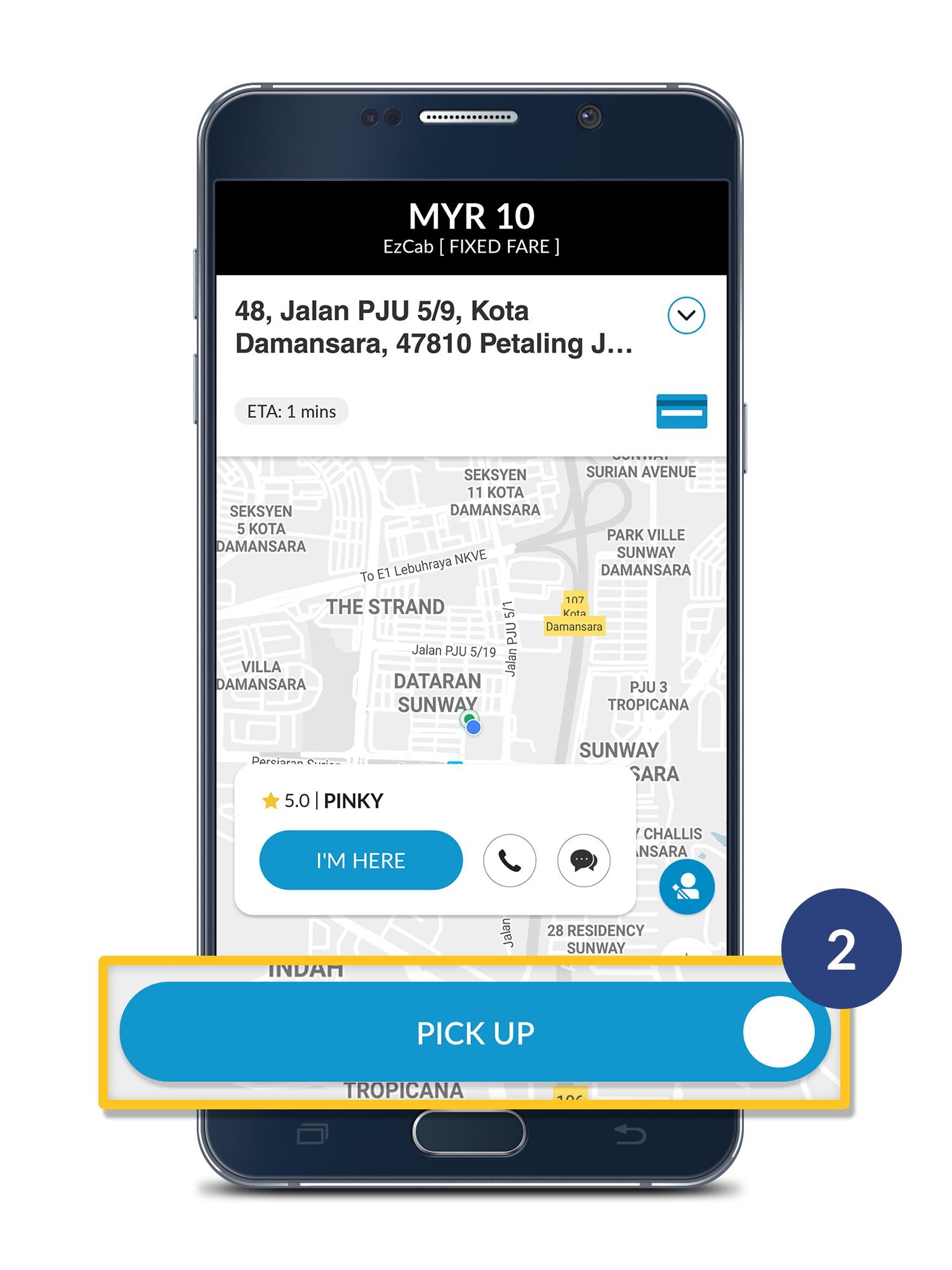
Step 2

 Once your passenger is in your vehicle, click “PICK UP” button.

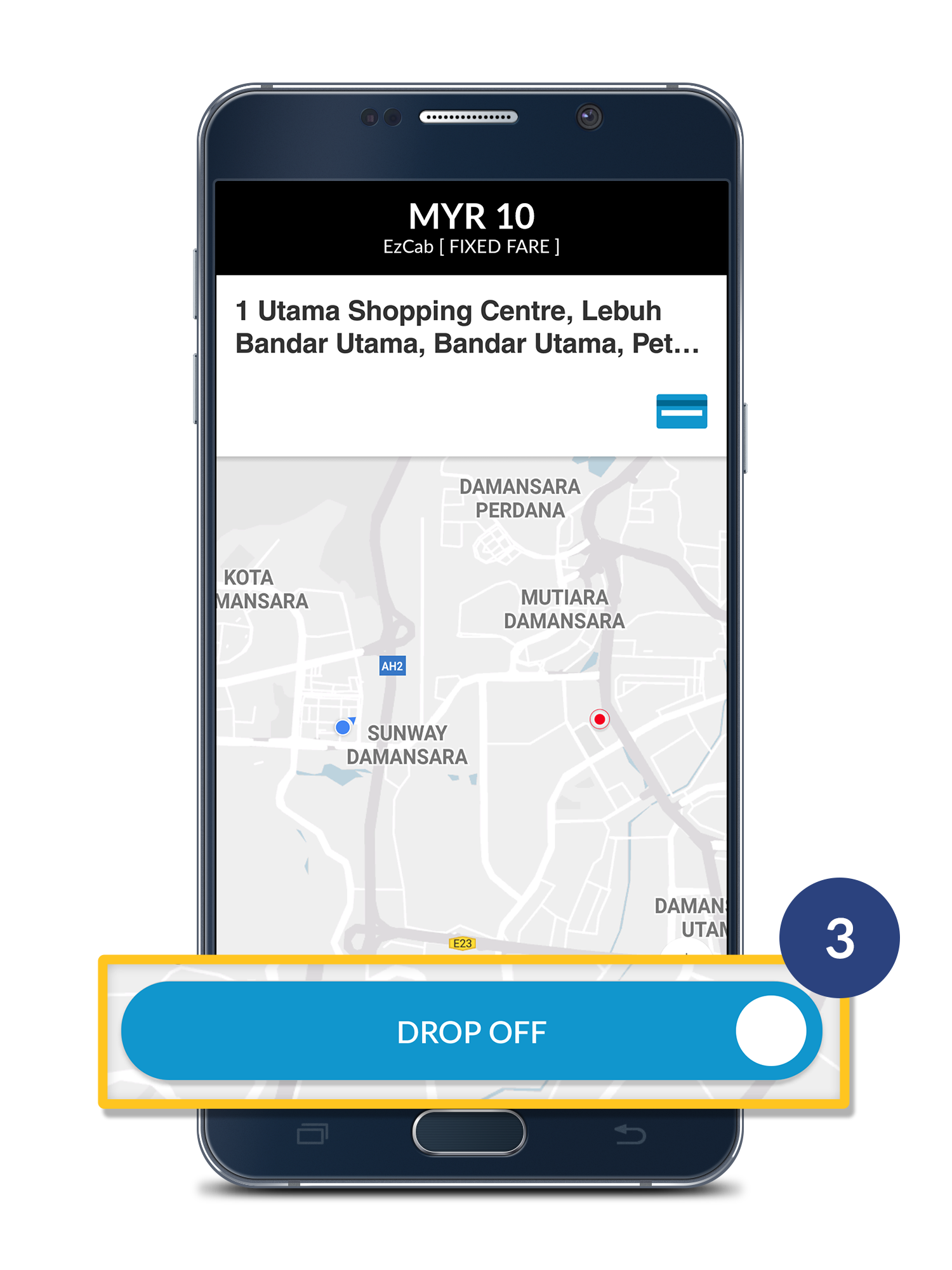
Step 3

Upon successfully dropping off your passenger, click “DROP OFF” button to indicate the completion of this order.

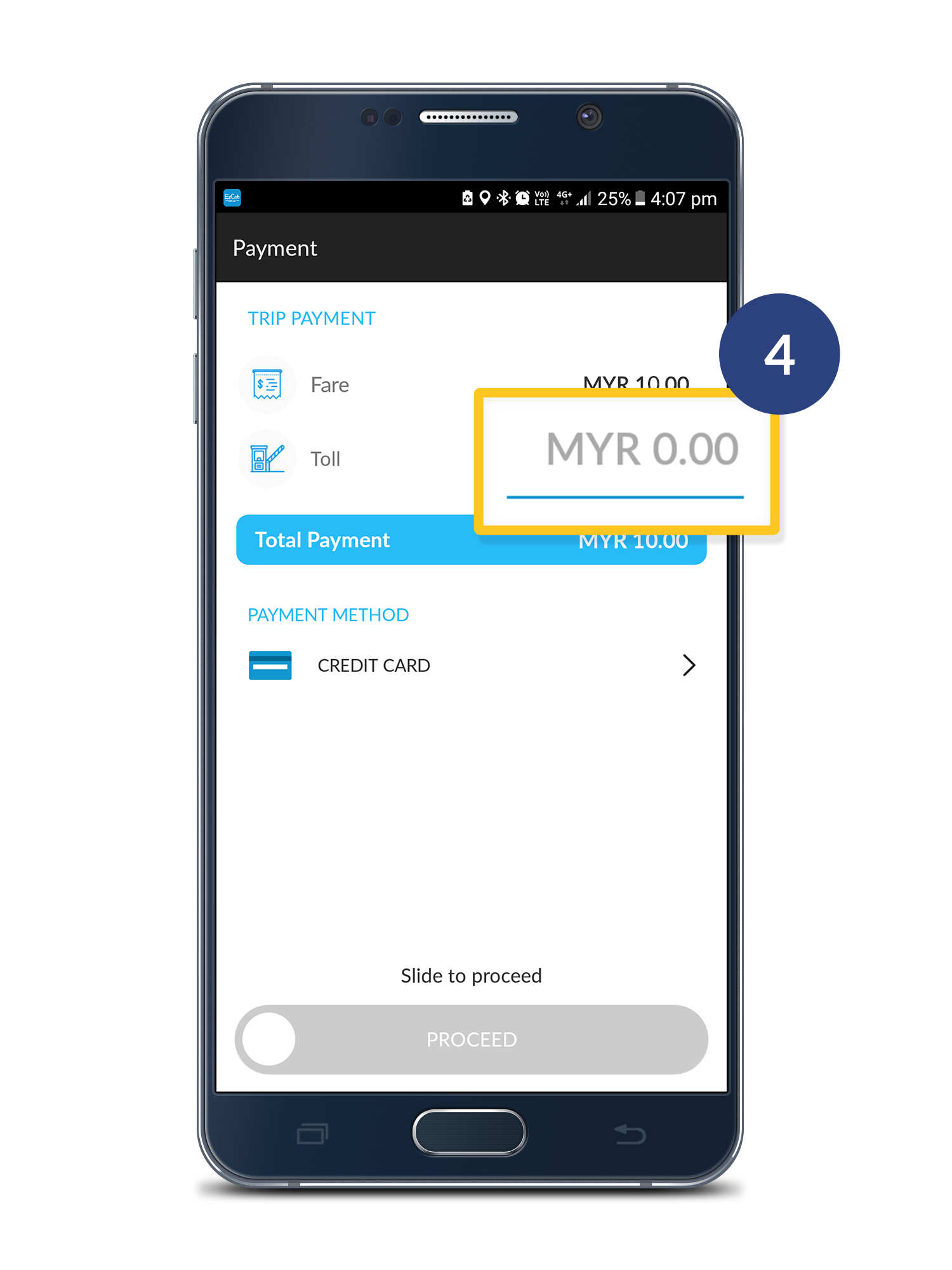
Step 4

Enter the toll amount (if any).

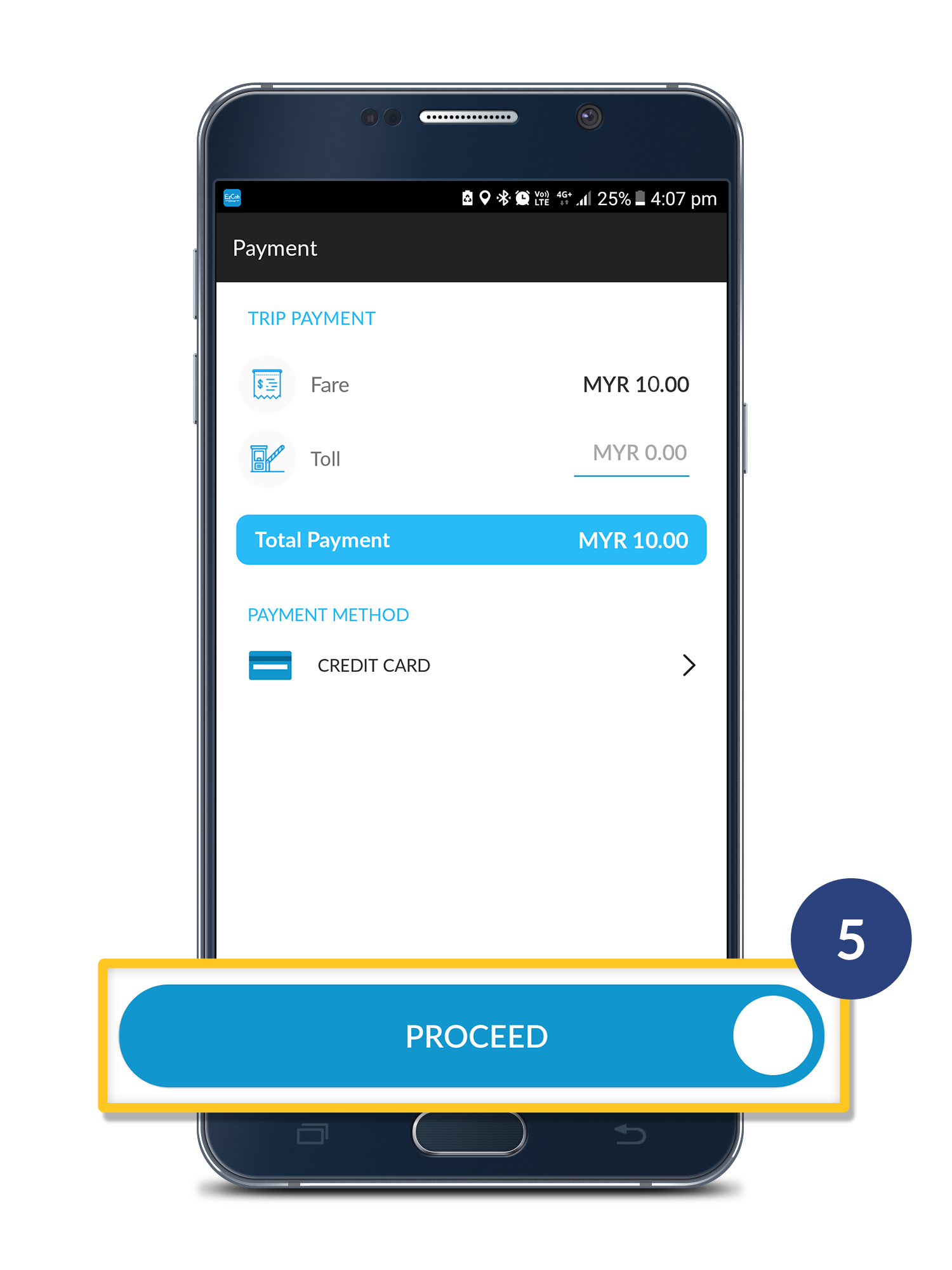
Step 5

 Click “Proceed” button.

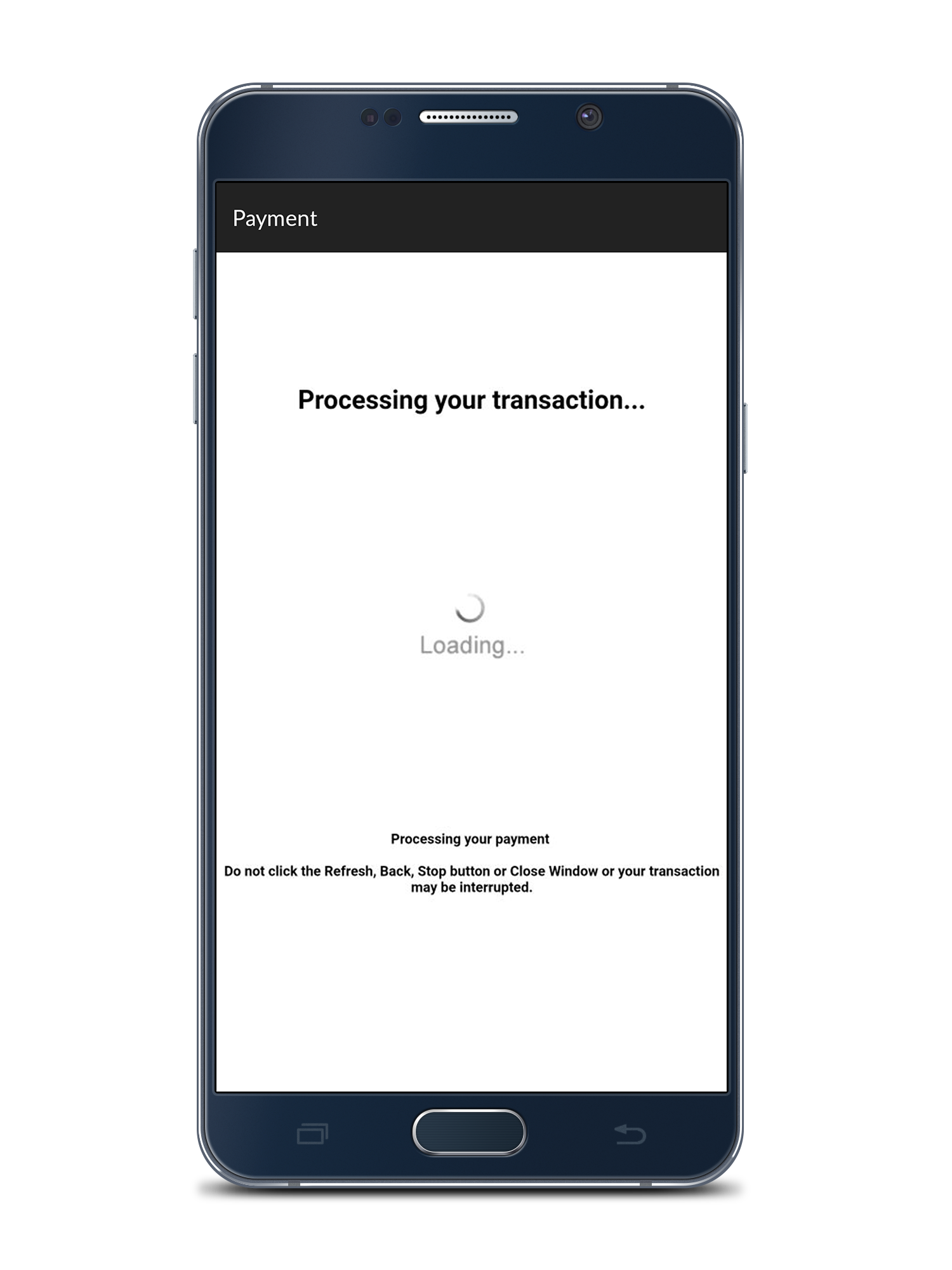
Step 6

Wait for your transaction to complete.

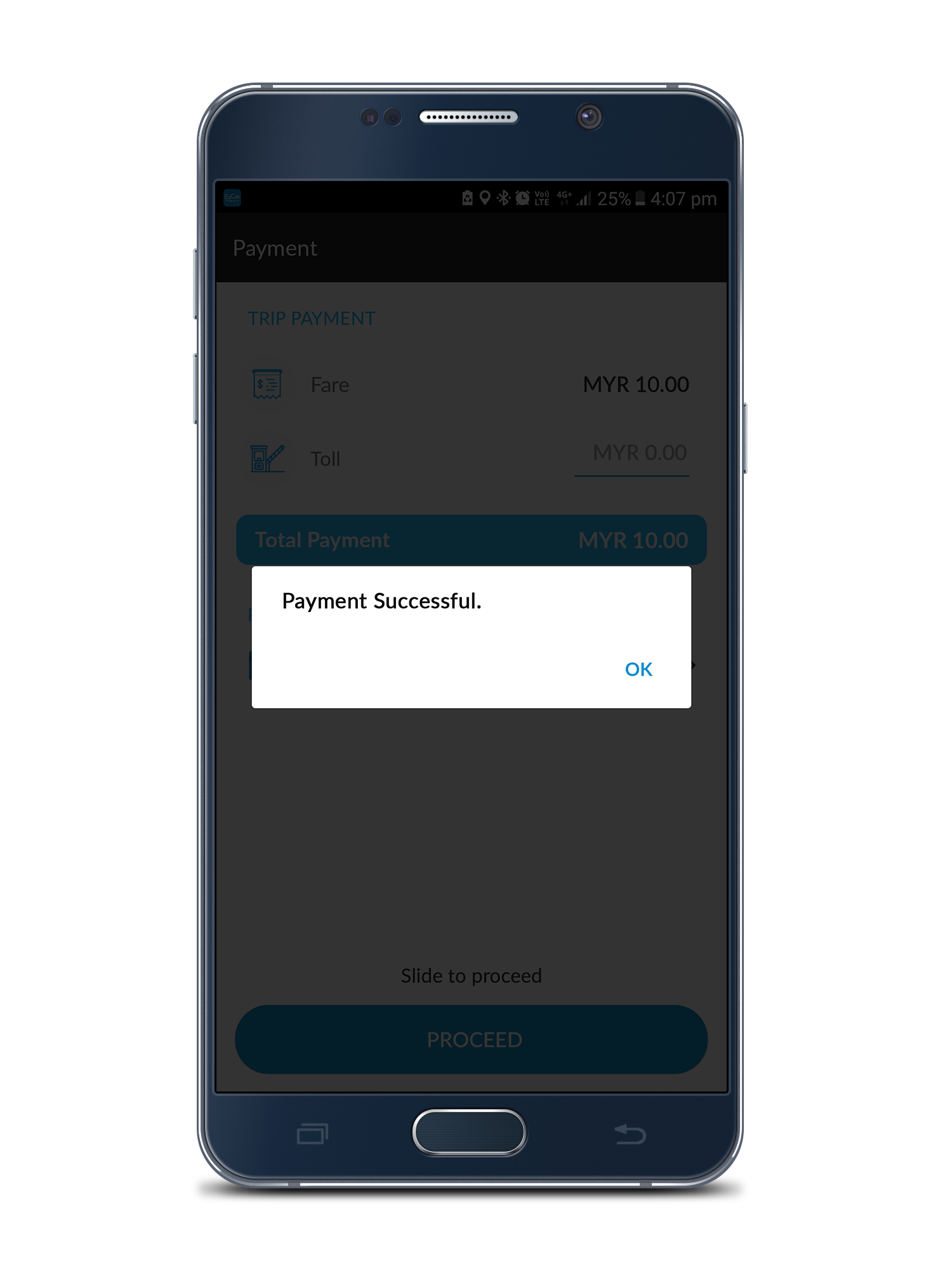
Step 7

If success, then this message will appear.

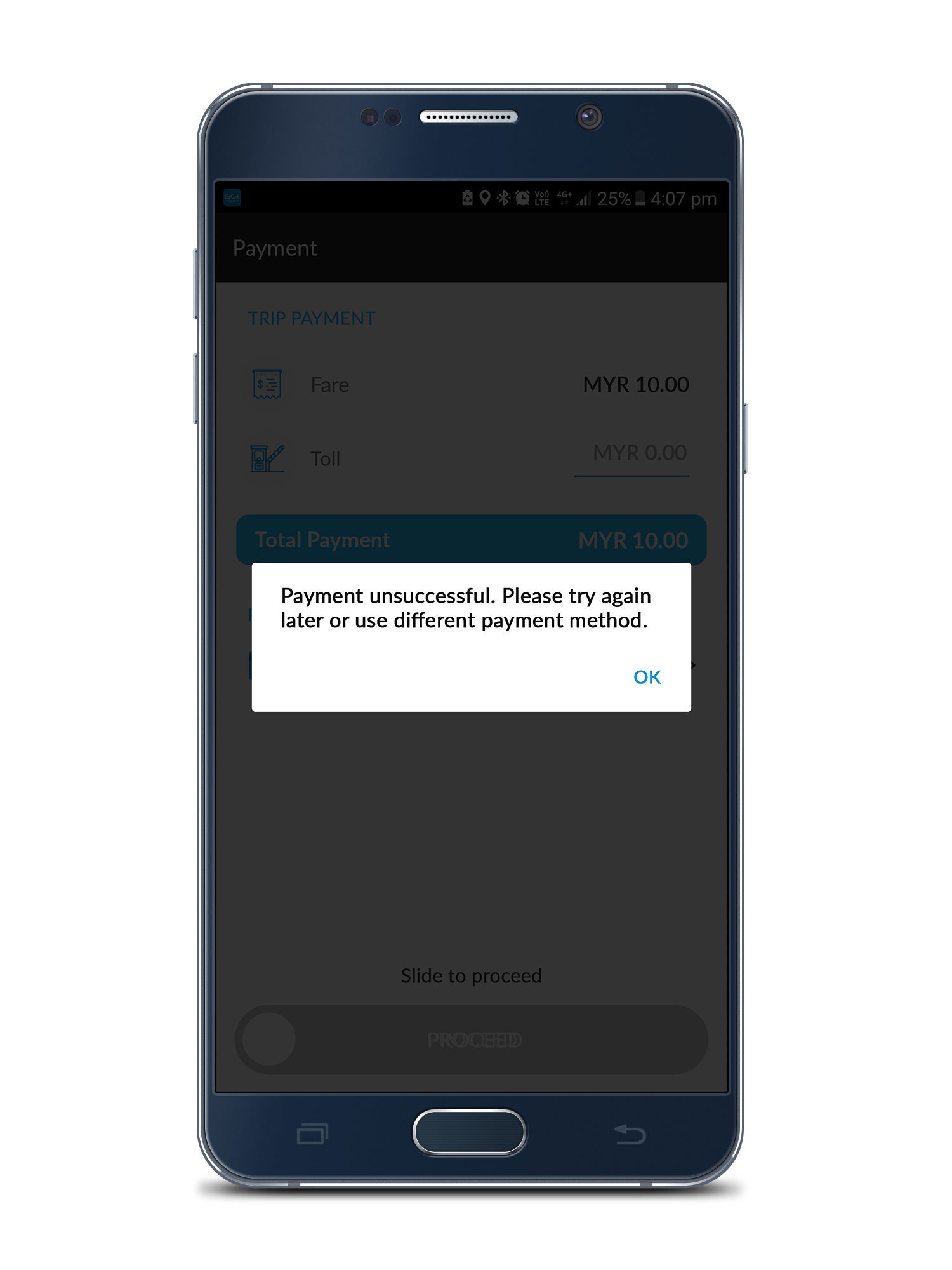
Step 8

If not success, then this message will appear.

* Need to change payment method. Refer more here : http://ezcab.com.my/index.php/how-to-change-payment-option

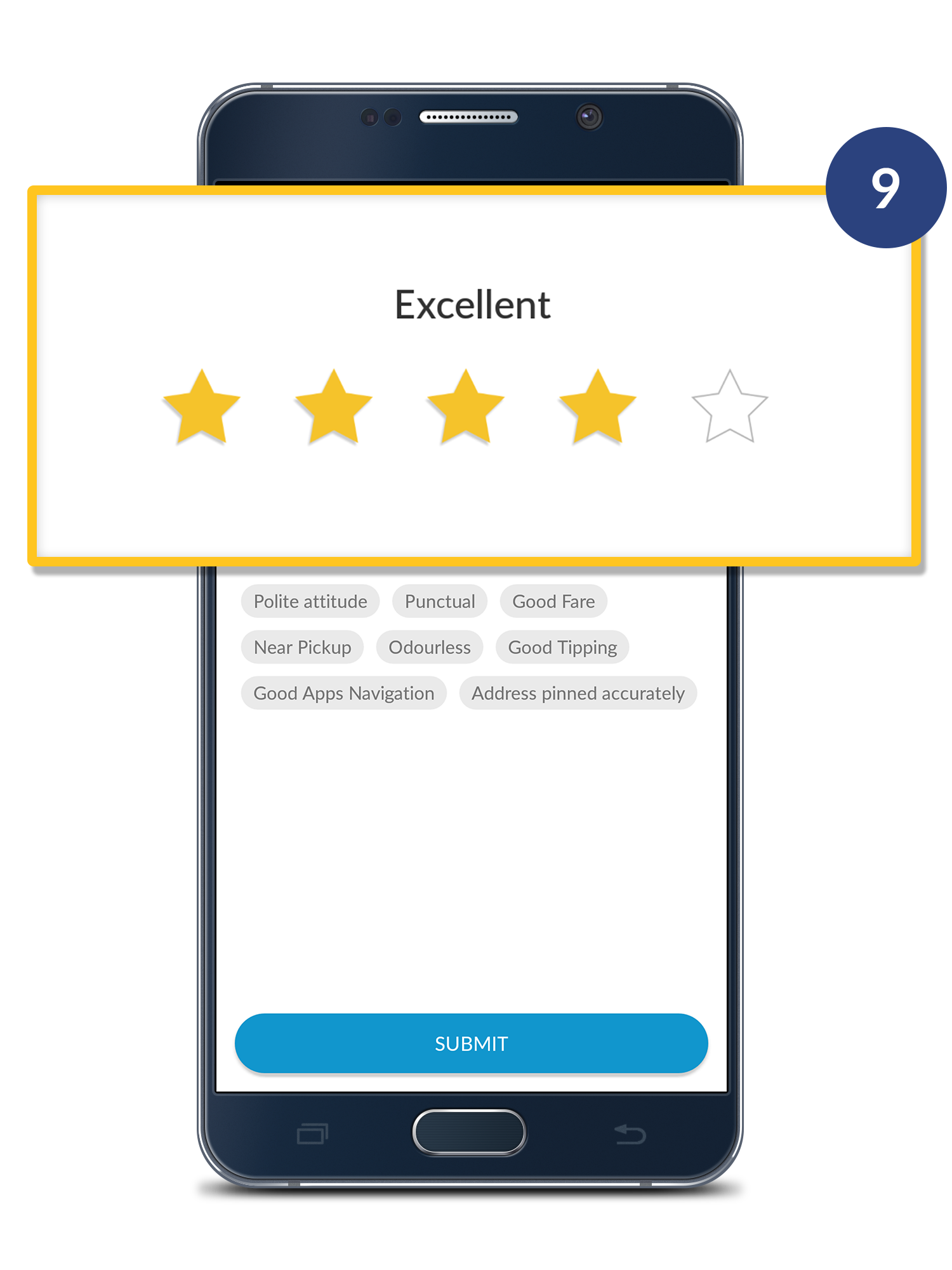
Step 9

After success, will direct go to rating page & rate your passenger.

How To Change Payment Option

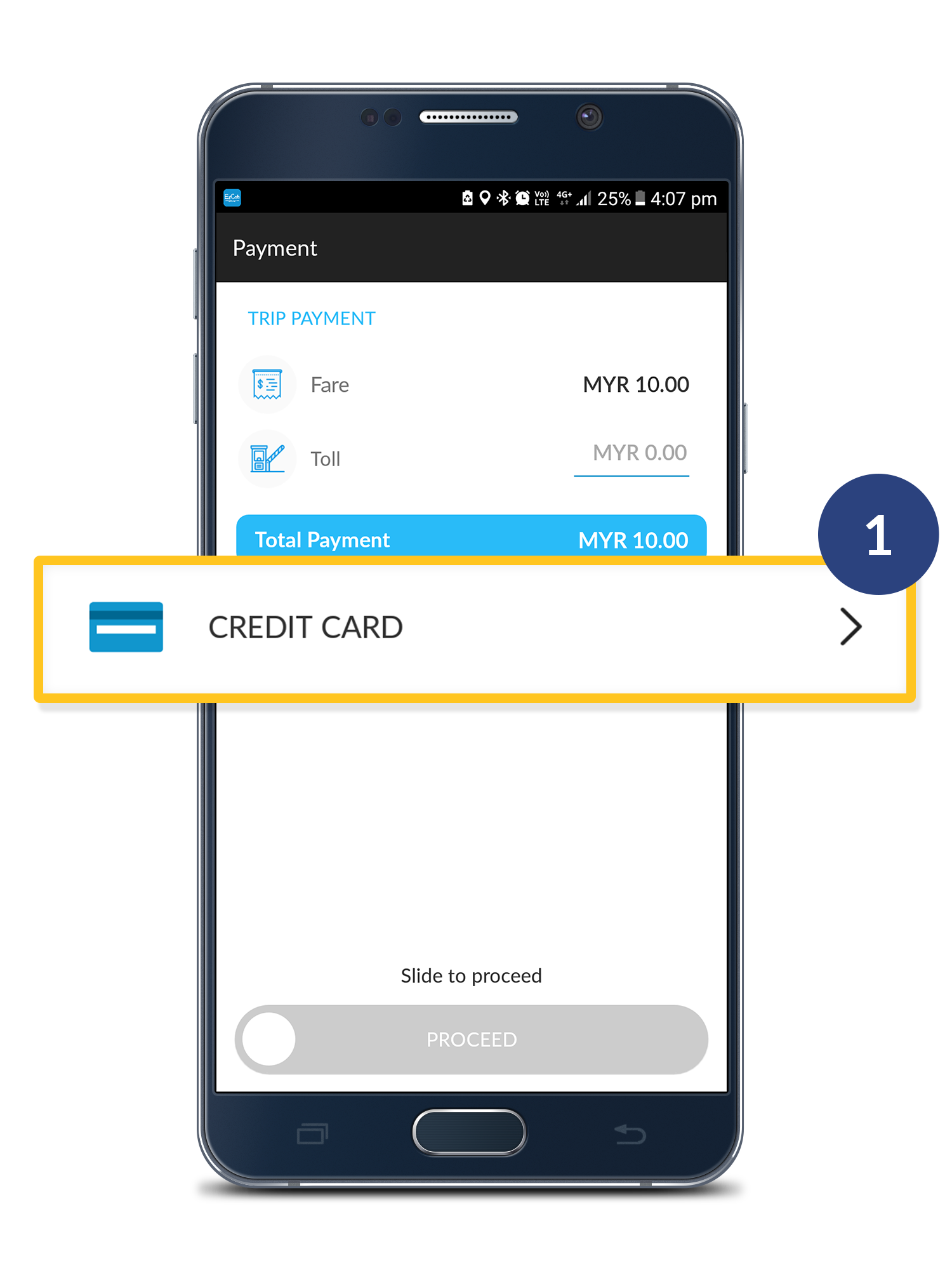
What if Credit card payment unsuccessful upon drop-off? Follow the steps below to change the payment method.

Step 1

Click the Payment Method.

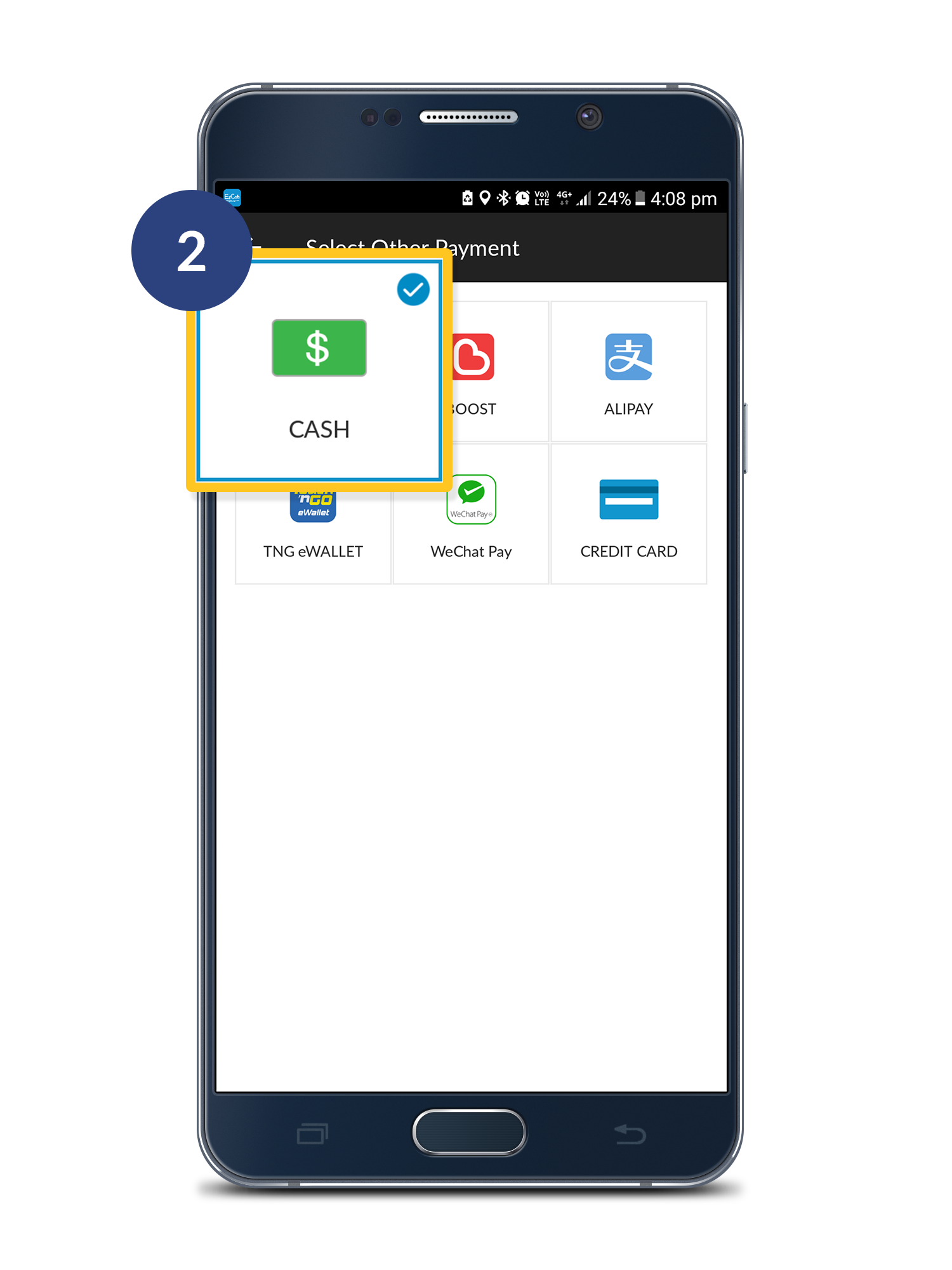
Step 2

Select the payment method that customer prefers to use.
* Unless Credit / Debit Card got problem, then only change the payment method to CASH.

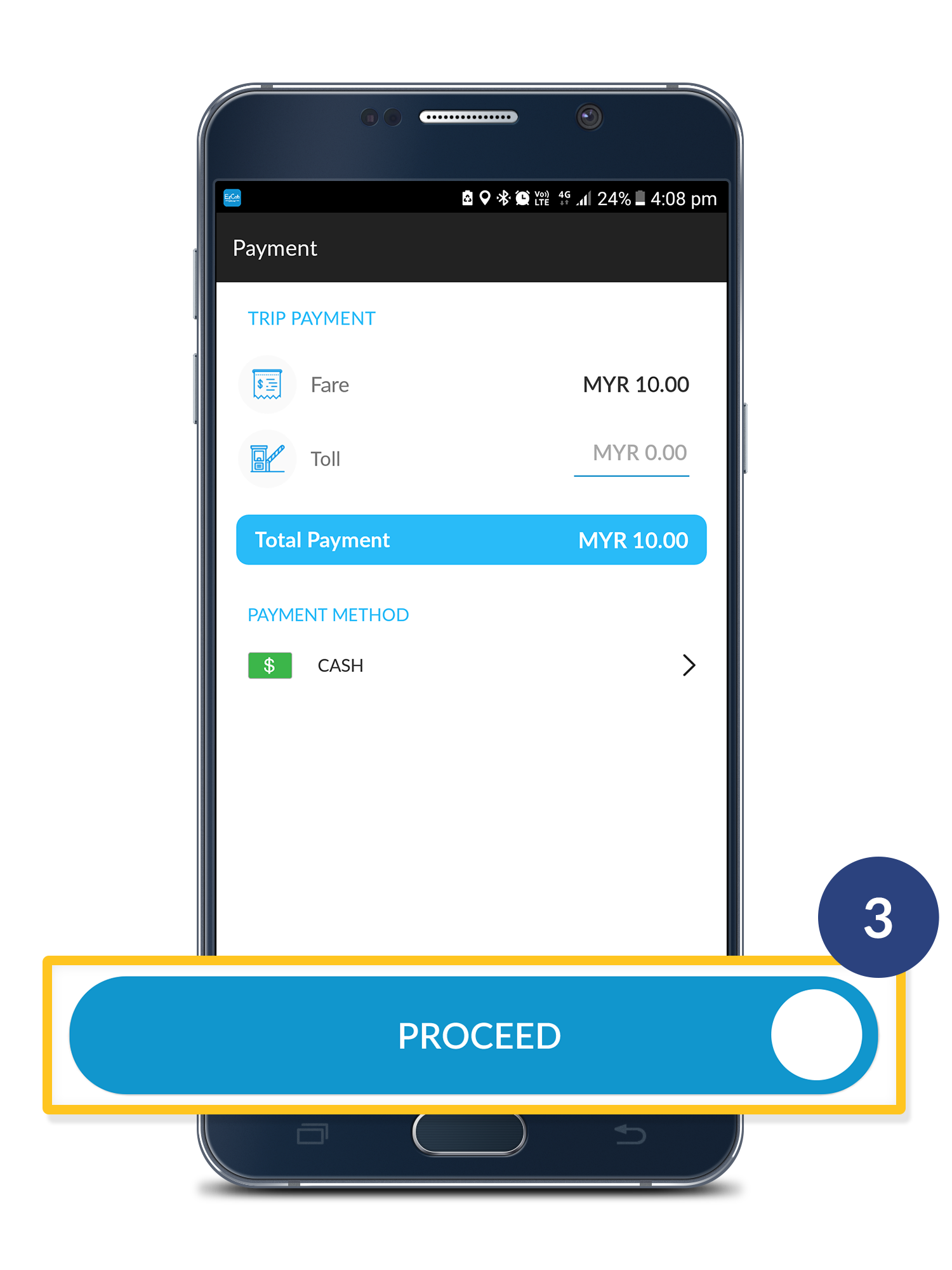
Step 3

And click "Proceed".

NOTE: You may collect cash directly from customer only when they agree to change the payment method to CASH.

Demand Heat Map

Friday, 15 Dec 2017

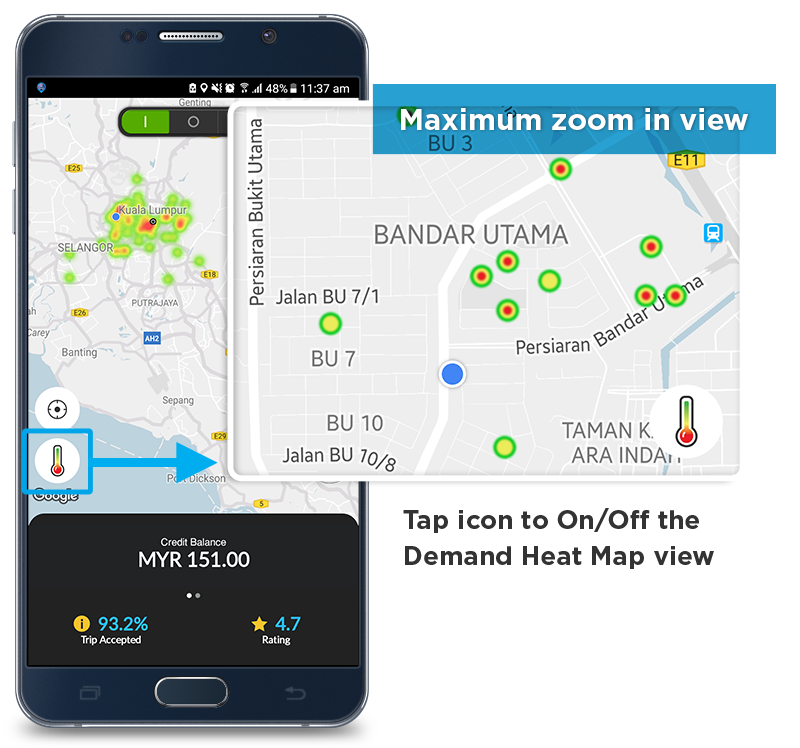
Demand Heat Map

–tool to help you get more jobs

How It Works?

The map shows you where there are incoming Booking request:

  1. Red = Very High
  2. Yellow = High
  3. Green = Medium
  4. No colour = Low

How to use?

  • Use map to identify closest ‘High Demand’ area to where you are & heads towards there.
  • Zoom in & out on the map to identify specific ‘High Demand’ areas. At maximum zoom, you will see a dot.

Multiple – stop rides for passenger

Thursday, 21 Dec 2017

Multiple–stop rides for passenger

Learn how to accept multiple-stop order from passenger.

New feature! Now passenger is allowed to enter second stop while booking! Drivers will receive notifications order on both stops!
For better understanding, see below:


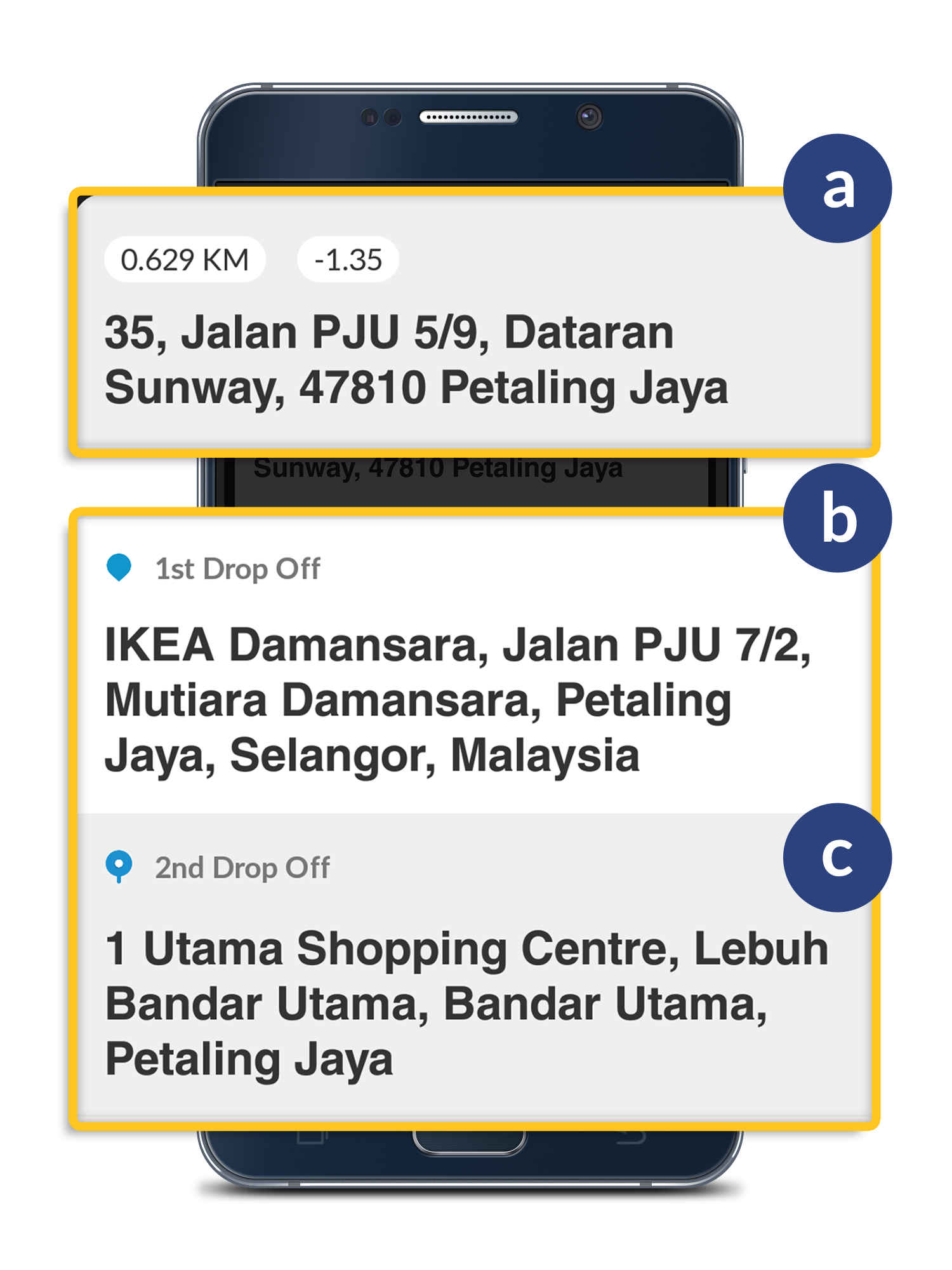
Overview

a. Pick up location -  this shows the address of pick up point.
b. 1st drop off location - this shows the address of 1st stop.
c. 2nd drop off location - this shows the address of 2nd stop.

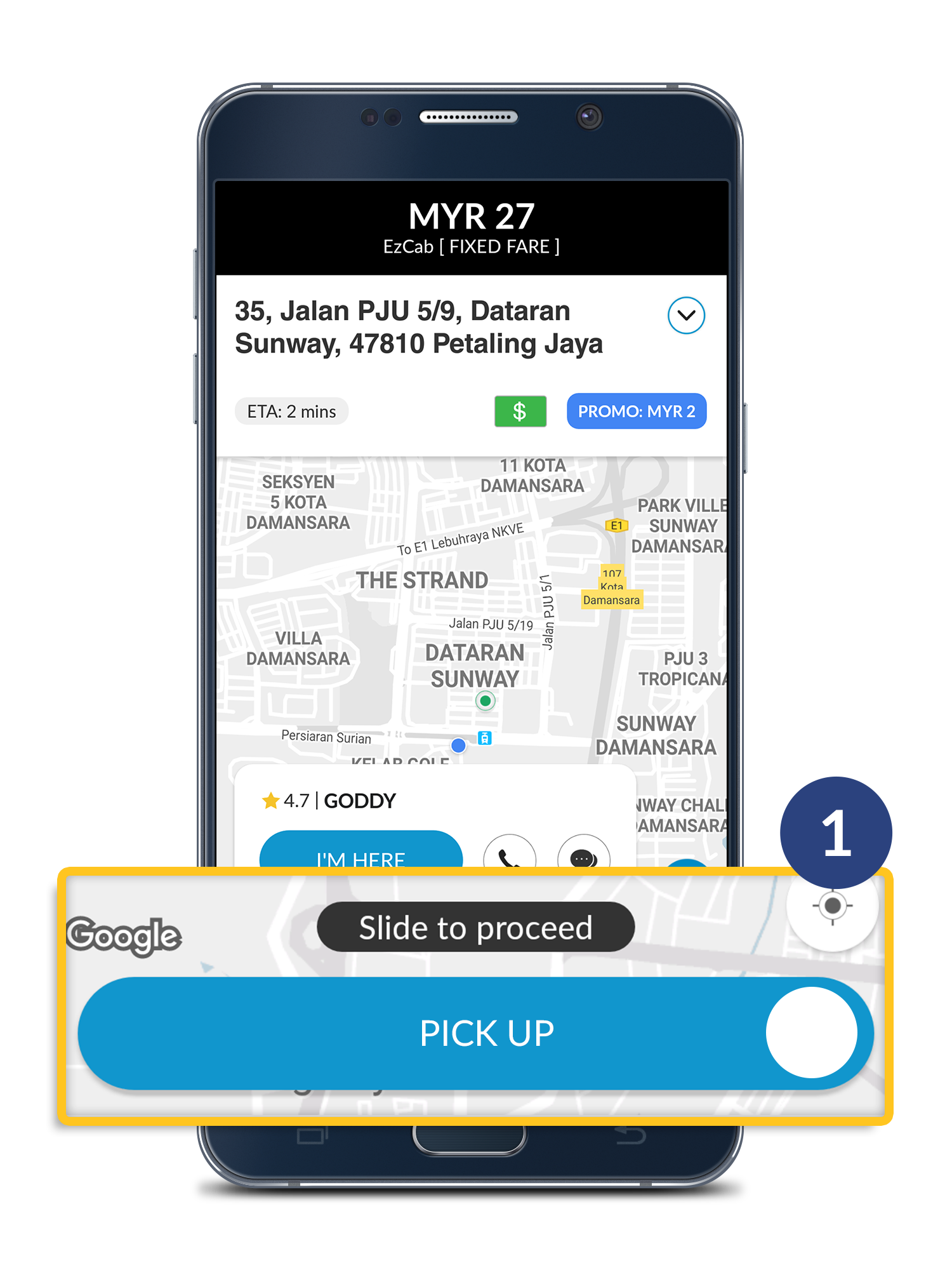
Step 1

Slide "PICK UP".

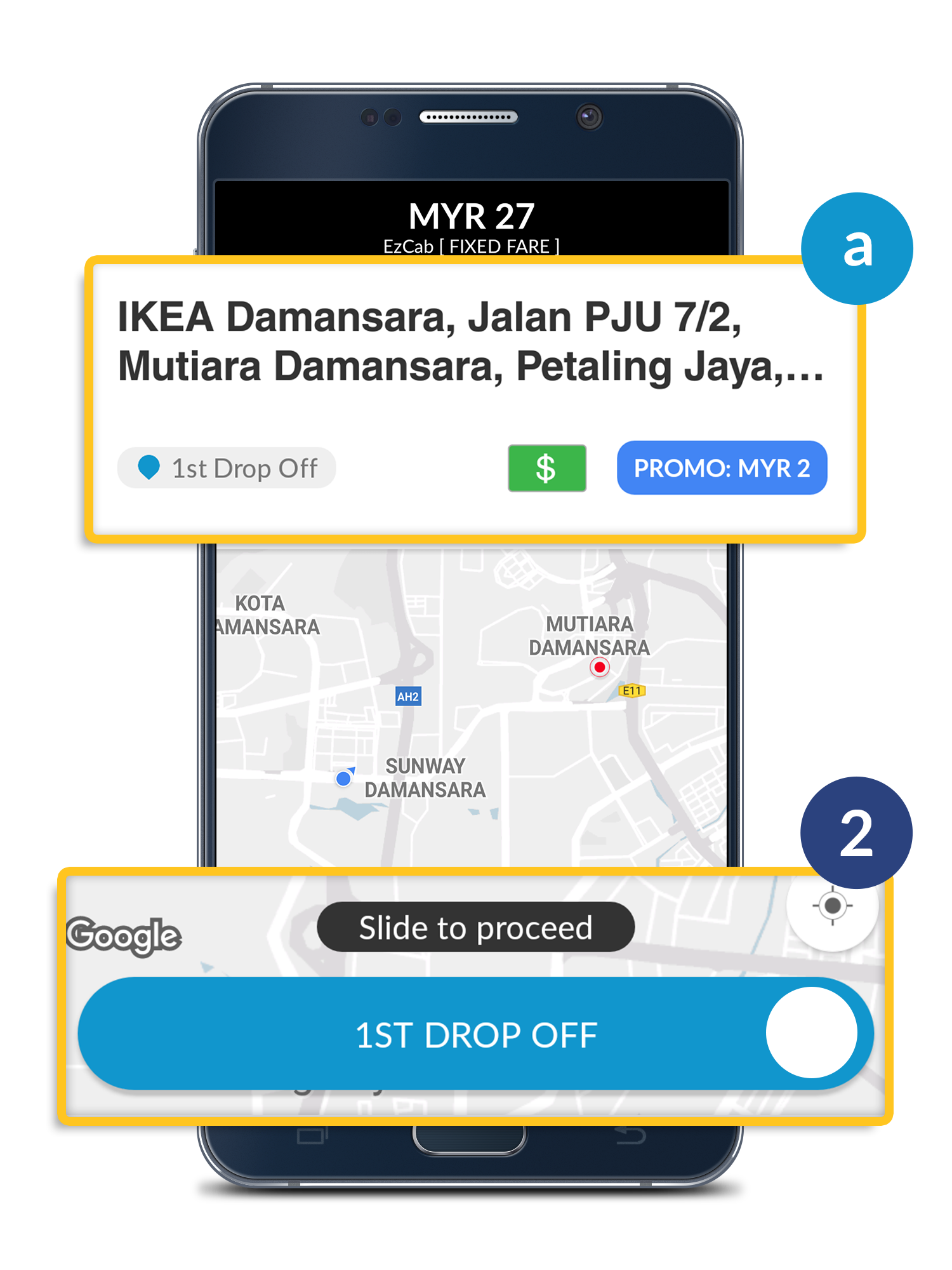
Step 2

Slide  DROP OFF’ once dropped off passenger on 1st stop.

a. Passenger 1st drop off location.
* Collect 50% fare amount from passenger.

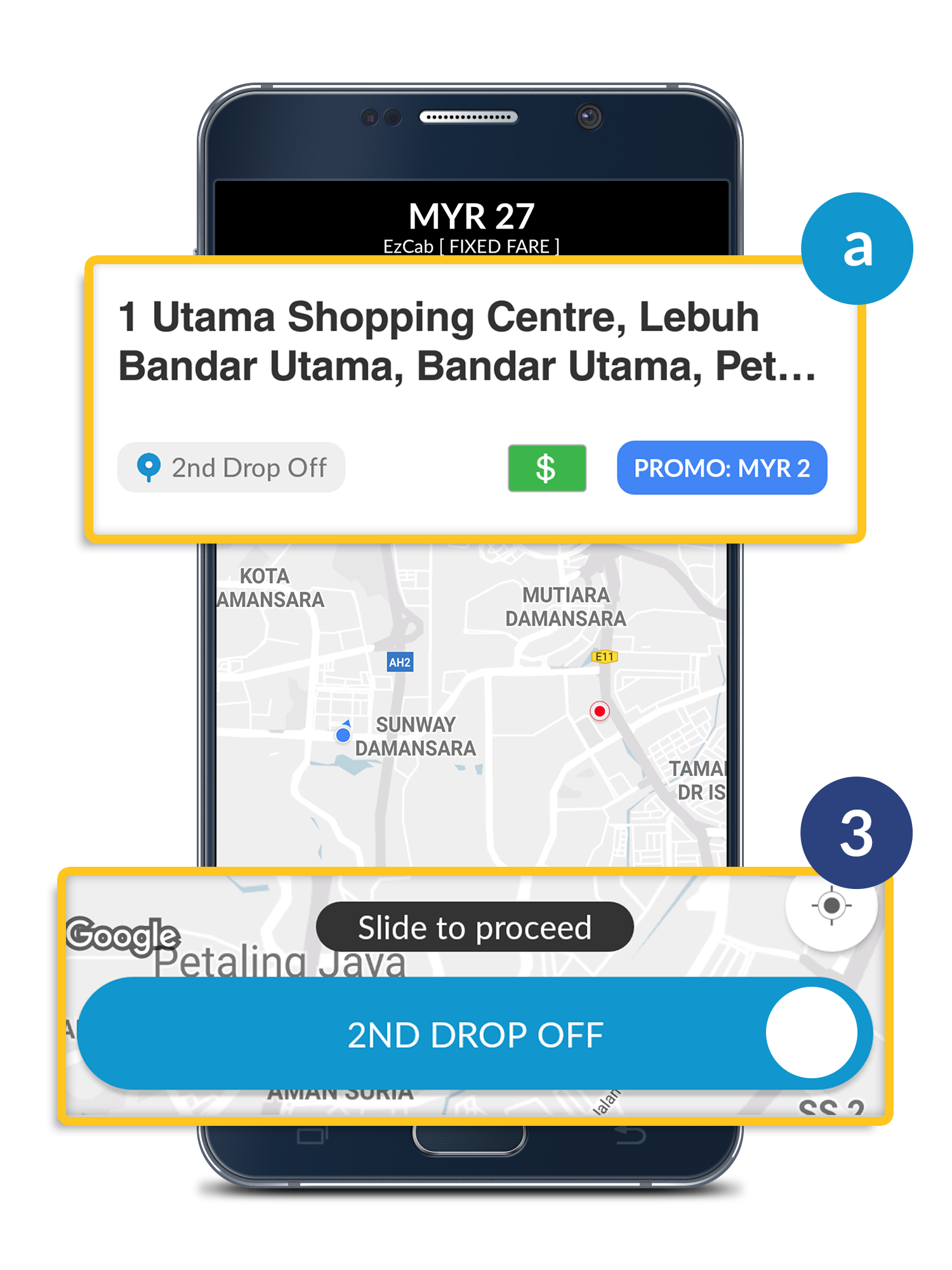
Step 3

Slide  DROP OFF’ once dropped off passenger on 2nd stop.

a. Passenger 2nd drop off location.
* Collect remaining 50% fare amount from passenger.

Cashless Payment from Street Hailing Passenger

Wednesday, 19 Sep 2018

Cashless Payment from Street Hailing Passenger

Good News! Now you can accept cashless payment method from passenger hailing on the street.

*NOTE: Available cashless payment method such as Alipay, Touch N' Go eWallet & etc.

Step 1

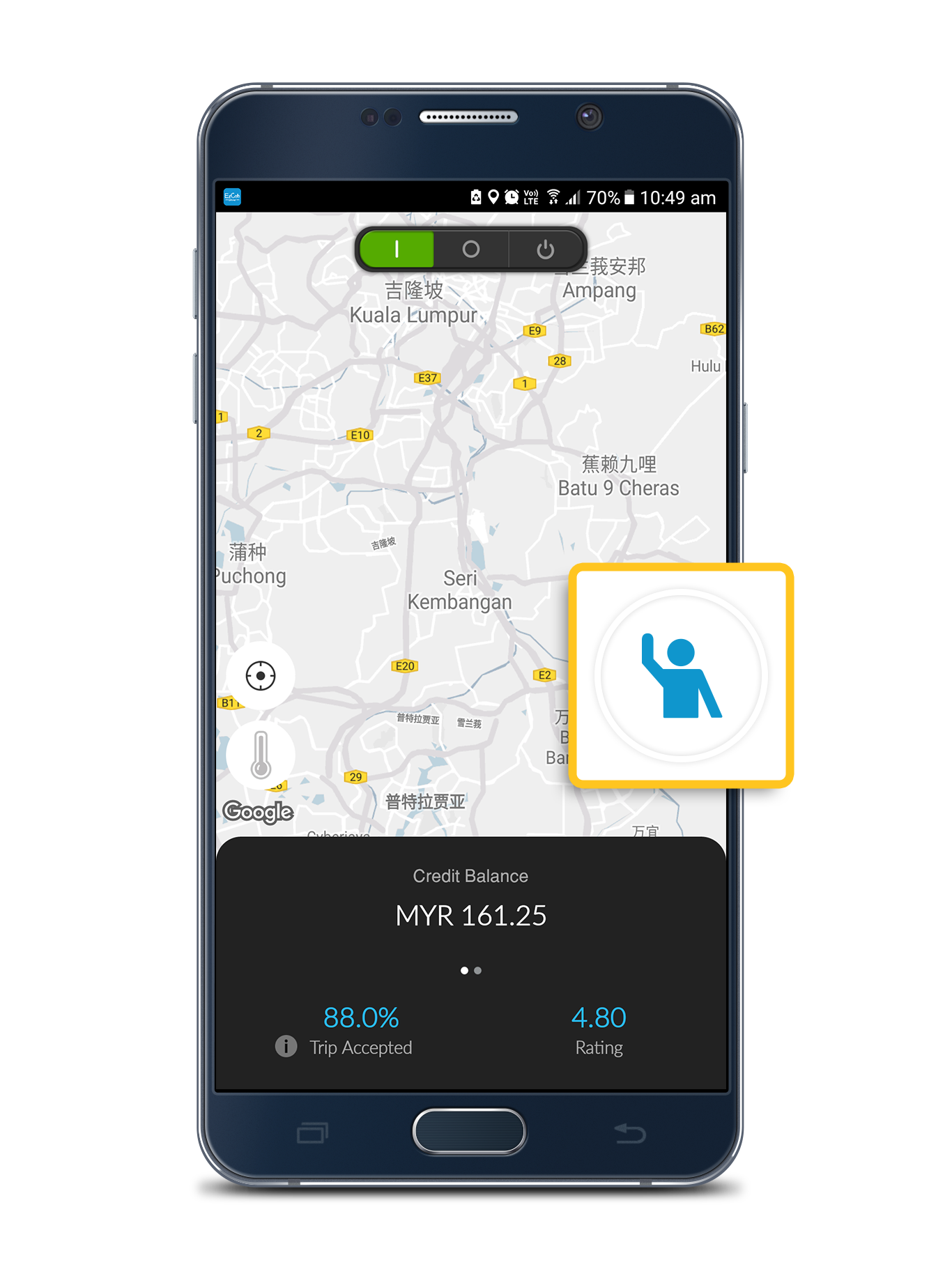
Just before you drop-off your passenger, tap on the Street Hailing icon in your EzDriver app.
Step 2

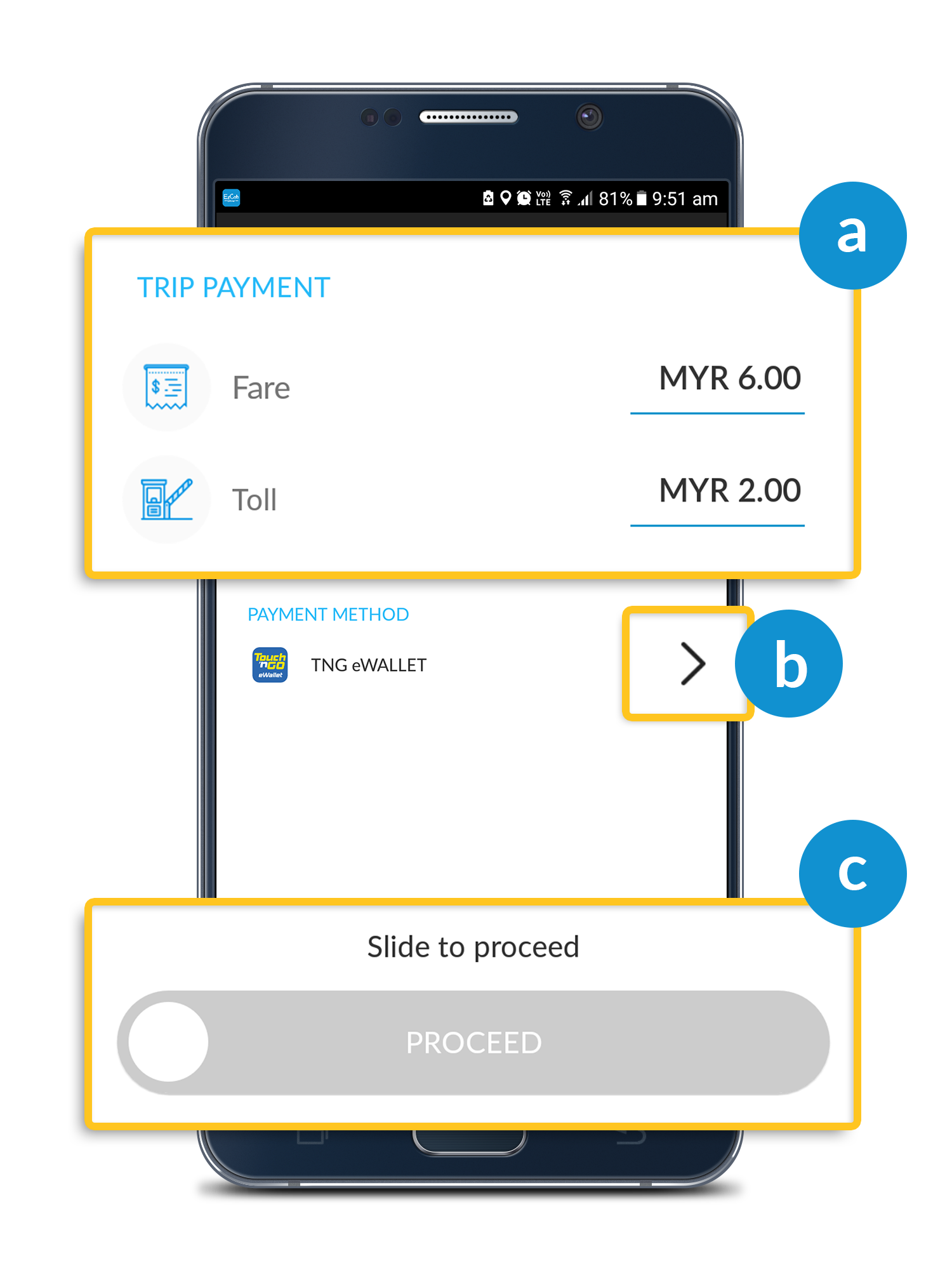
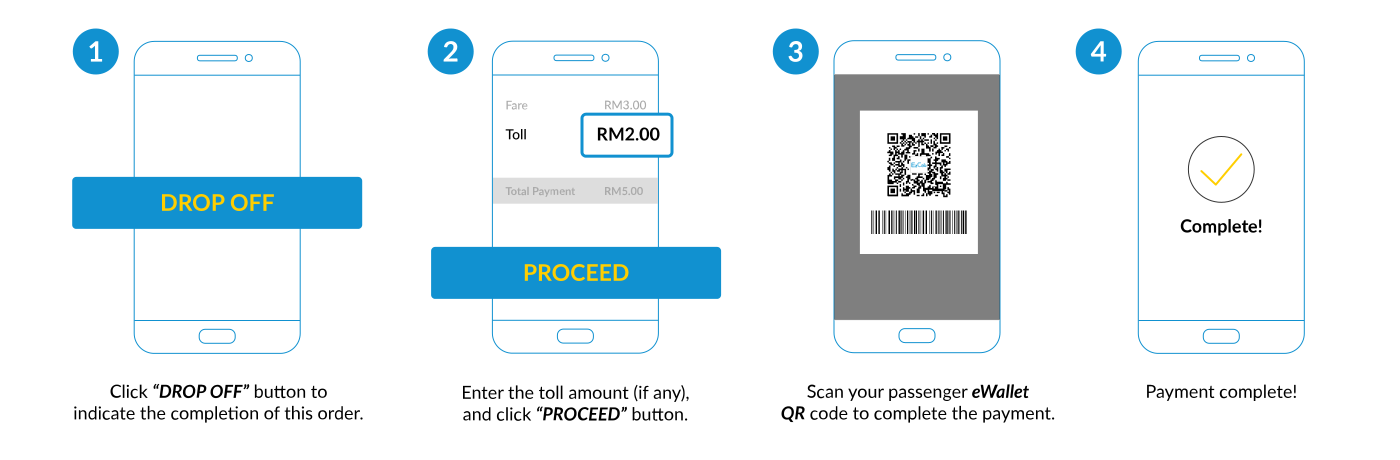
a) Enter the Fare and Toll amount (if any)
b) Change Payment Method (if need)
c) Confirm the Total Fare payable with your passenger and click “PROCEED”.

Step 3

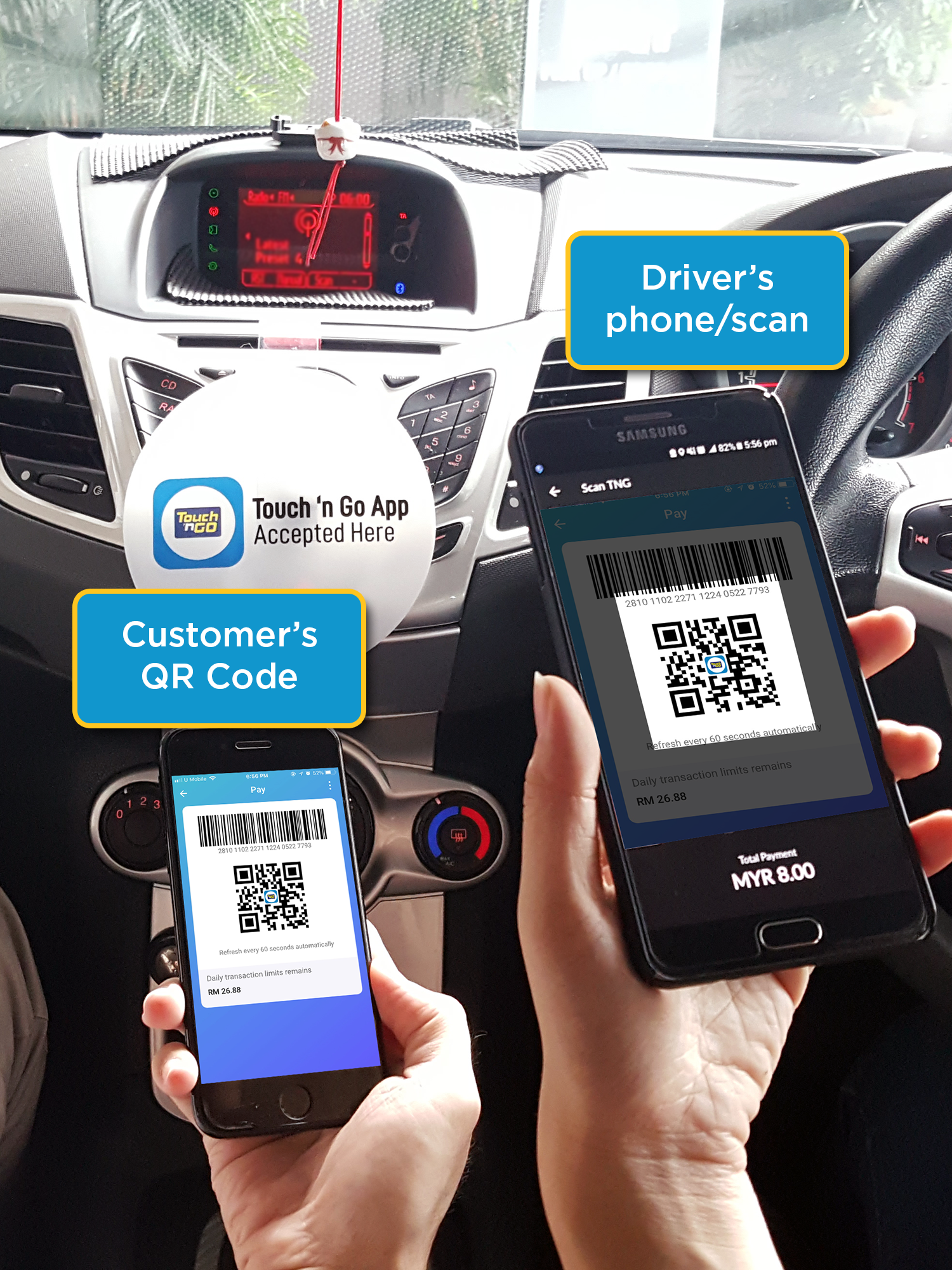
Request from passenger their eWallet QR Code and scan with your phone app (Driver scan Passenger's QR). Payment will be added into the EzWallet for Top-up or Cash Out.

 
See also:


Driver’s EzWallet

Tuesday, 12 September 2017

Driver’s EzWallet User Guide

Learn how to top up and cash out your credit by using Driver’s EzWallet

Please select the topic below

Driver’s EzWallet User Guide

Overview

Main Page

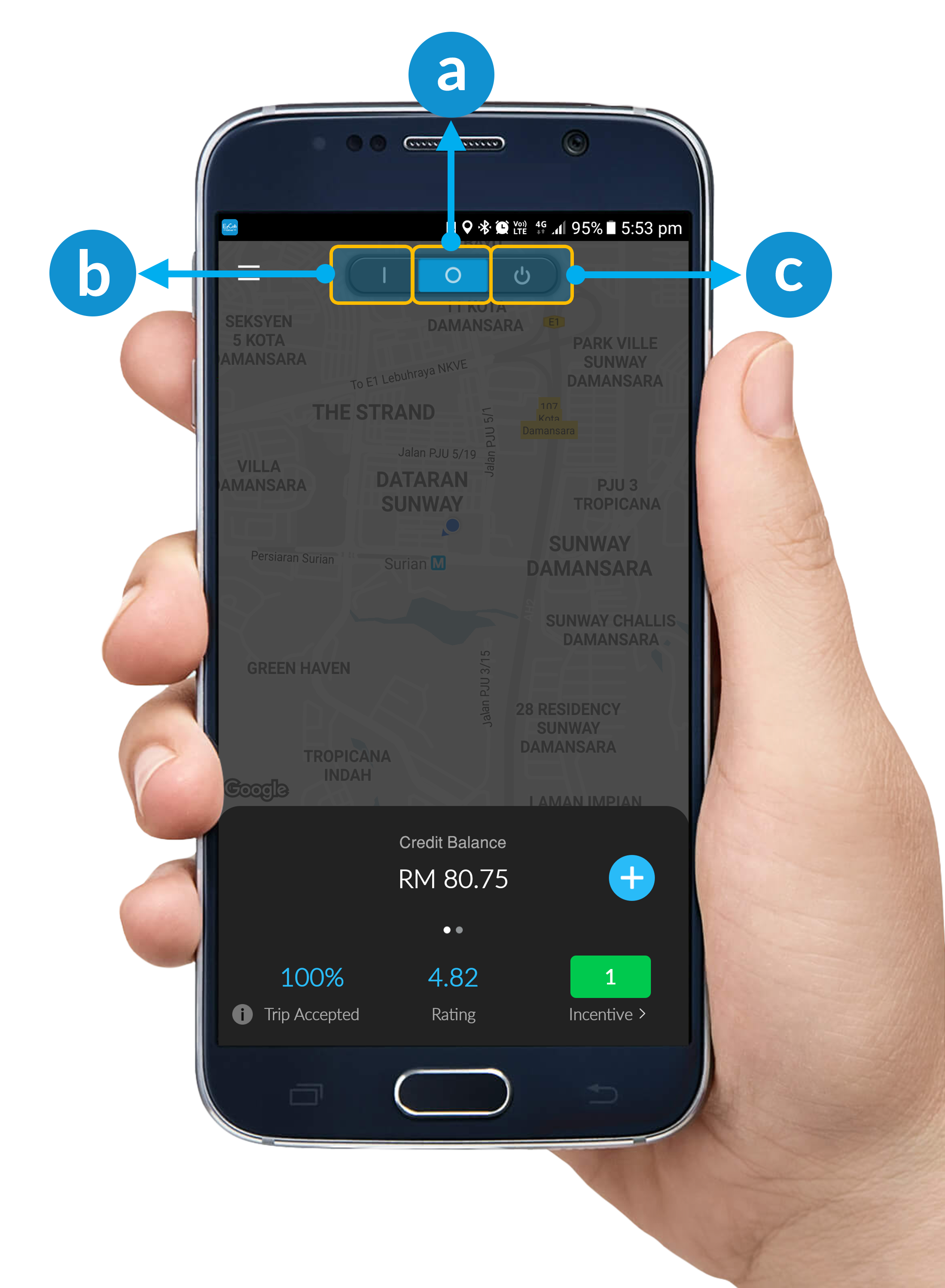
a. From your Driver App, Slide left or right to view your Credit Balance and EzWallet Balance.

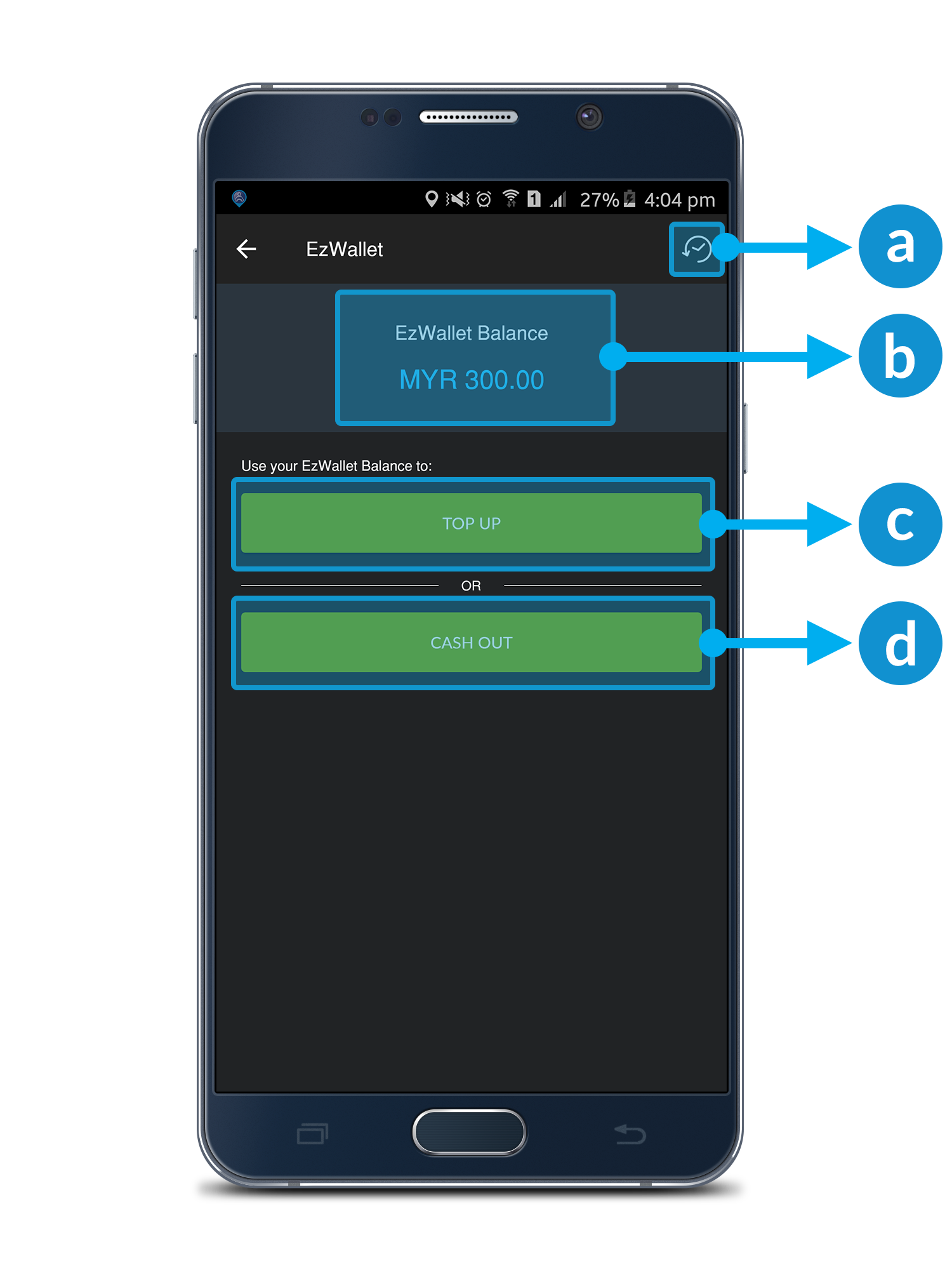
EzWallet Top Up or Cash Out Page

a. History Button: To view all your previous transaction.
b. EzWallet Balance: The balance of your EzWallet.
c. Top Up Button: Top up your credit balance using EzWallet.
d. Cash Out Button: Cash out your EzWallet to your bank account. (Kindly update your latest bank account number to our support.)

Note: * Minimum RM20 balance for Cash Out & Minimum RM5 for Top Up from EzWallet Balance to Credit Balance.

How To Top Up Your Credit Balance Using EzWallet?

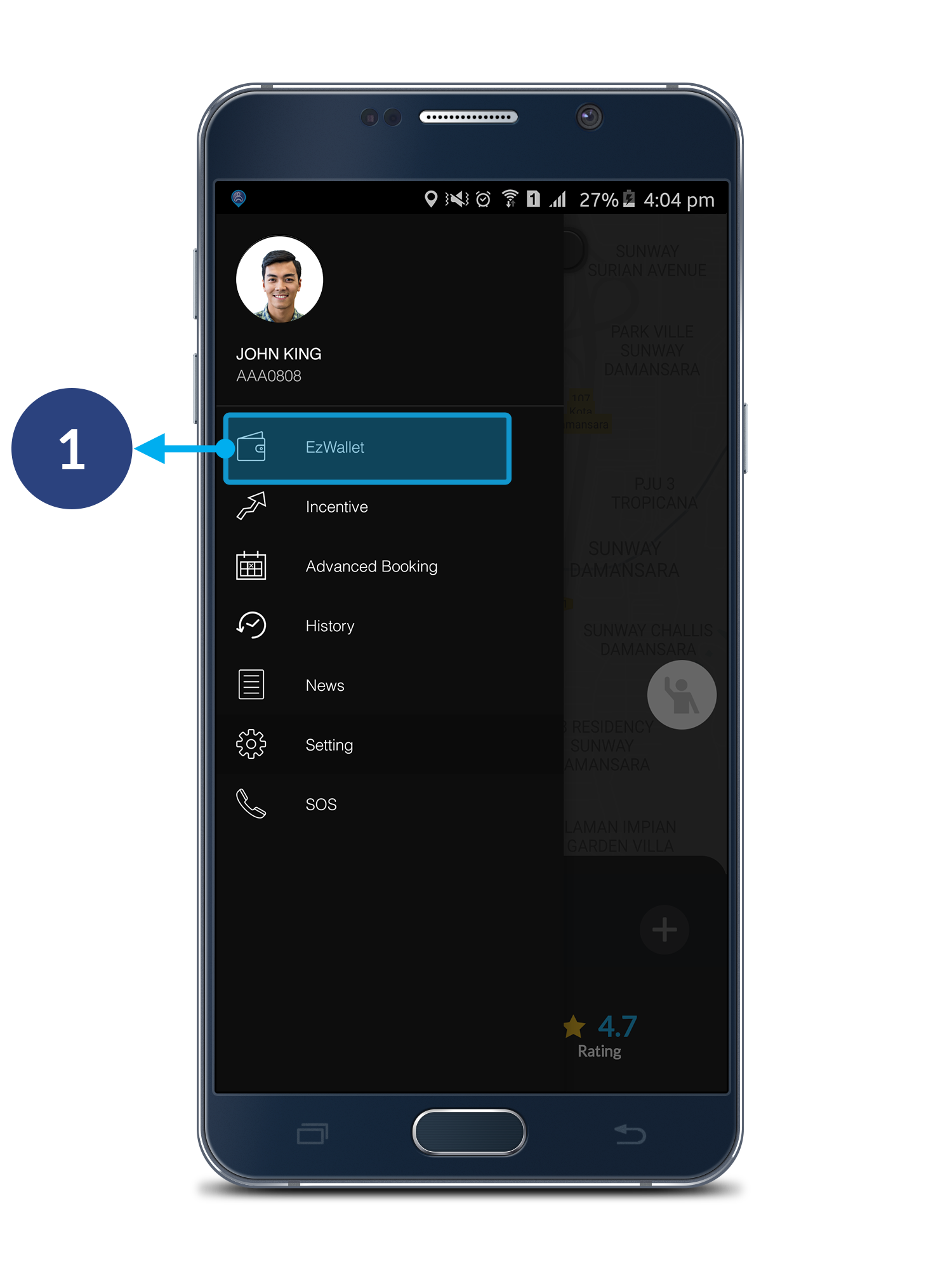
Step 1

Open driver's menu bar, click EzWallet.
*Please make sure that you're on Standby Mode.

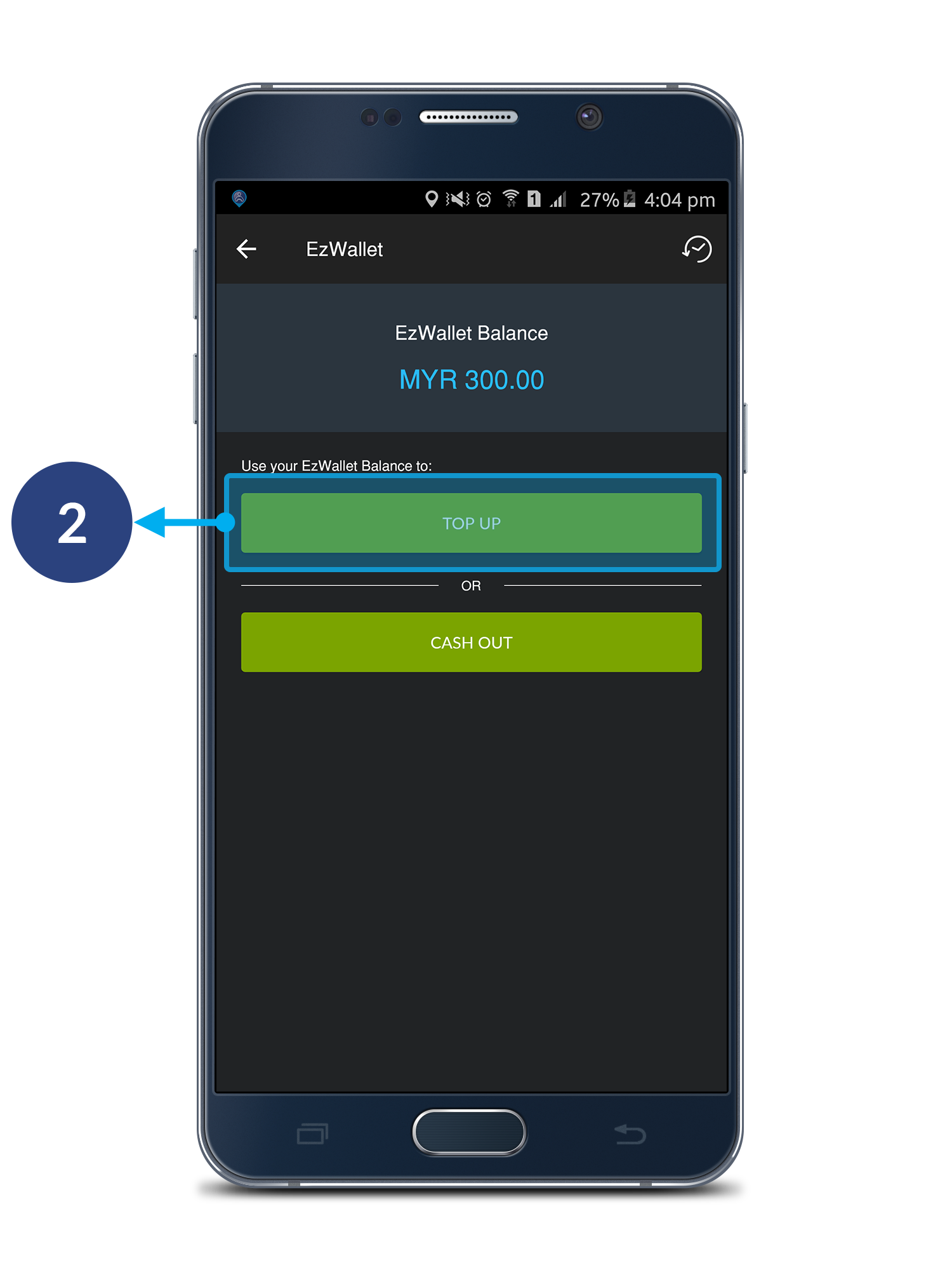
Step 2

Click Top Up.

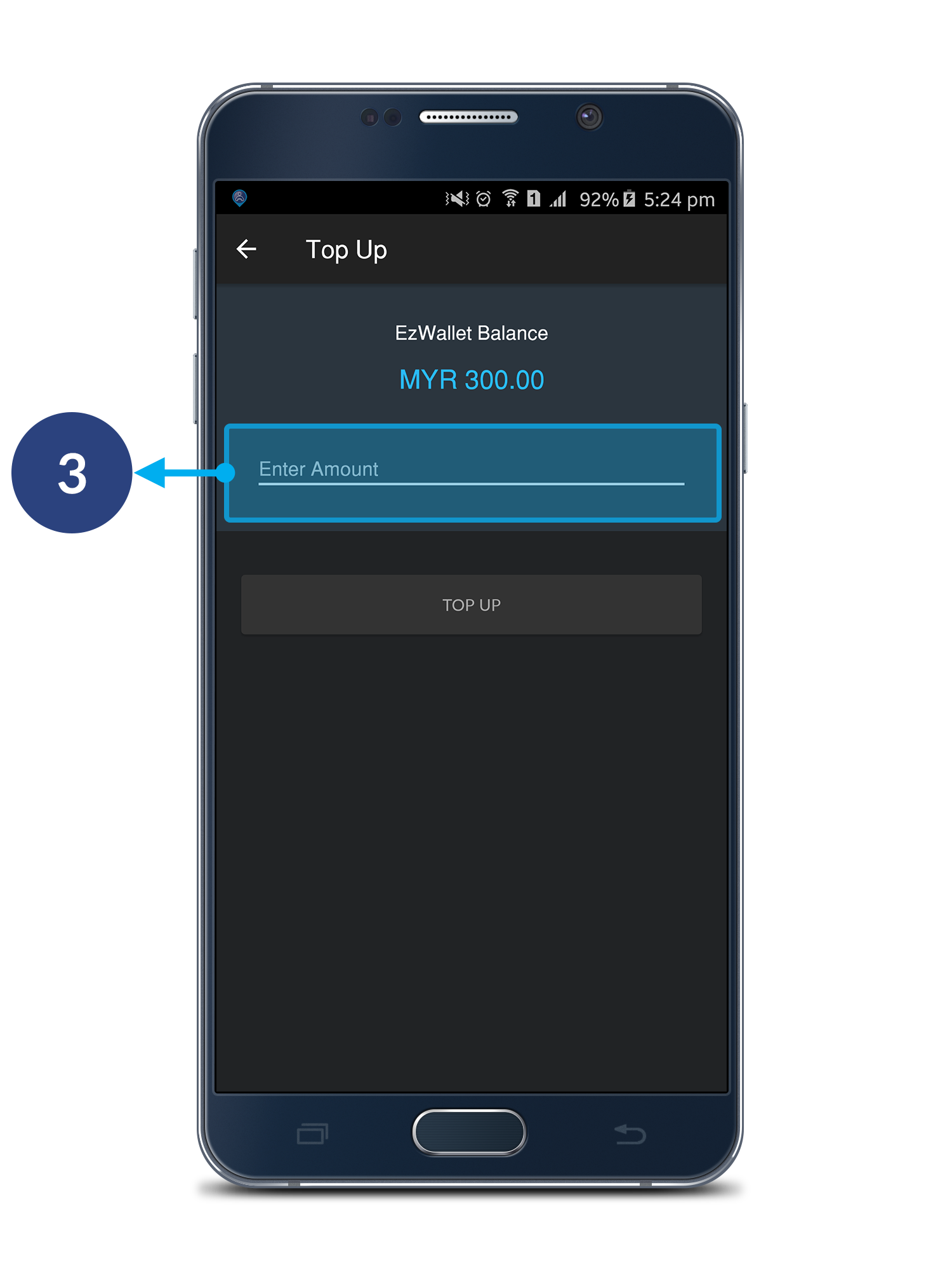
Step 3

Enter the amount you wish to top up.

Note : *RM5 for Top Up from EzWallet Balance to Credit Balance.

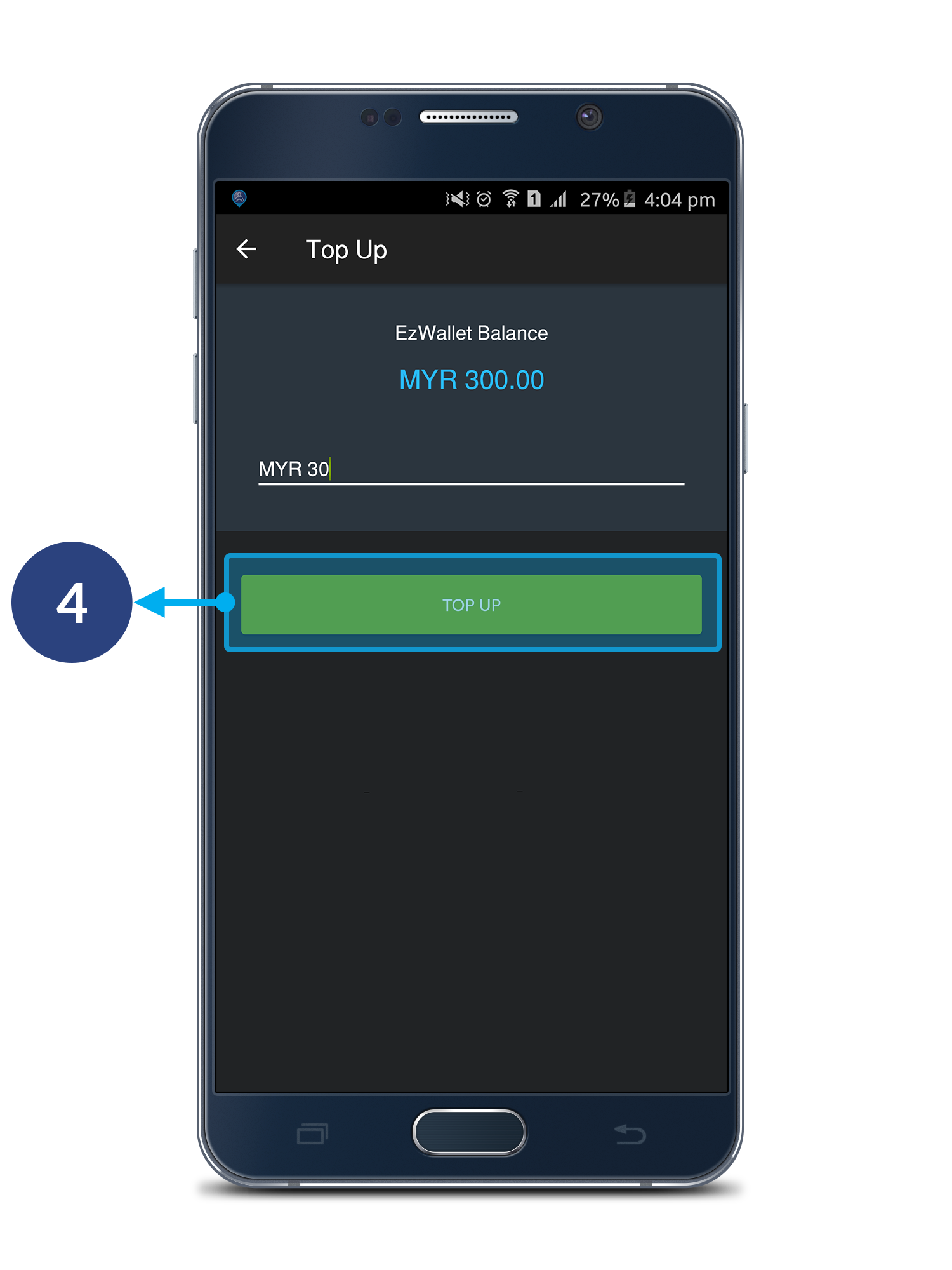
Step 4

Click Top Up.

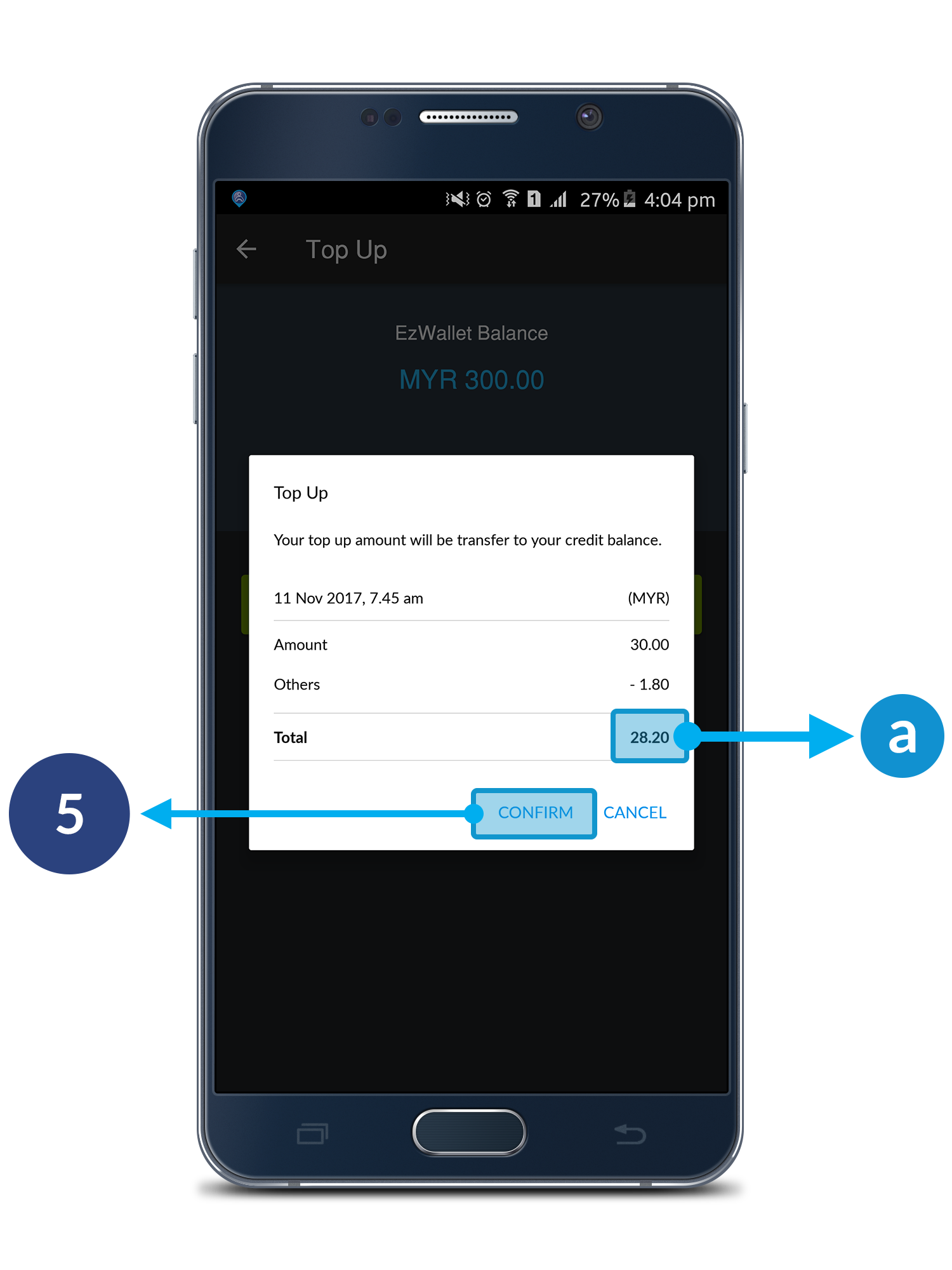
Step 5

Click Confirm to proceed. Click Cancel to cancel your top up.

a. Total amount that will transfer to your credit balance.

How To Cash Out Your EzWallet Balance?

Step 1

Open driver's menu bar, click EzWallet.
*Please make sure that you're on Standby Mode.

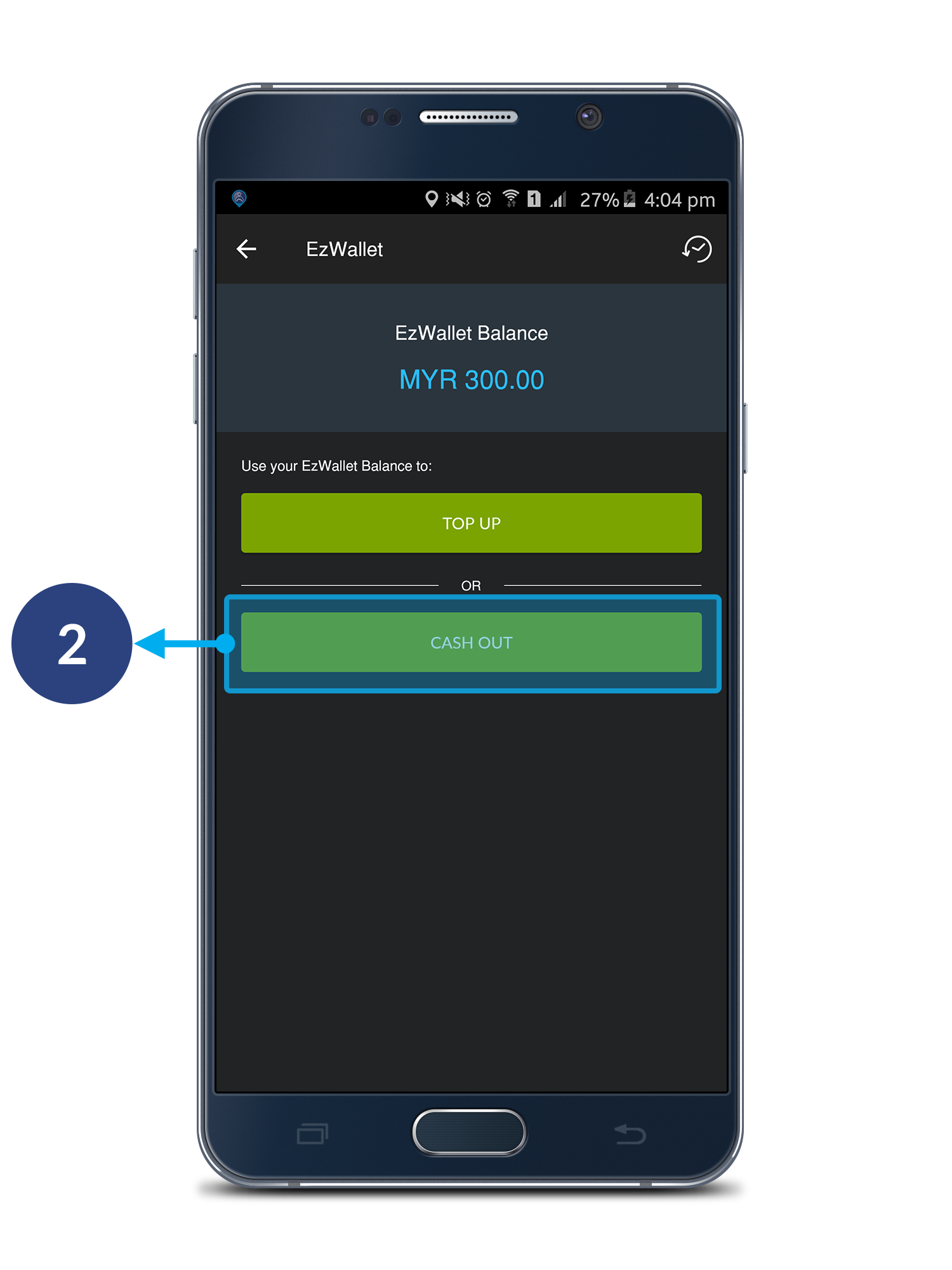
Step 2

Click Cash Out.

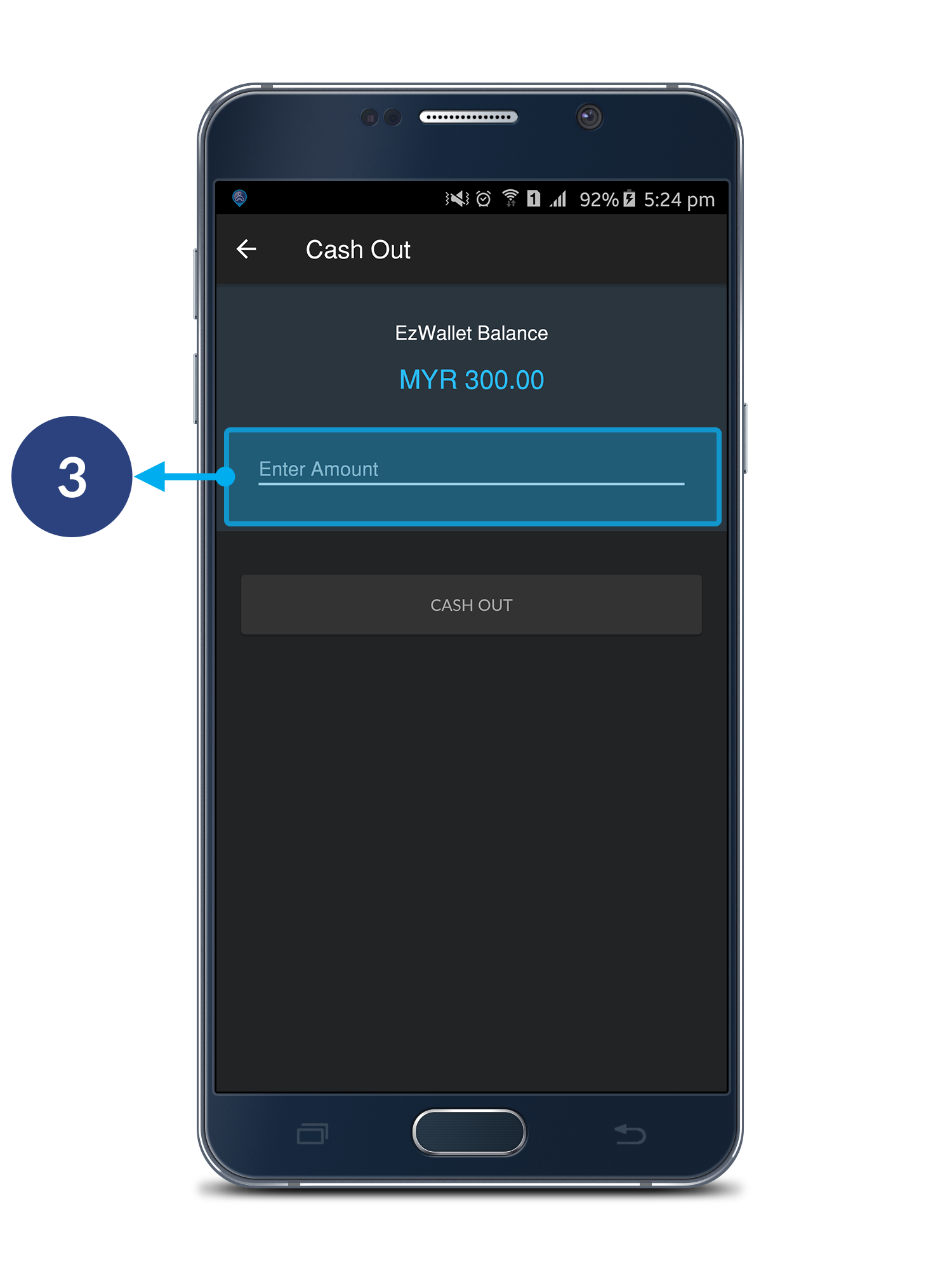
Step 3

Enter the amount you wish to cash out.

Note: * Minimum RM20 balance for Cash Out.

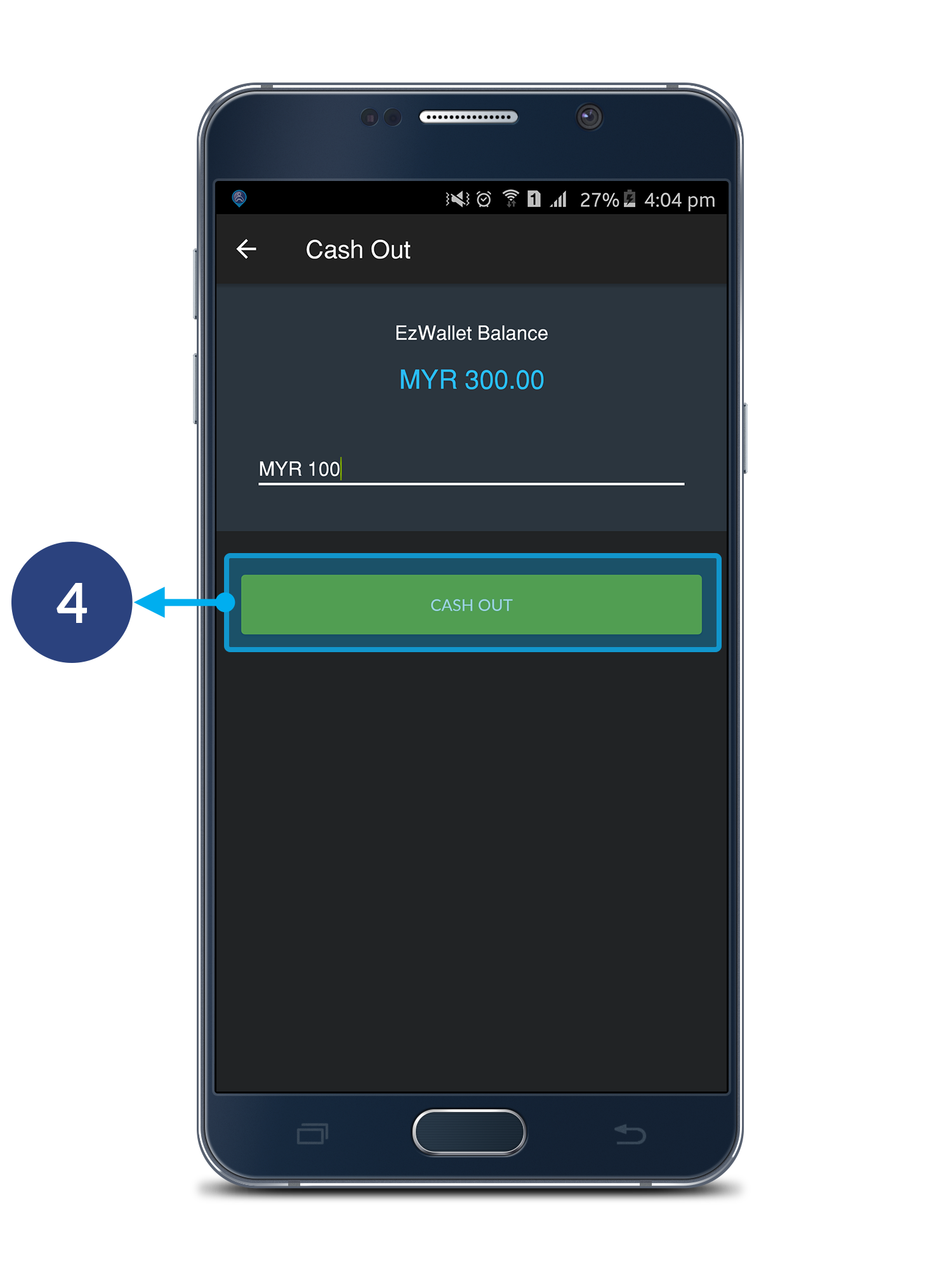
Step 4

Click Cash Out.

Step 5

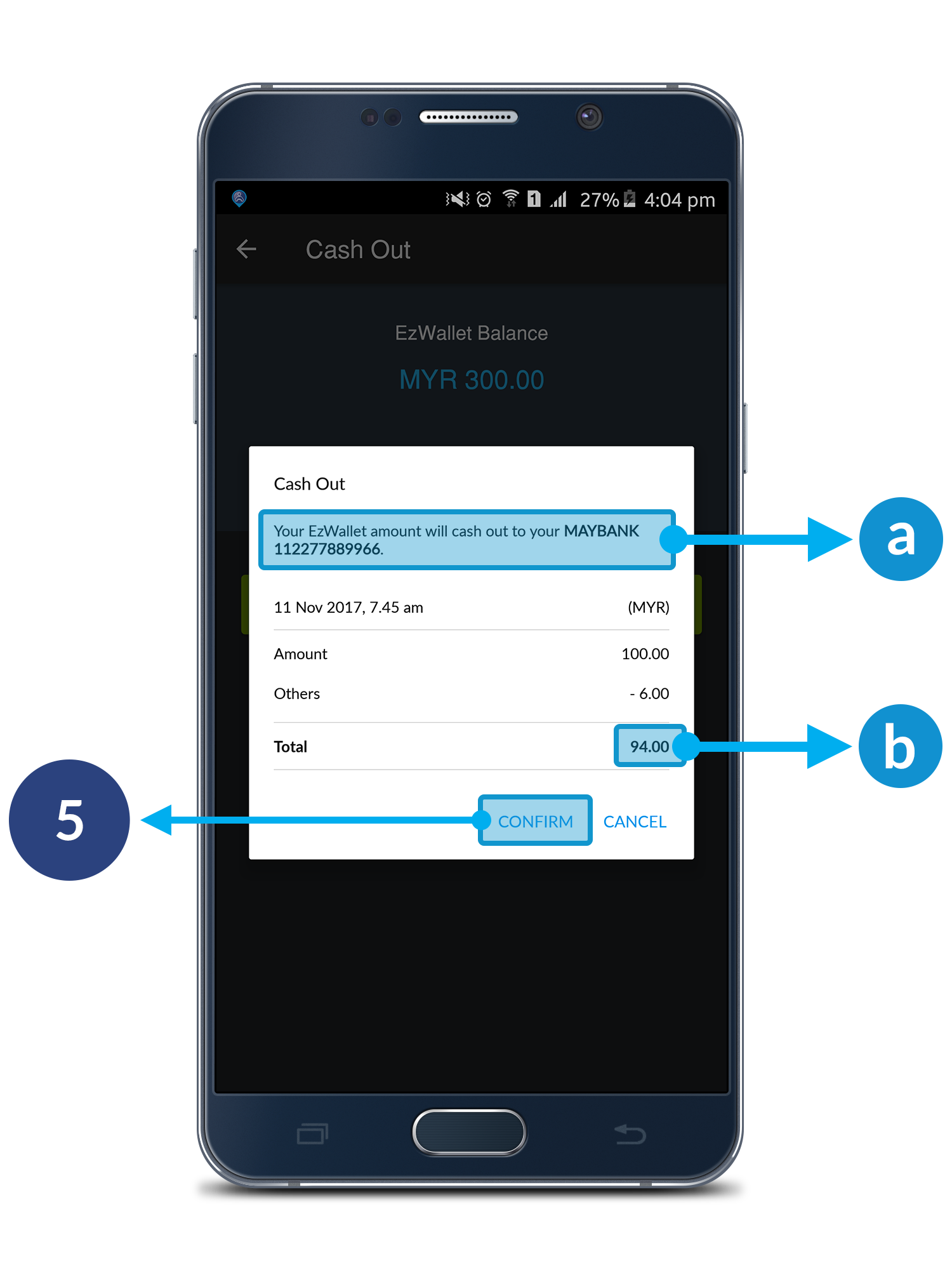
Click Confirm to proceed. Click Cancel to cancel your cash out.

a. Bank Account that will received the cash out money.
b. Total amount that will transfer to your bank account.

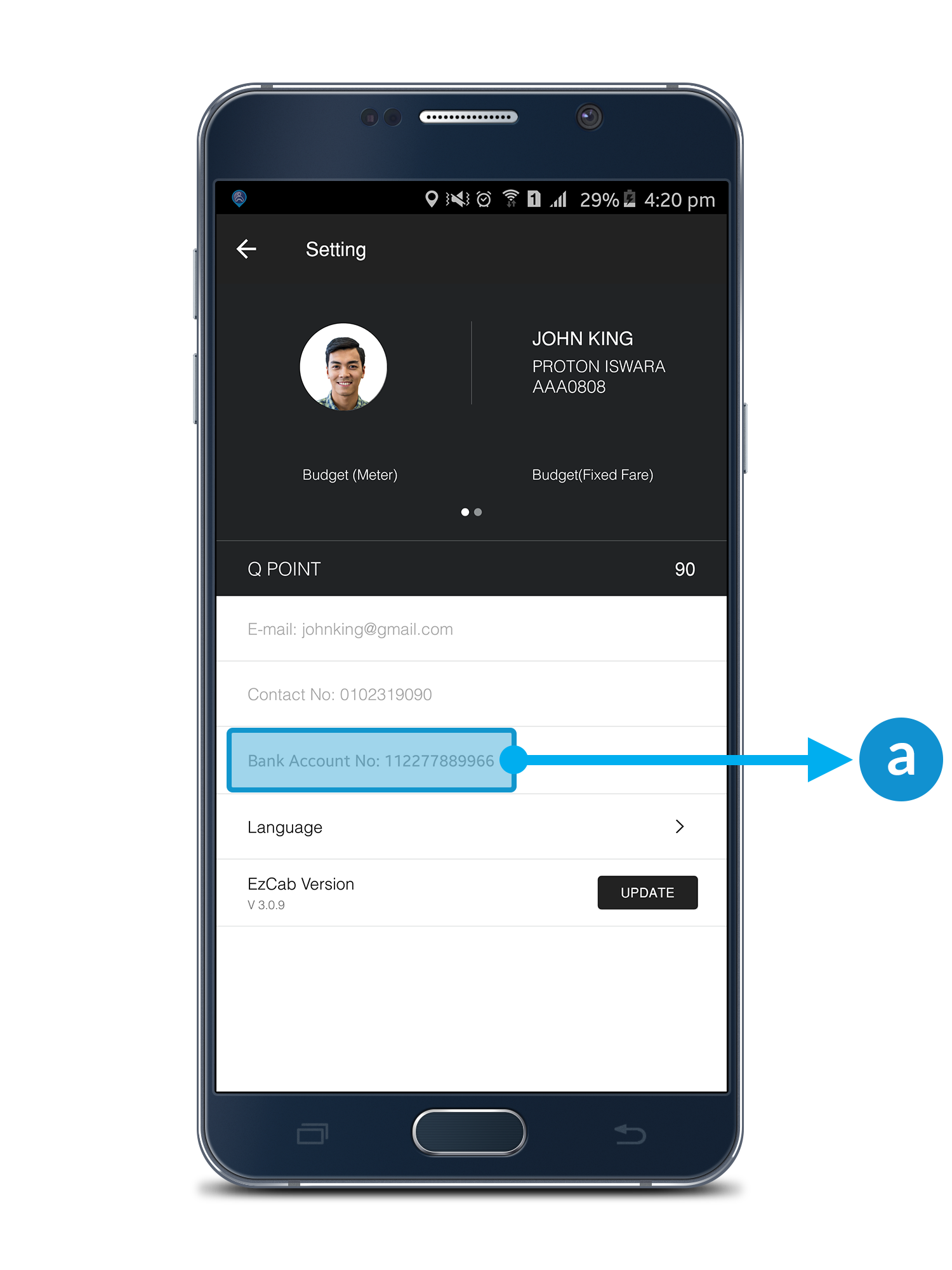
Important

Please ensure your EzDriver account is registered with bank account number. If not, kindly provide your bank account number to our support team at driversupport@ezcab.com.my.

a. Your registered bank account.

How To View Your EzWallet History?

Step 1

Open driver's menu bar, click EzWallet.
*Please make sure that you're on Standby Mode.

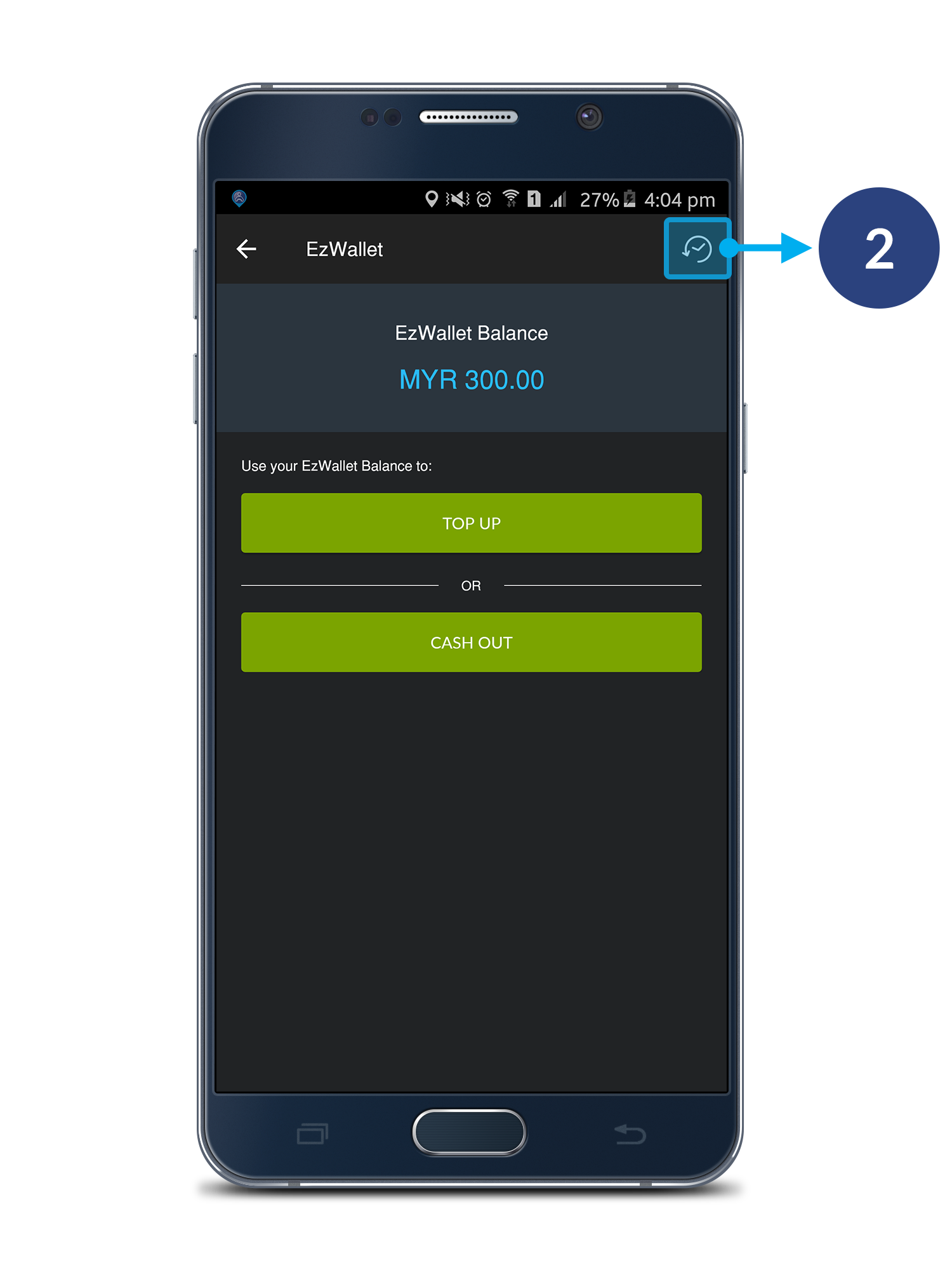
Step 2

To view EzWallet history, click the button on your upper-right corner.

Step 3

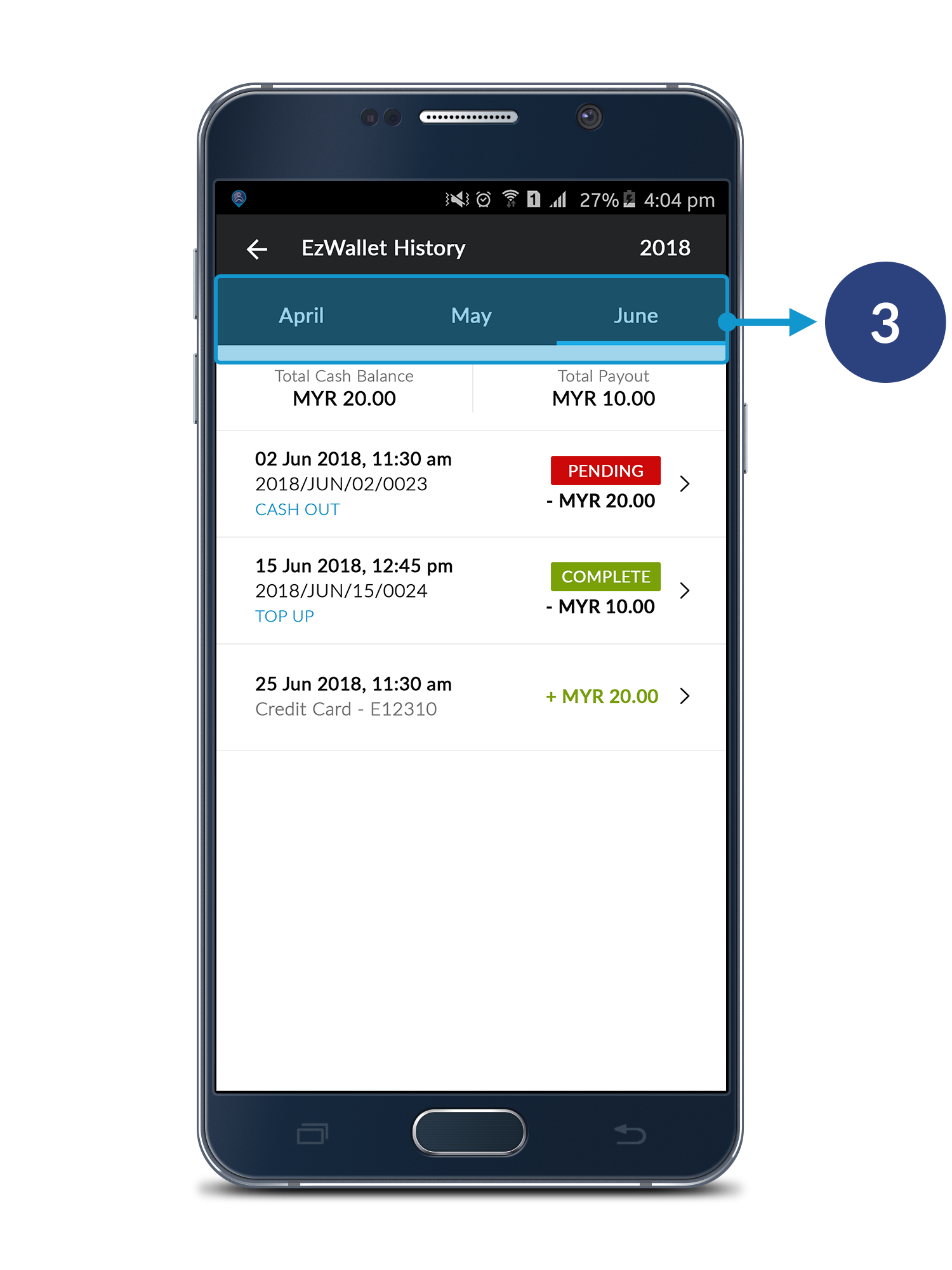
Swipe left or right to view the month you wish to check. 

Step 4

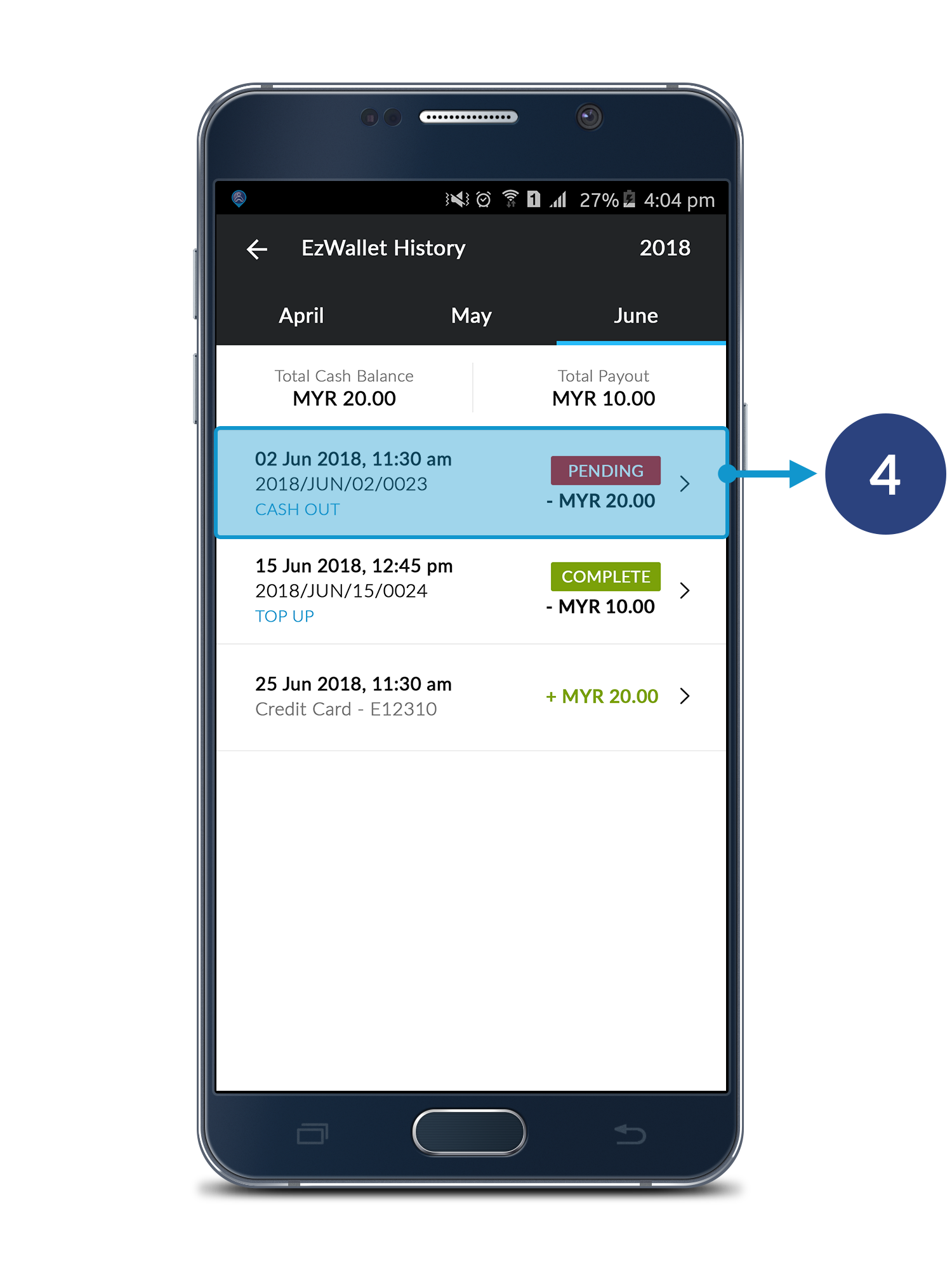
All of your history will be shown on this page. Click to check each history.

Detail Page

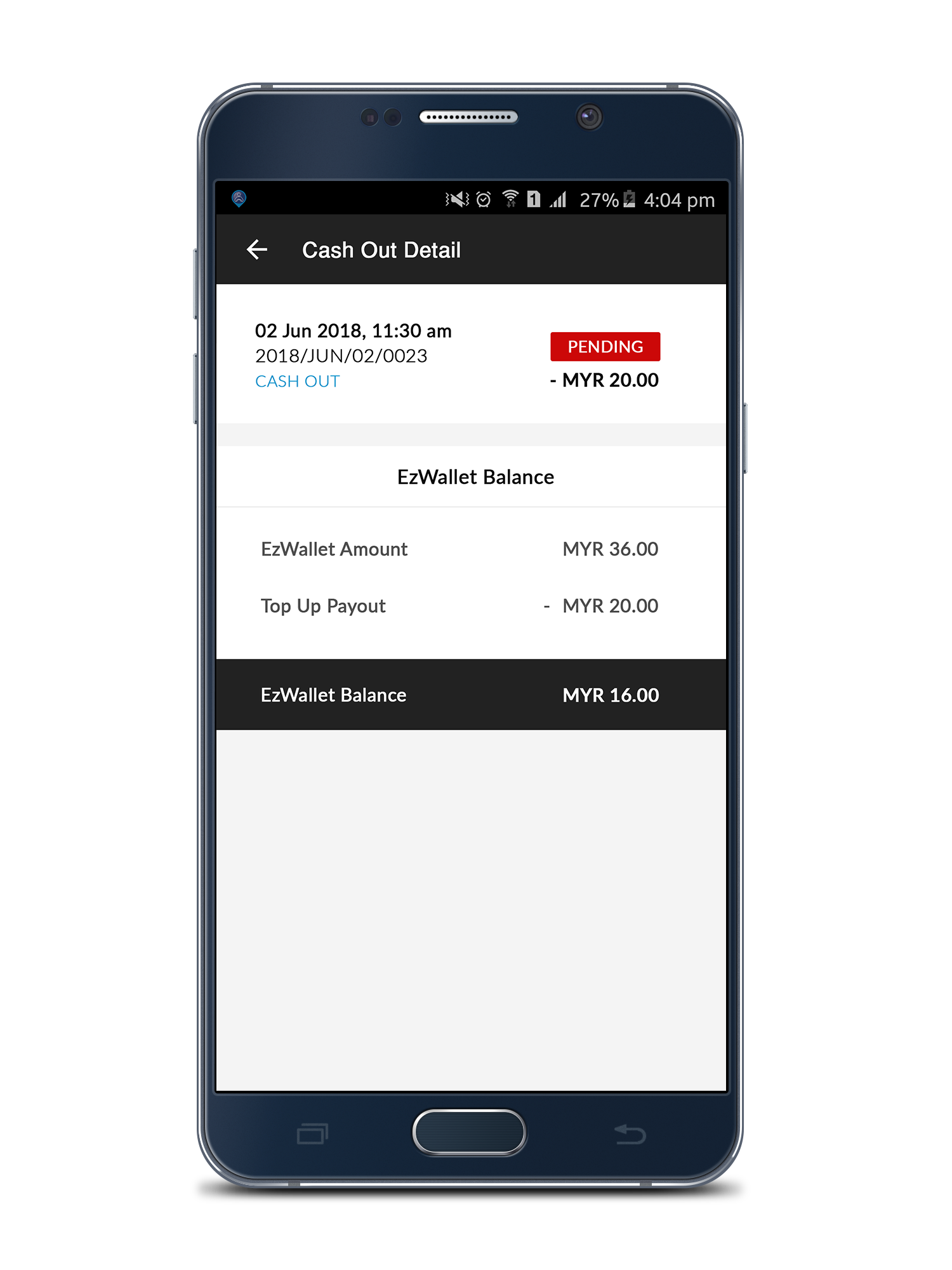
Each detail page will show different information.

Getting Started

Thursday, 18 May 2017

Getting Started

Everything you need to know about the app

Please select the topic below


1. Overview

1.1 Driver's Mode

There are three types of Mode available. Click to switch to your choice of mode as below:

a. STANDBY mode — the default mode when you first start your Driver App. When in this mode, you will not be able to view any incoming order but can still check your account’s detail.

b. ONLINE mode — activate to start receiving orders & to bid on incoming orders. Make sure that your GPS and network connection is active.

c. OFFLINE mode — to disable & to close app

1.2 Exploring the App

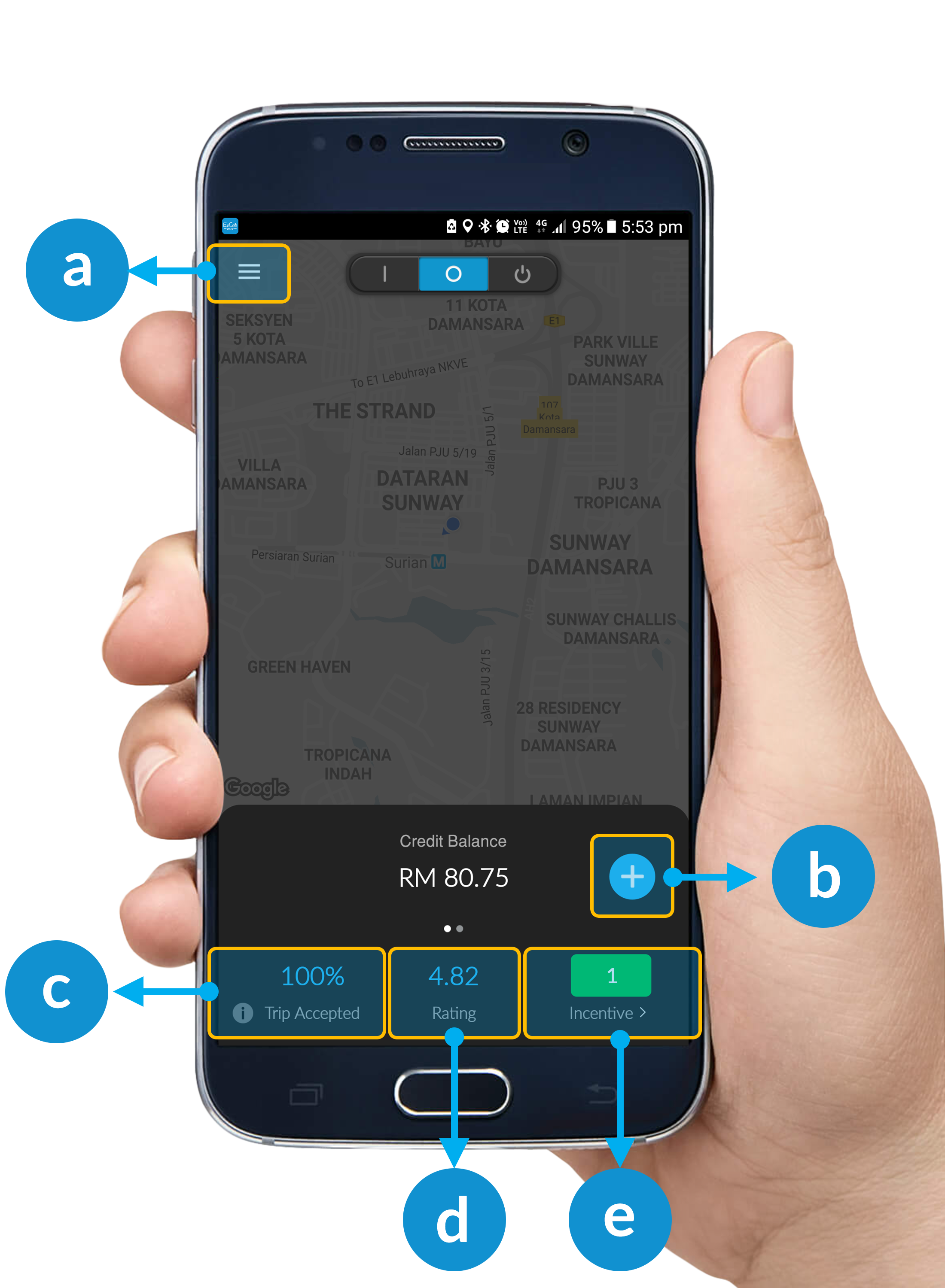
a. Driver’s Menu — click to expand the menu options to explore. For details of each options, please see here.

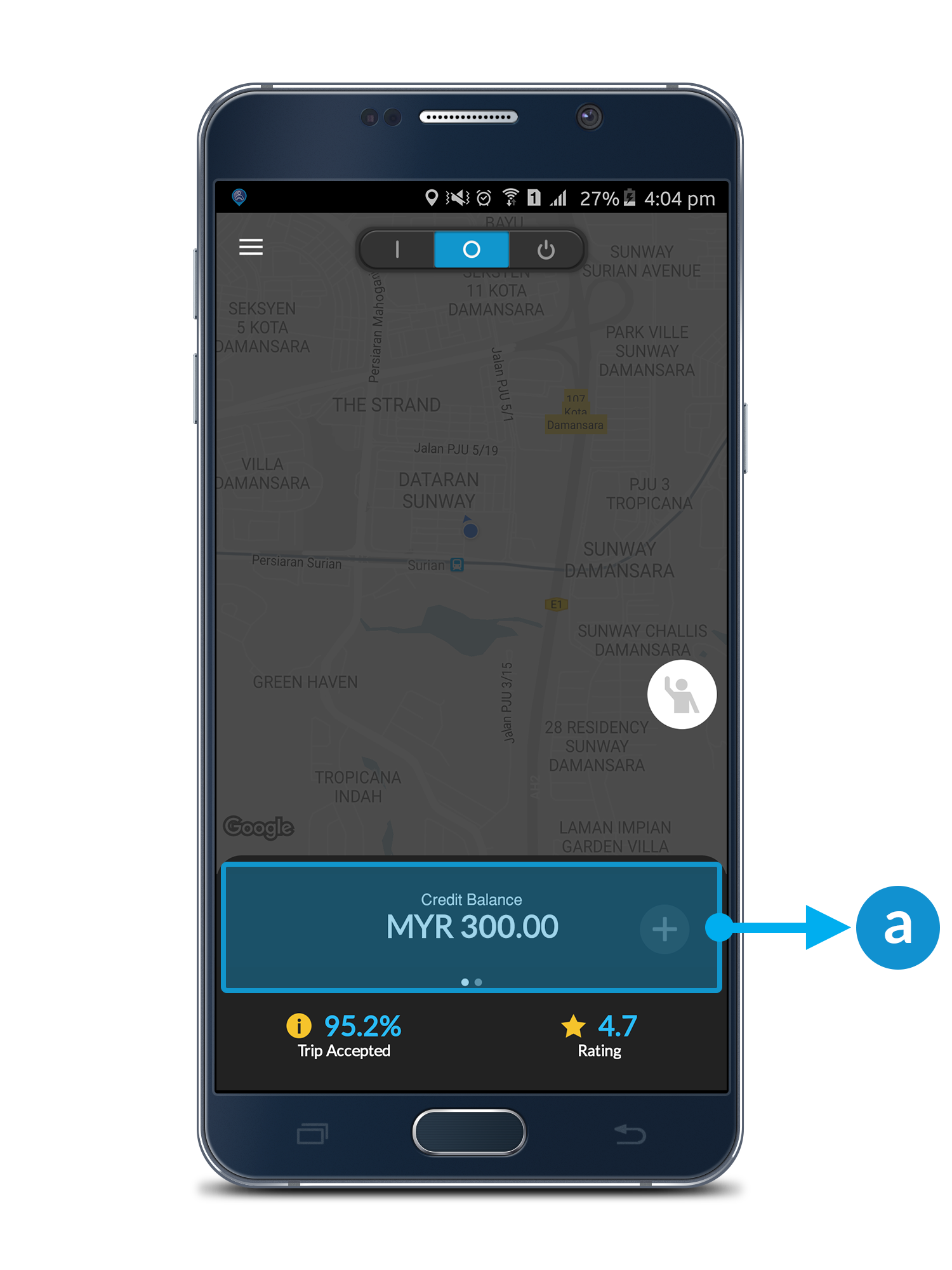
b. Top-up Credit Online — click to top up your account credit. To learn more on how to top up your account, please see here.

c. Total Trip Accepted (%) — The total trip that the driver accept.

d. Rating — Average customers rating of your service.

e. SummaryTotal Weekly Trips accumulated. Click in to view incentive scheme details. (if any)

1.3 Unregistered Account

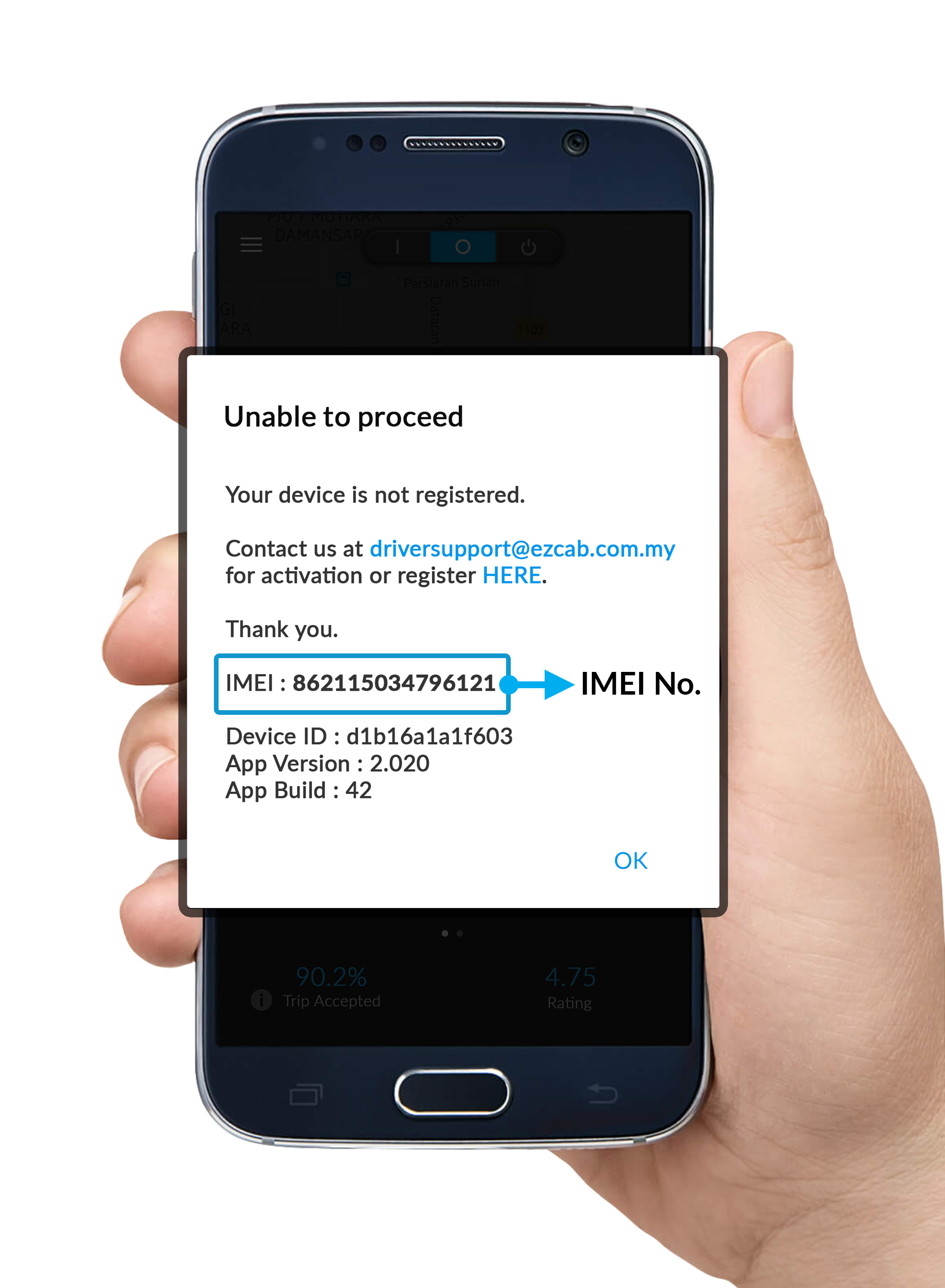
If you receive a pop up message saying, “Unable to proceed”, it means that you haven't register your phone number at EzDriver App.

You may drop us an email (driversupport@ezcab.com.my ) or call us on +603 6259 2929 to activate your account.

Kindly provide your phone IMEI number for the Driver Account activation.


2. Get Order

2.1 Order Type

You may see mainly the following types of incoming Order

NOW

When there’s a new incoming Order, you will see similar screen with the following info:

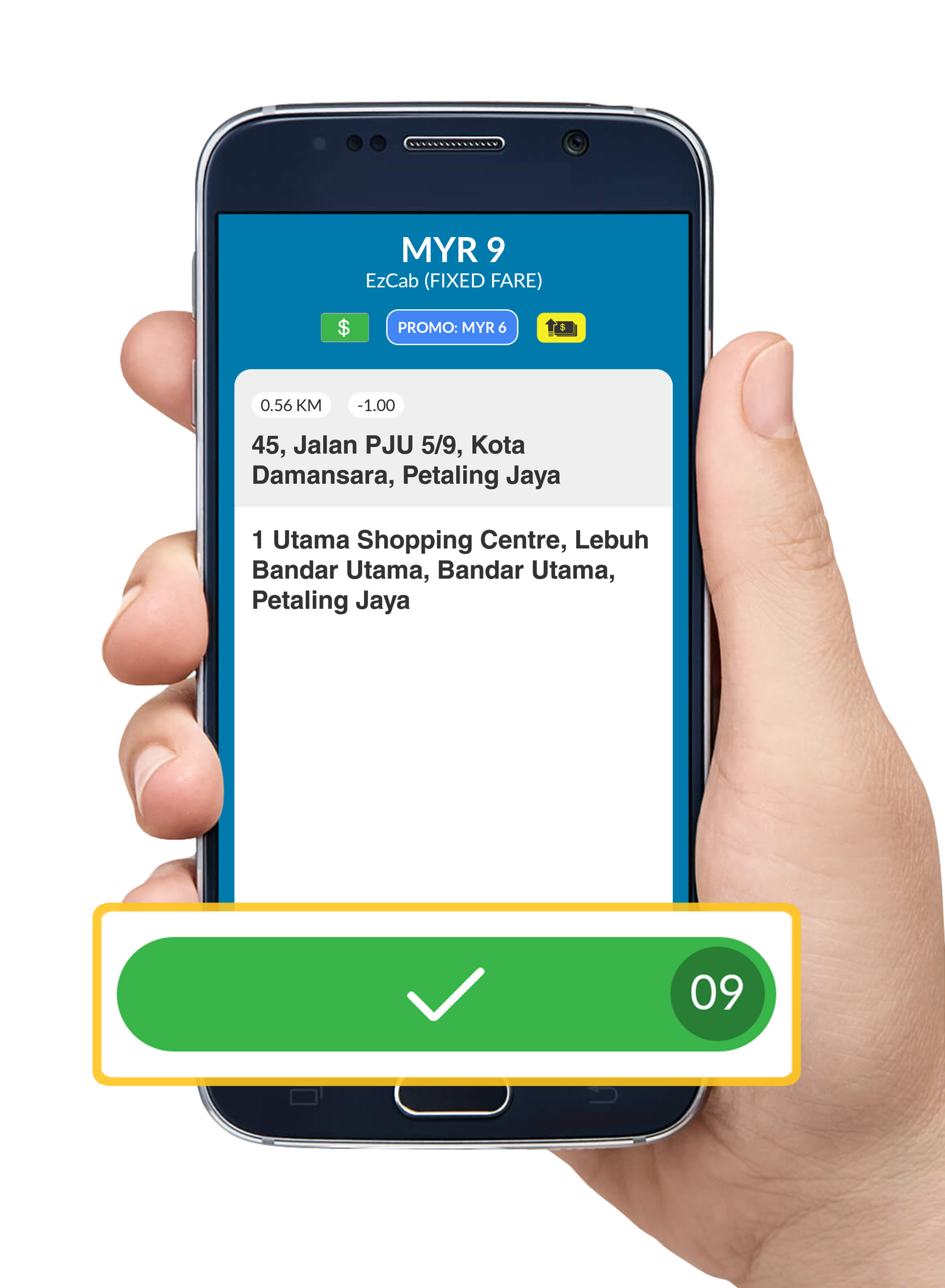
a. Pick Up Location — this shows the address of pick up point

b. Credit Value — this shows the trip distance & credit value for this order (to be deducted from your credit if bid is successful)

c. Promo Value — this will appear if passenger is using a valid discount promo code for this order.

d. Payment Option — shows the passenger’s preferred payment method

e. Drop-Off Location — this shows the destination address

f. Reject Button — click the “” button to reject this order

g. Next Button — if there are more than 1 incoming order, click the “” to see the next order. You may bid for 1 order only at a time.

h. Bid Button — Click the “” button to bid for this order. Make sure you contact the passenger and reach the pick up point within the requested time.

i. High Fare — This shows the fare is higher than normal hours.

Note:
If you notice the incoming order comes with the BLUE background as shown in example screen below, this means, you are one of the nearest driver from the requested pick up location.

You MUST bid the order within 15 seconds.
If you DO NOT bid for this type of order, there will be a deduction on your trip acceptance rate. This means, your chances to win in your next order bid will be reduced.

ADVANCE

a. Yellow Bar — shows the Advanced booking pick up time requested

b. Payment Option — shows the passenger’s preferred payment method

c. Reject Button — click the “” button to reject this order.

d. Bid Button — Double-click the “” button to bid for this order.

Make sure you contact the passenger and reach the pick up point within the requested time.

2.2 Cancelled Order

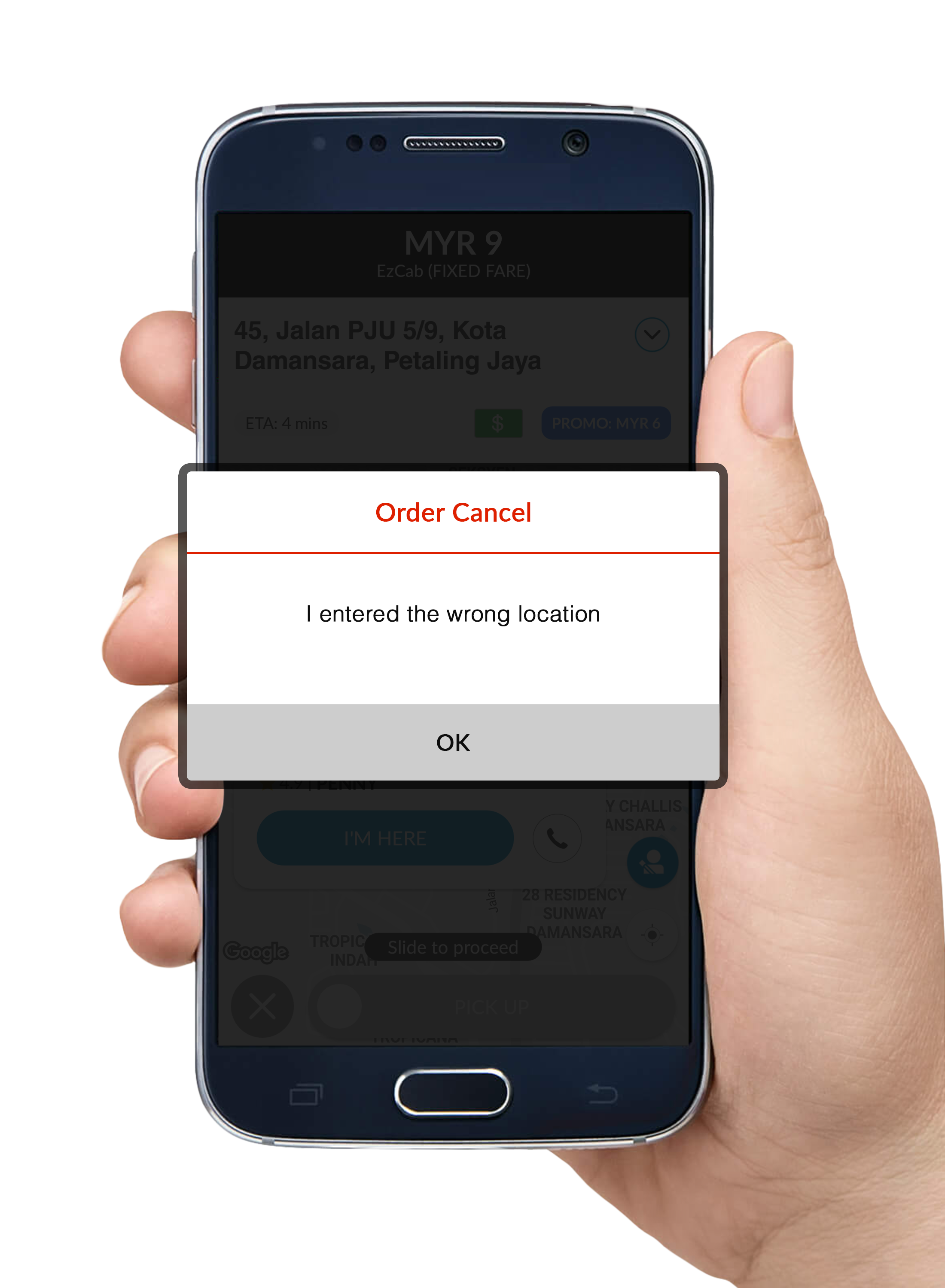
If the passenger cancelled the order after you have successfully bid the job, you will receive a pop-up message informing you of the order cancellation with reason stated.

Note:
No credit will be deducted for the cancelled order.

2.3 Bid for Order

Step 1: Click the Bid button () to bid for the order.

A loading page will appear. Please wait for the bidding result.

  • If your bidding is not successful, you will be automatically diverted back to the main page.
  • If your bidding is successful, proceed to Step 2.

Step 2: If you successfully got the order, click on the address to bring up a GPS enabled map app such as Waze or Google Maps for direction.

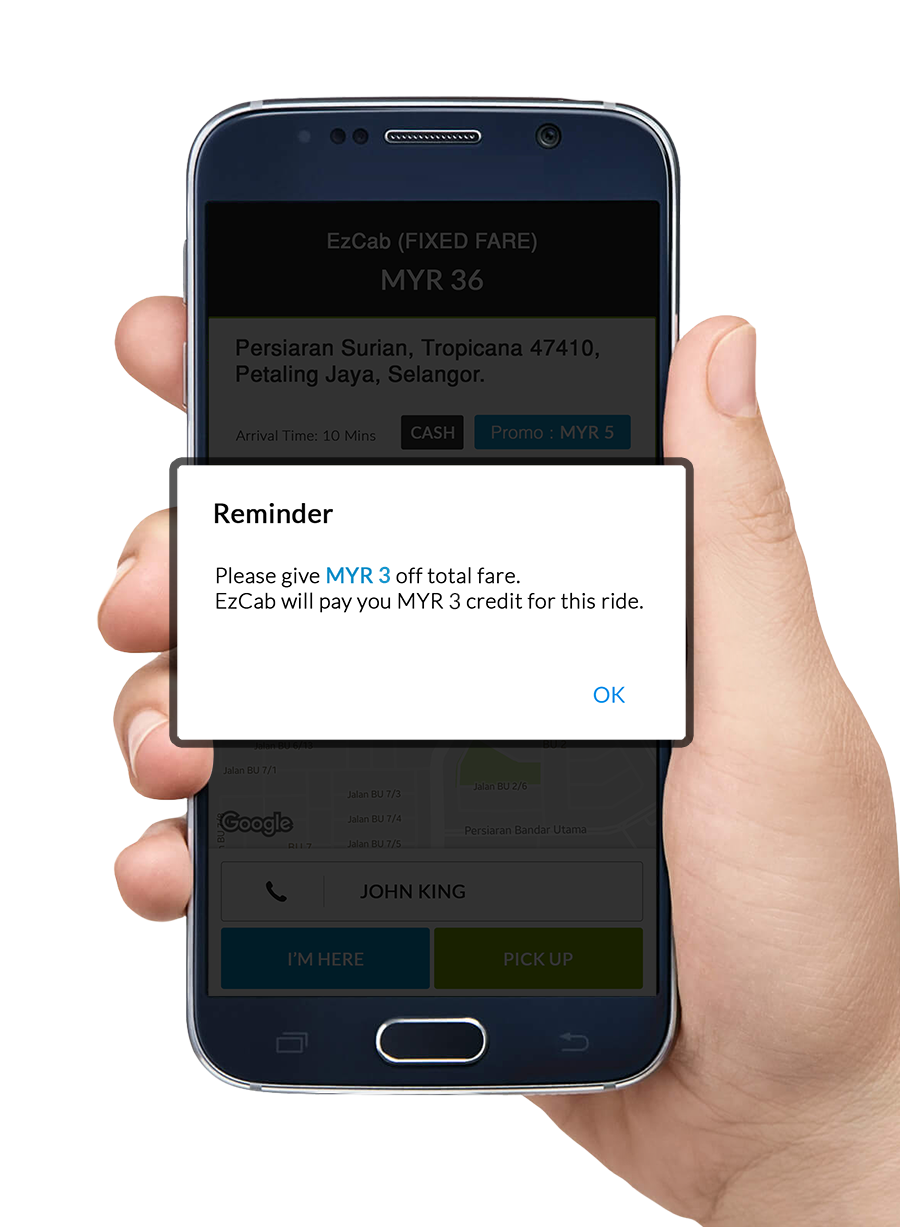
Note: If you see a “Reminder” pop up message, this means you have successfully bid an order with a Promo Code discount. Click OK to close the reminder.

Remember to deduct the discount amount from the fare at the end of the trip for your passenger.

2.4 Completing an Order

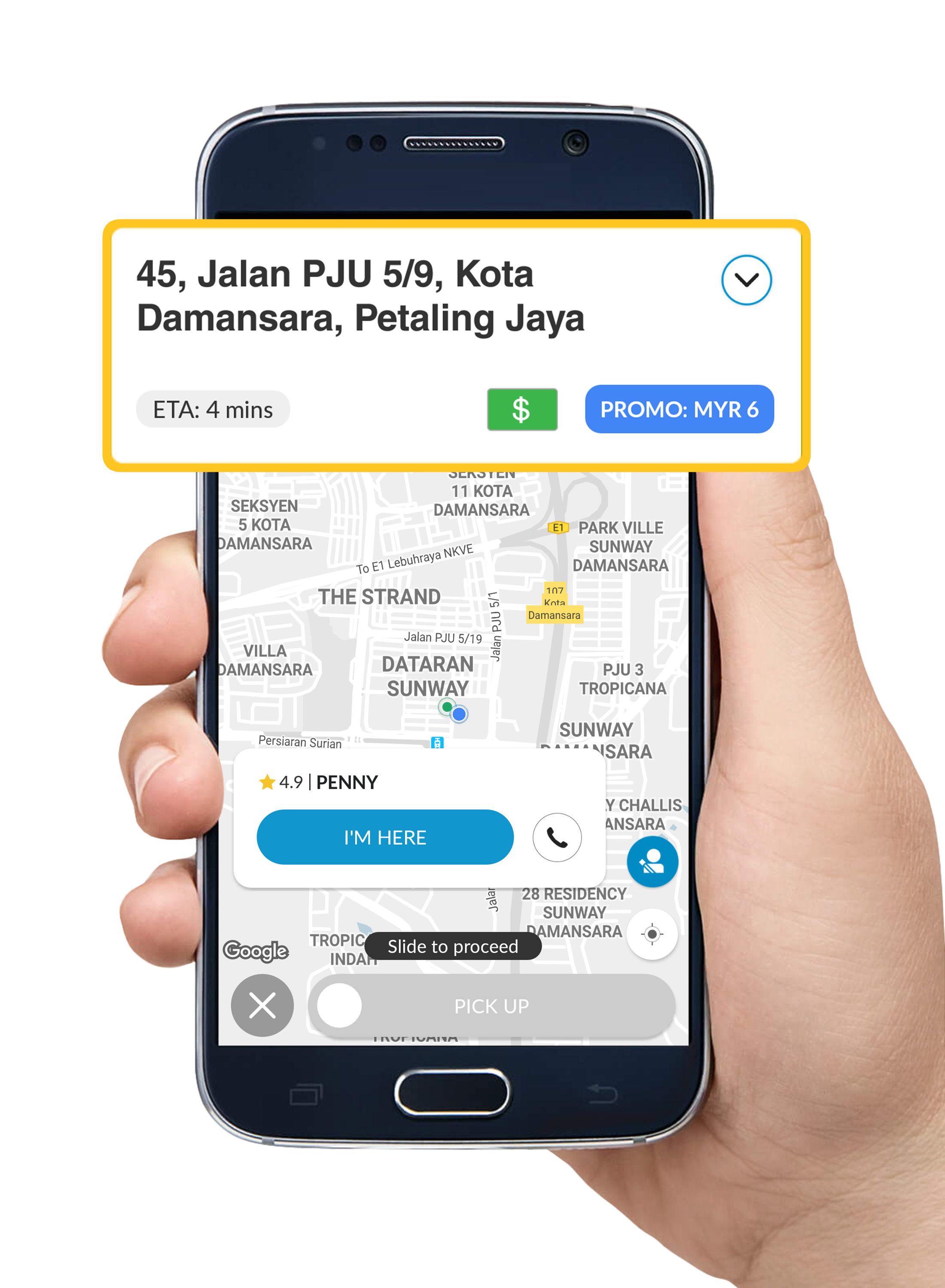
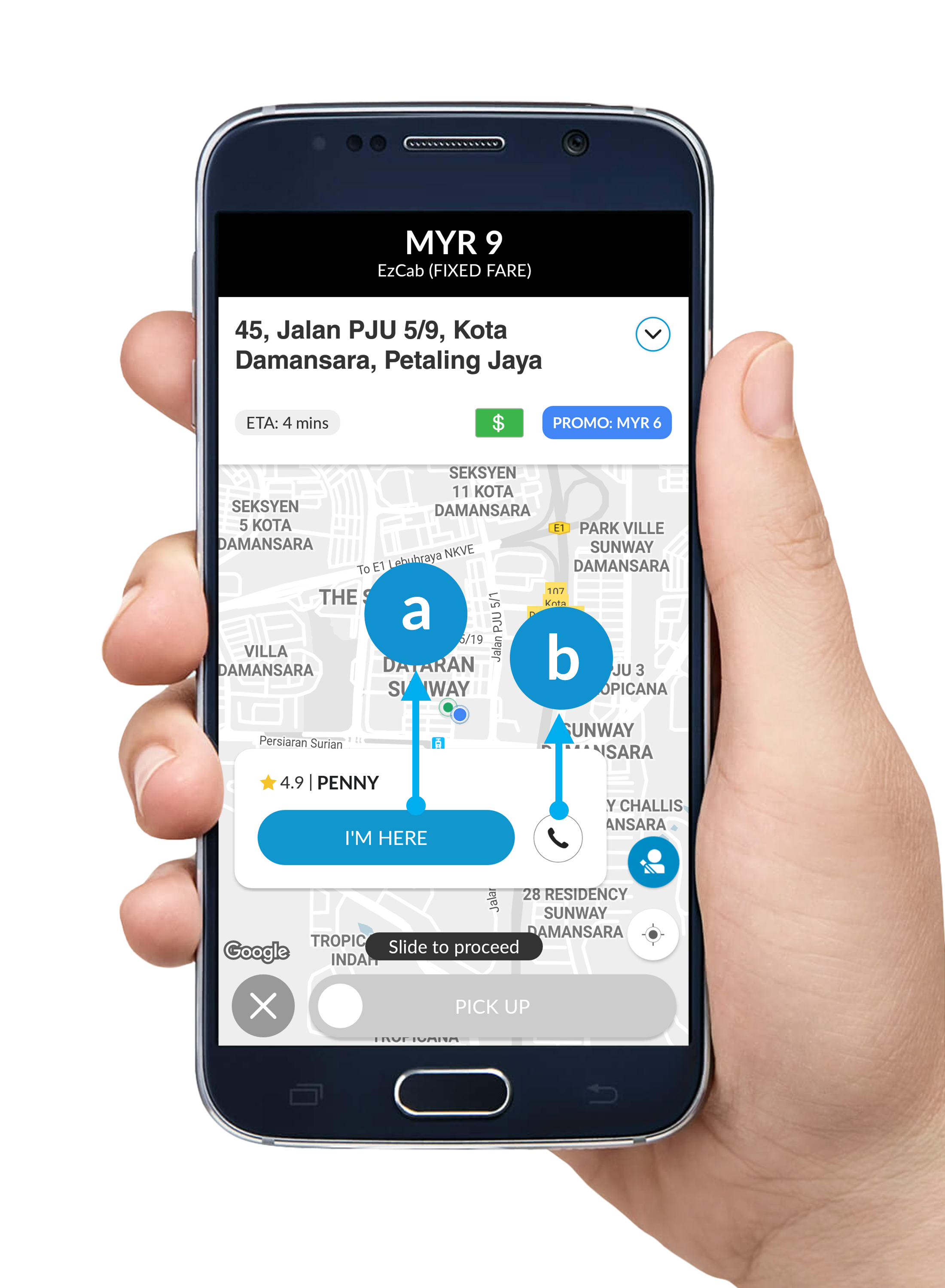
Step 1: When you have arrived at the pick up location,

a. click “I’M HERE” button to inform the passenger that you have reached.

b. If necessary, call the passenger to get the exact waiting location.

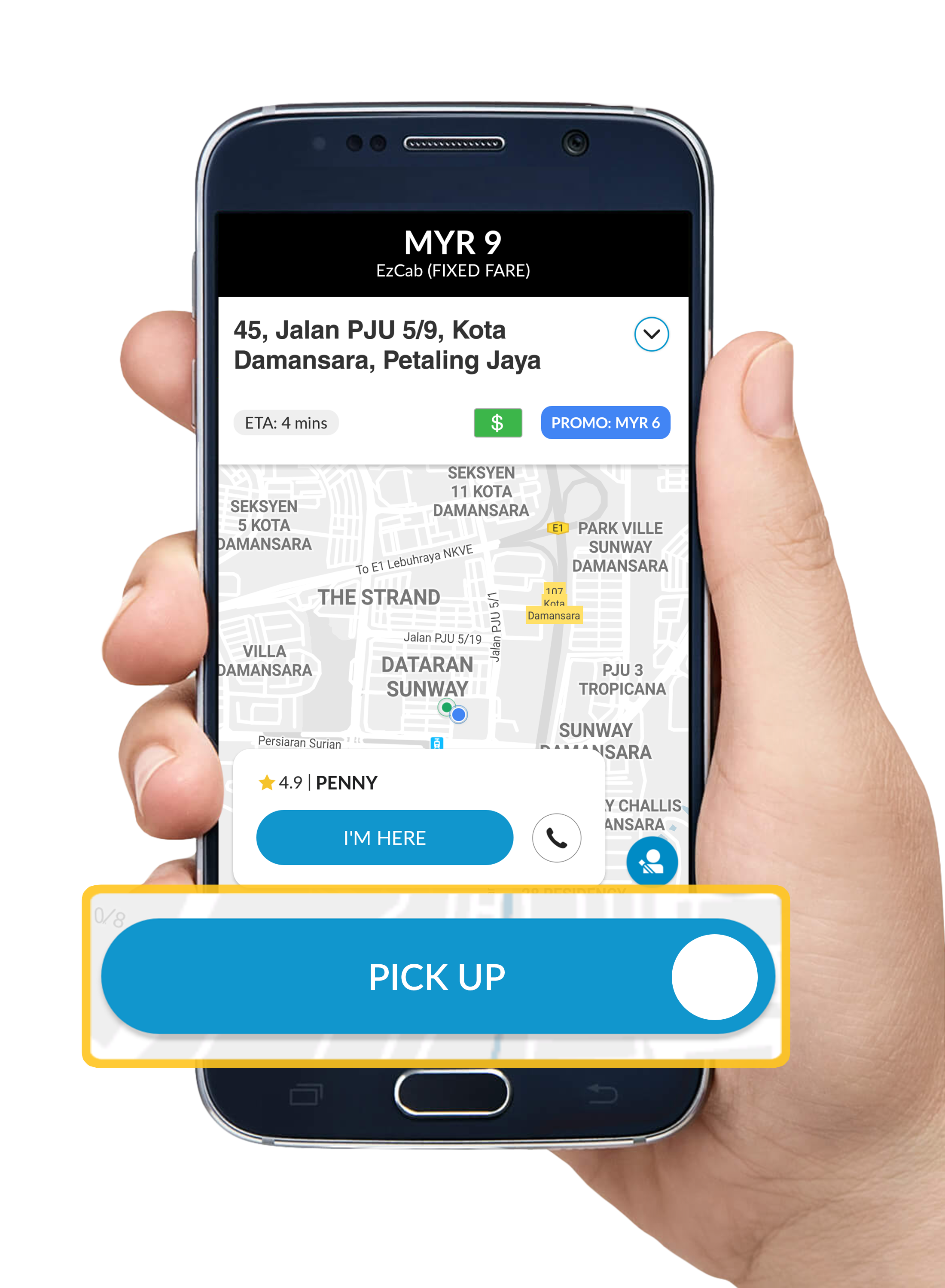
Step 2:  Once your passenger is in your vehicle, slide “PICK UP” button.

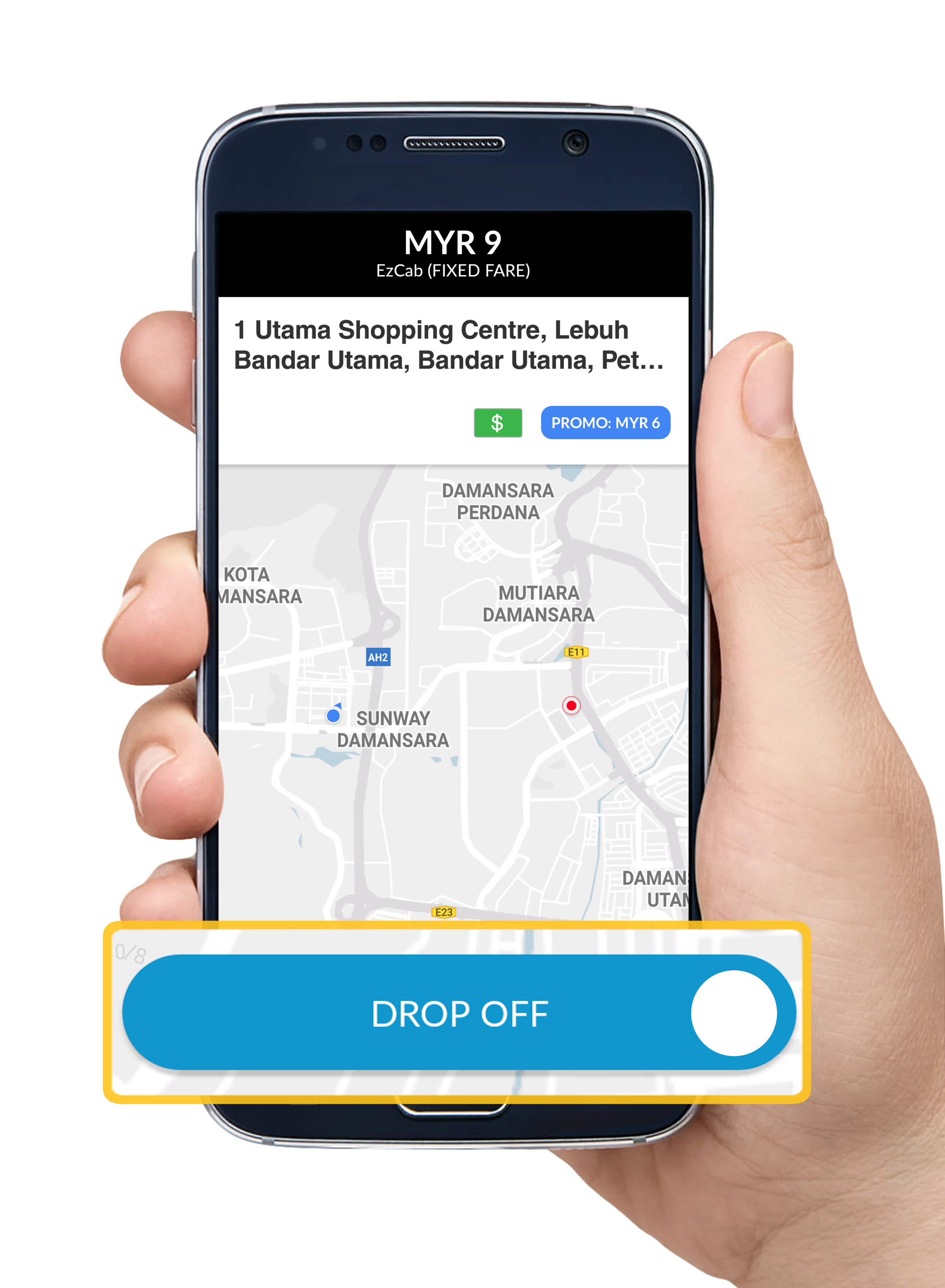
Step 3:  Upon successfully dropping off your passenger, slide “DROP OFF” button to indicate the completion of this order.


3. Account Suspended

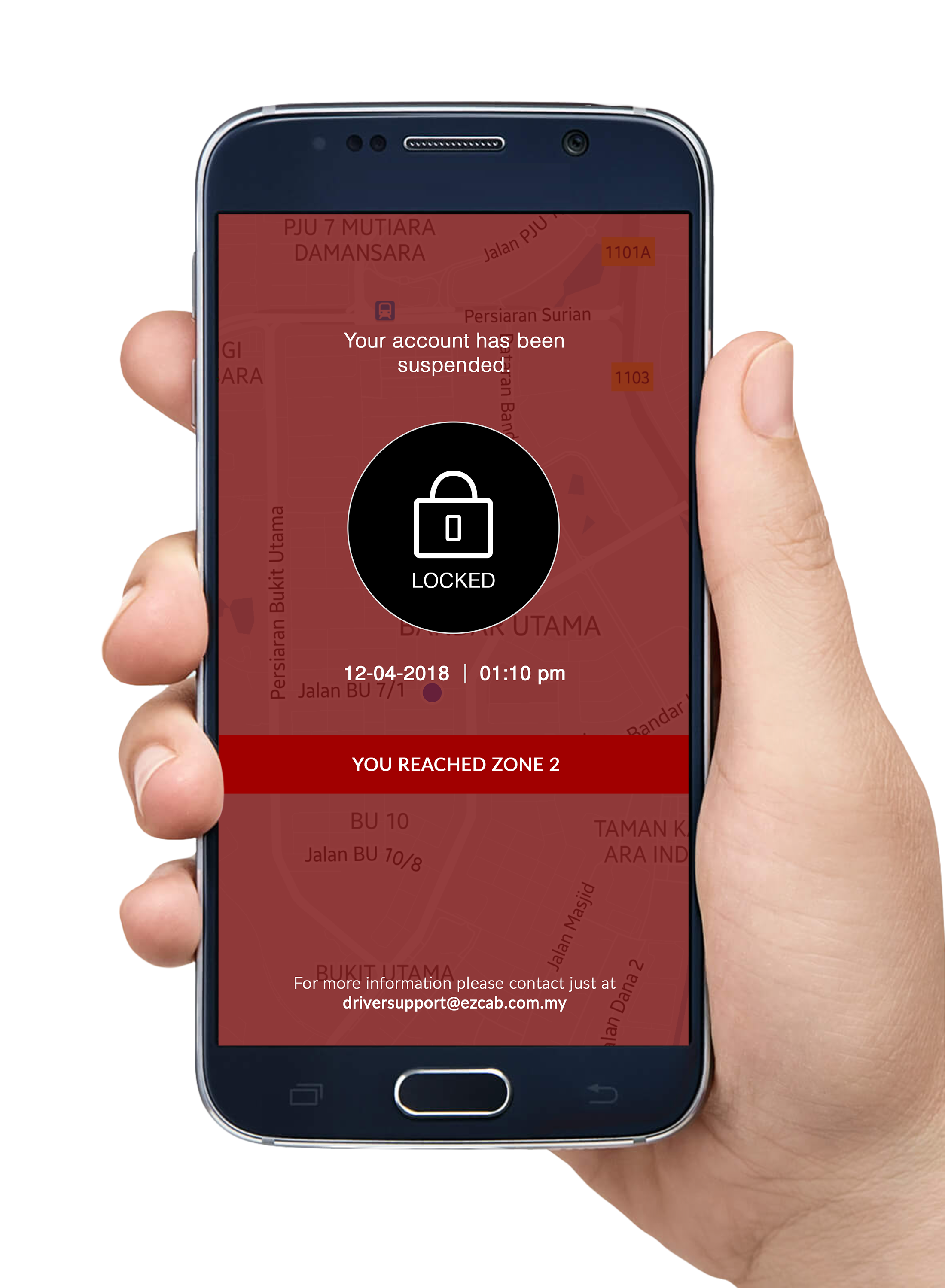
If you see the screen that says, “Your account has been suspended”, this means your account will be SUSPENDED & will reopen once weekly reset due to violation of the EzCab rules or in terms of service.

If you wish to further enquire of your suspended account, please email to driversupport@ezcab.com.my.

Driver’s Credit Top Up

Thursday, 27 Sep 2018

Driver’s Credit Top Up

Learn how to top up your credit by using cash, credit/debit card and online banking

Please select the topic below

Top Up Using Cash (7-Eleven)

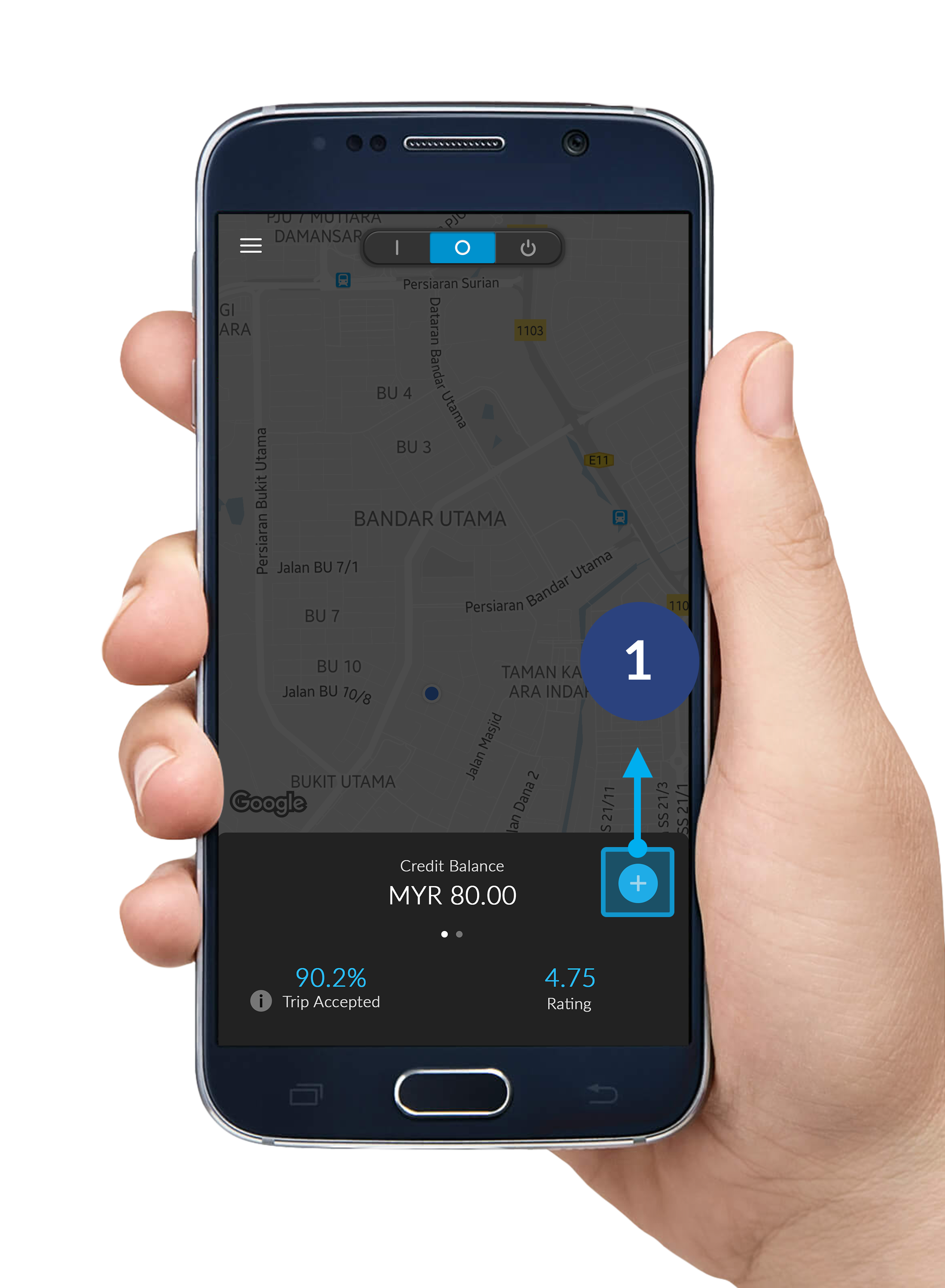
Step 1

Click the "+" button on your bottom-right corner.
*Please make sure that you're on Standby Mode.

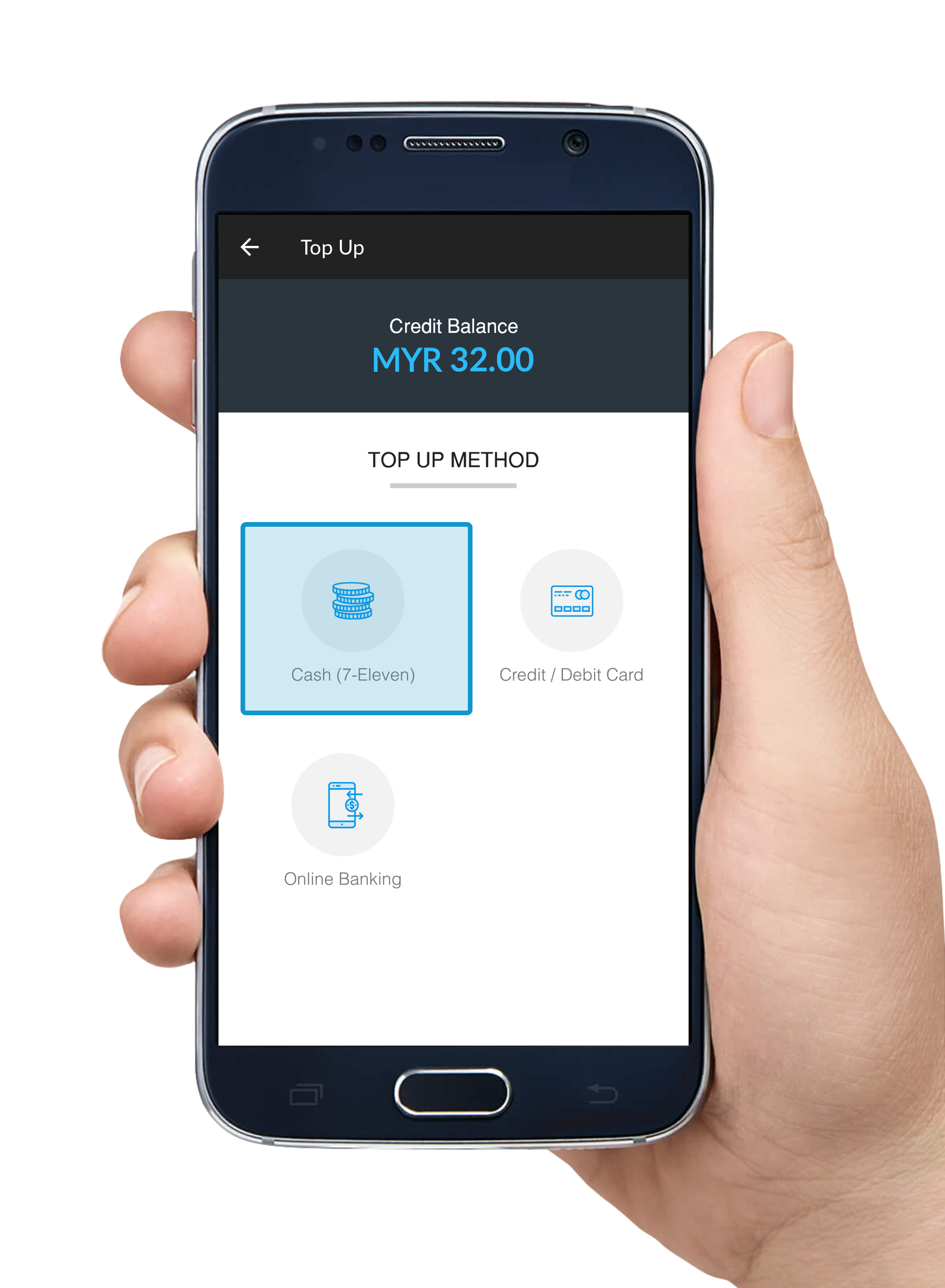
Step 2

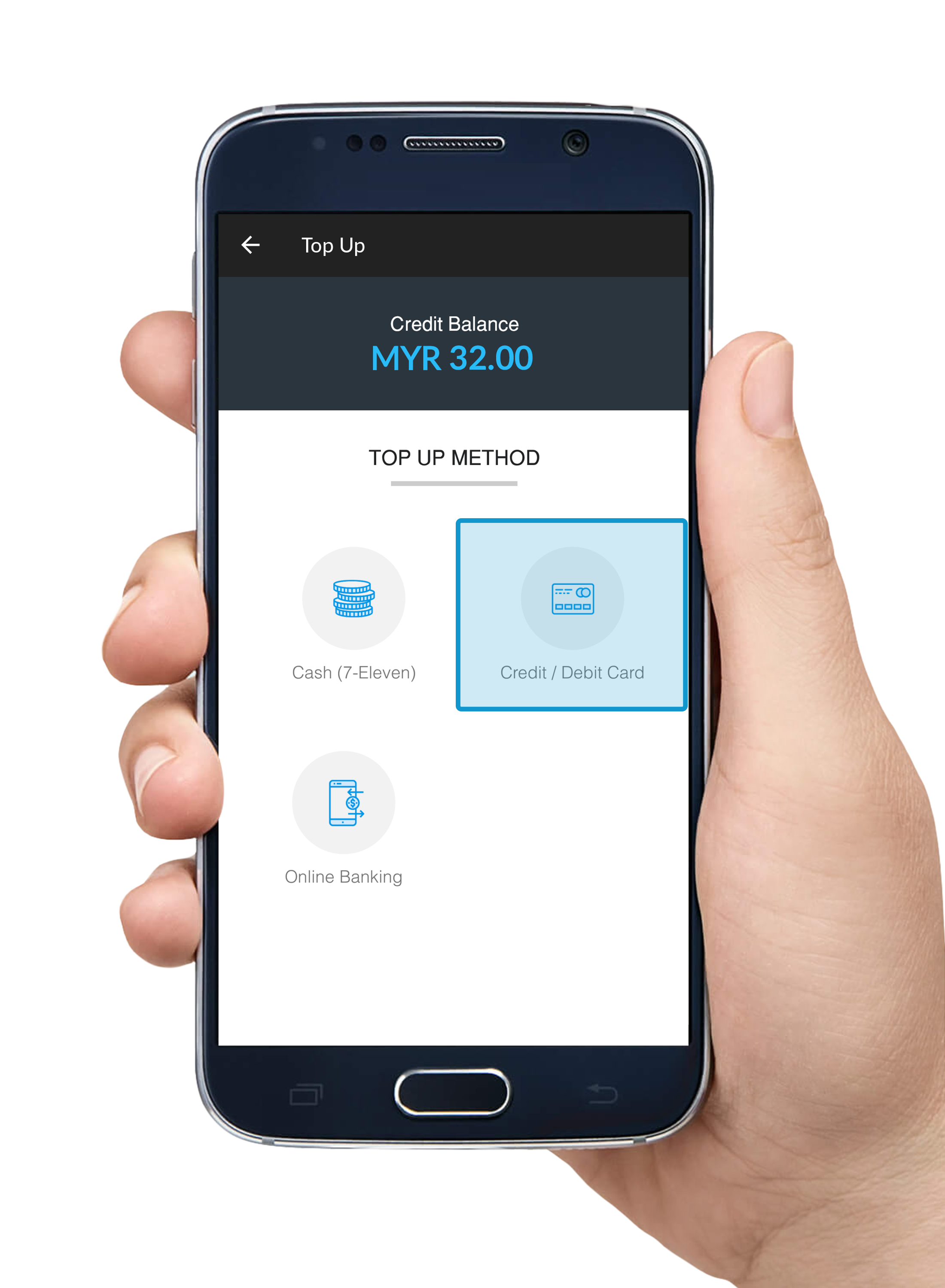
Choose Cash (7-Eleven).

Step 3

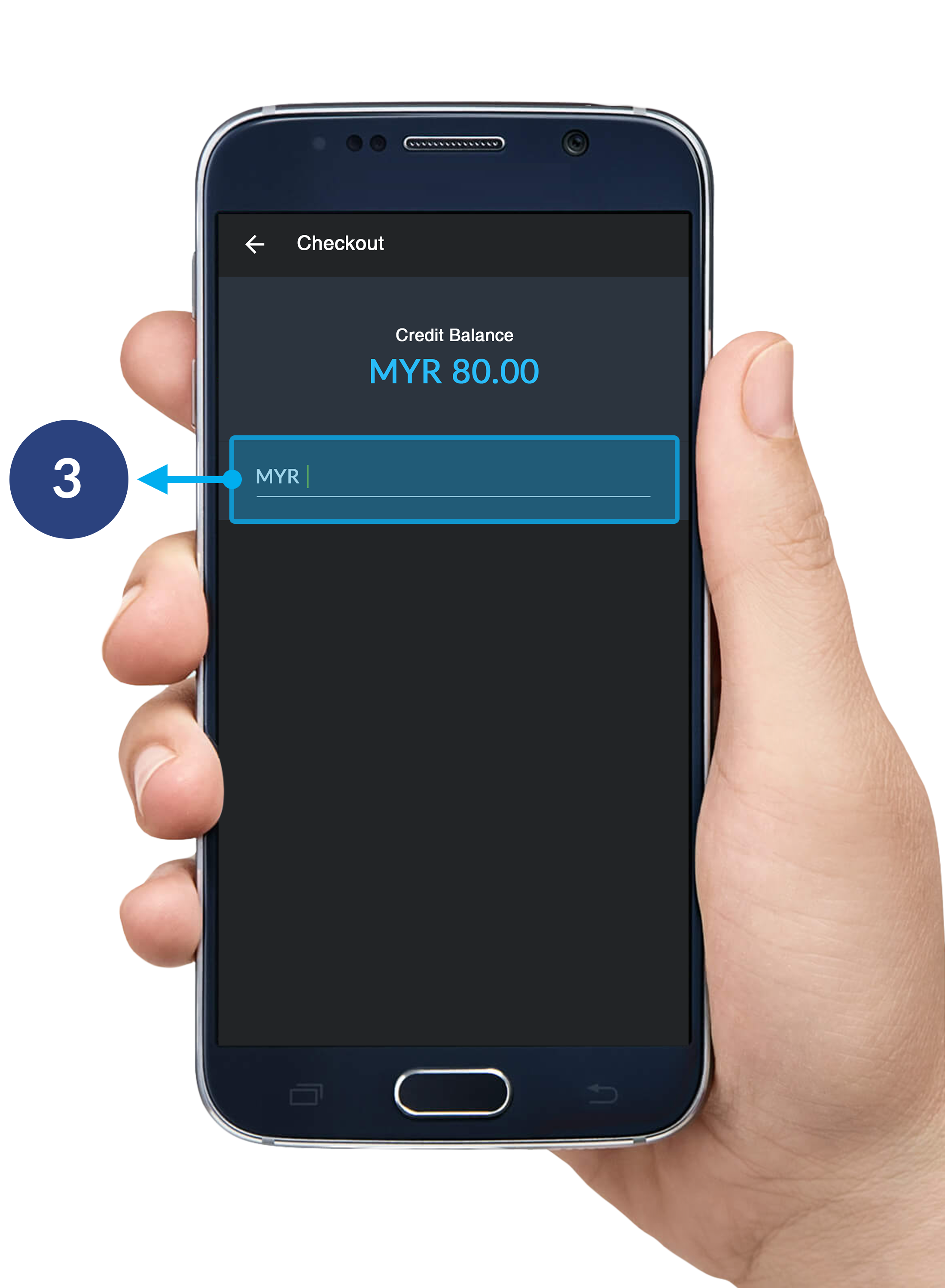
Enter the amount you wish to top up.

Step 4

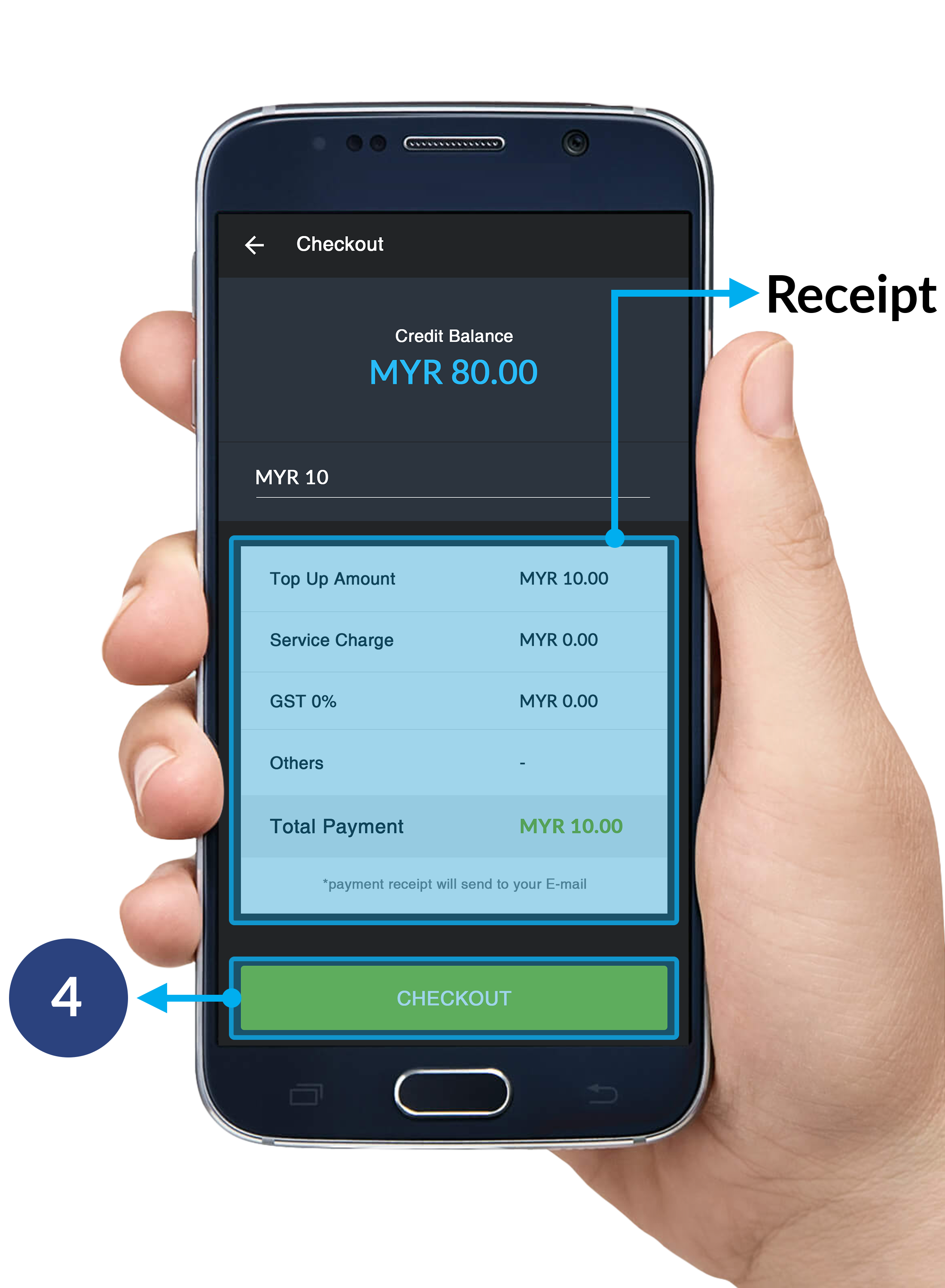
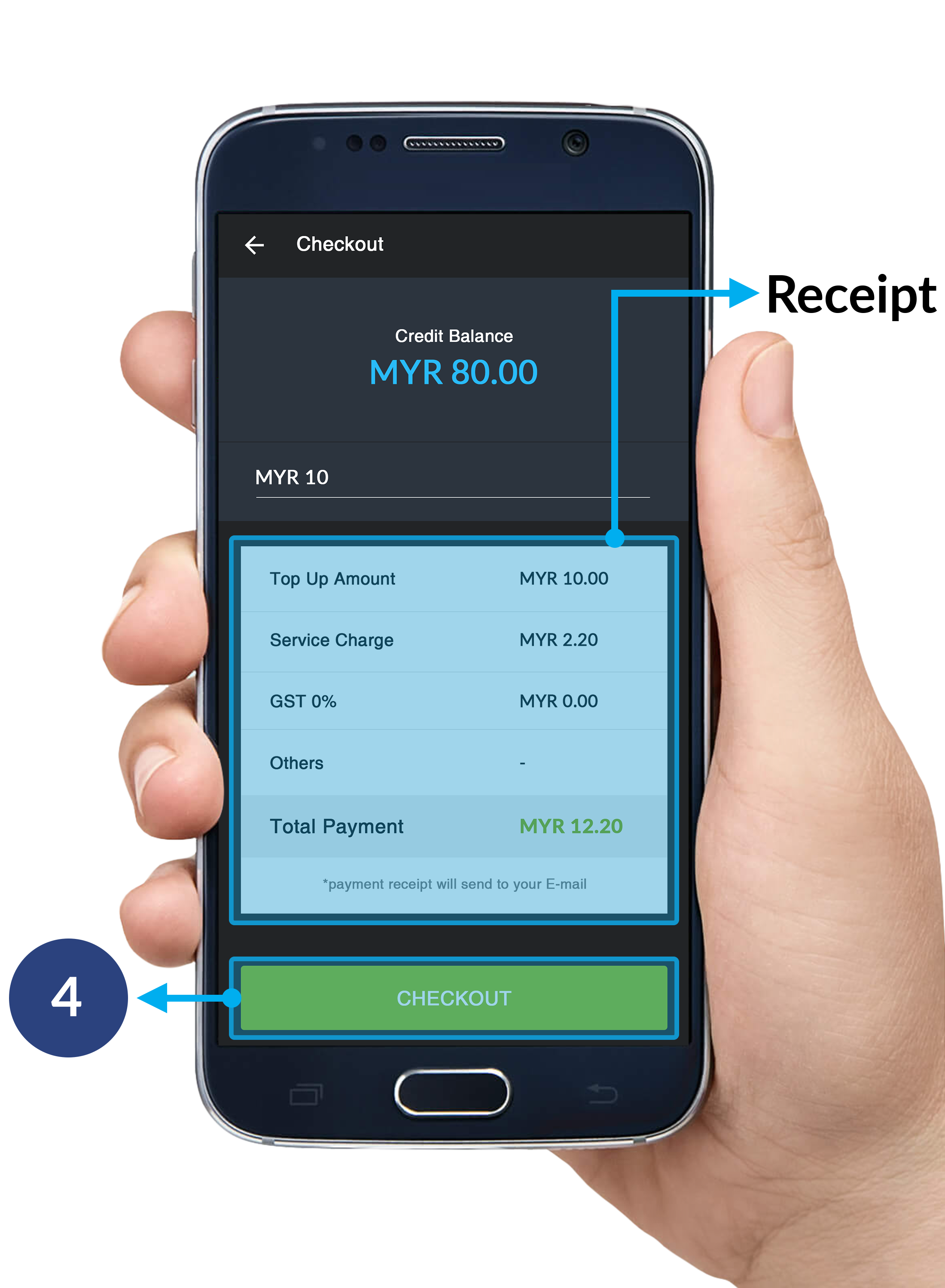
Click CHECKOUT to continue to MOLPay order page. 

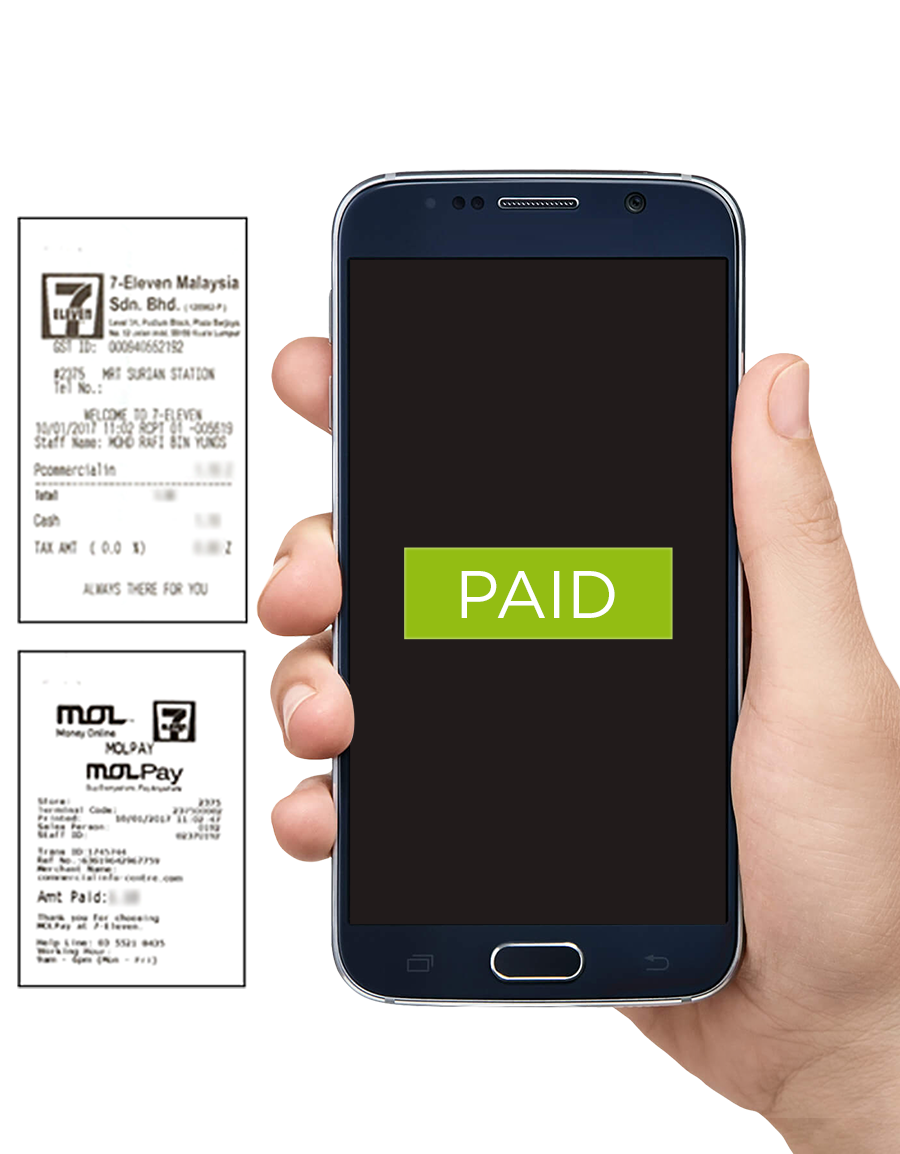
  • Receipt: A simple receipt to show the details of your payment.

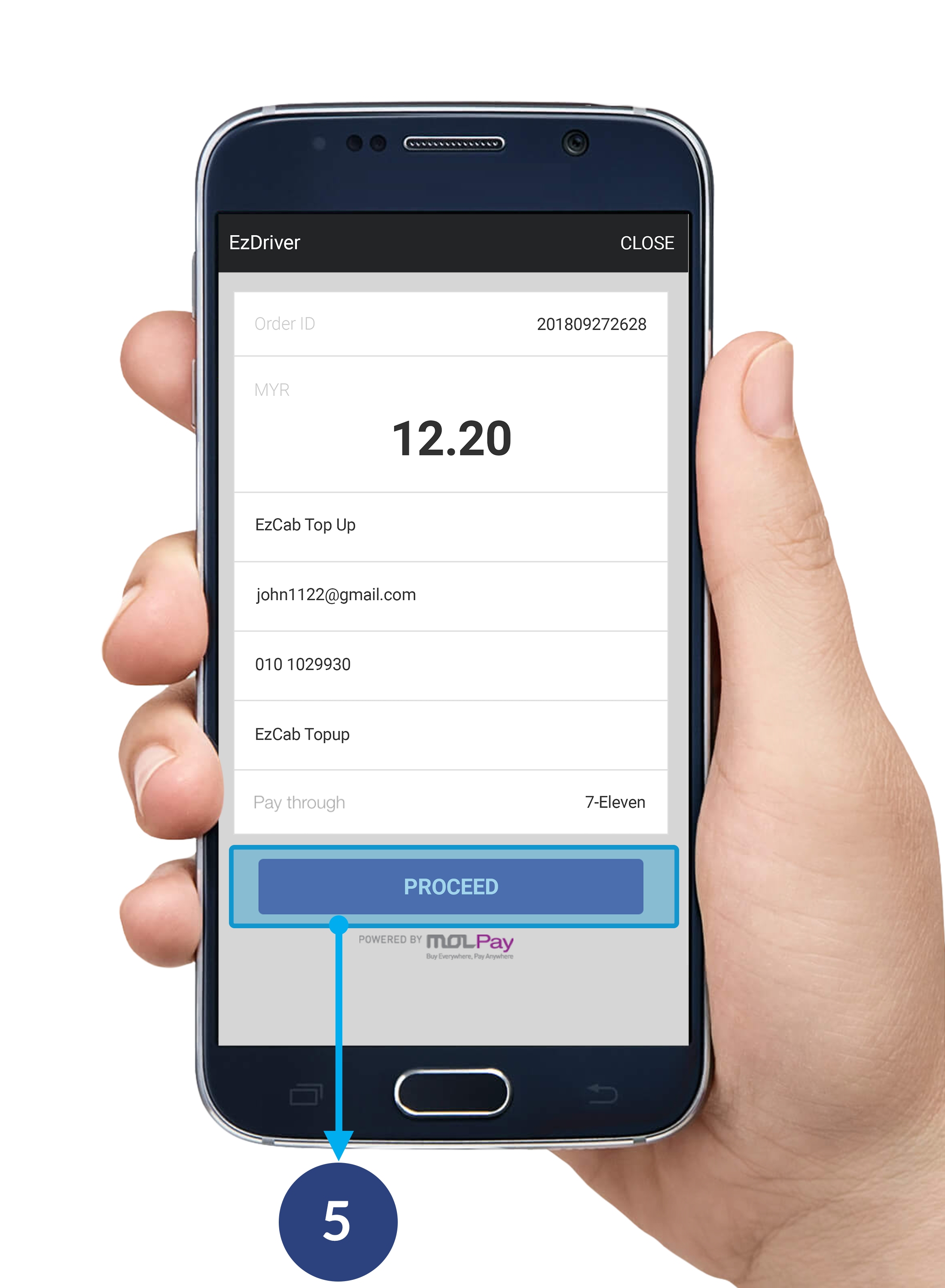
Step 5

Click PROCEED on MOLPay page to confirm your order.

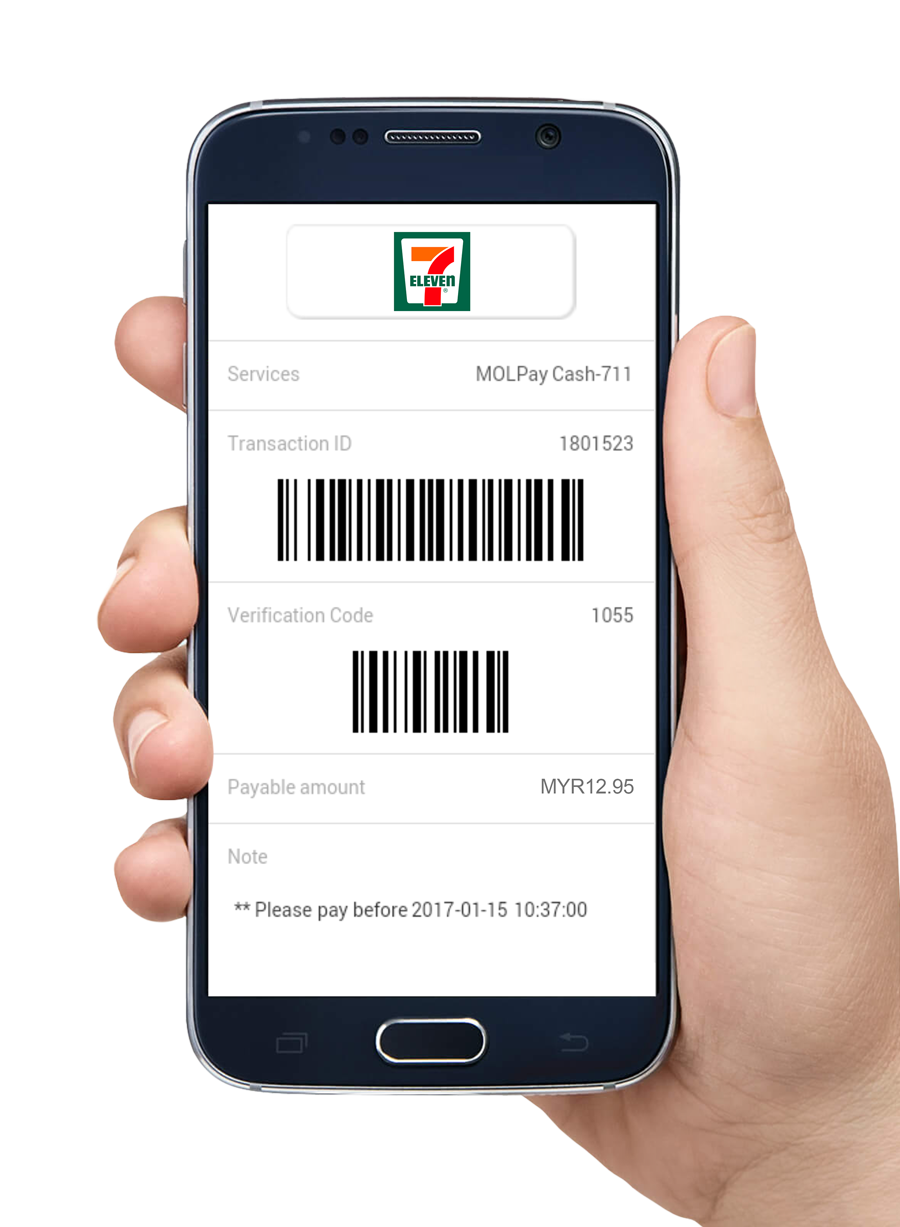
Step 6

Two bar-codes will be generated in your EzDriver app.

Step 7

Go to any 7-Eleven nationwide.

Step 8

At the cashier, mention "MOLPay" and show the bar-code in your EzDriver app.
Step 9

Make payment to the cashier.

Step 10

Collect receipt from cashier. Amount is now credited into your EzDriver account!

Top Up Using Credit Card / Debit Card

Step 1

Click the "+" button on your bottom-right corner.
*Please make sure that you're on Standby Mode.

Step 2

Choose Credit / Debit card.

Step 3

Enter the amount you wish to top up.

Step 4

Click CHECKOUT to continue to MOLPay page.

  • Receipt: A simple receipt to show the details of your payment.

* No Service Charge

Step 5

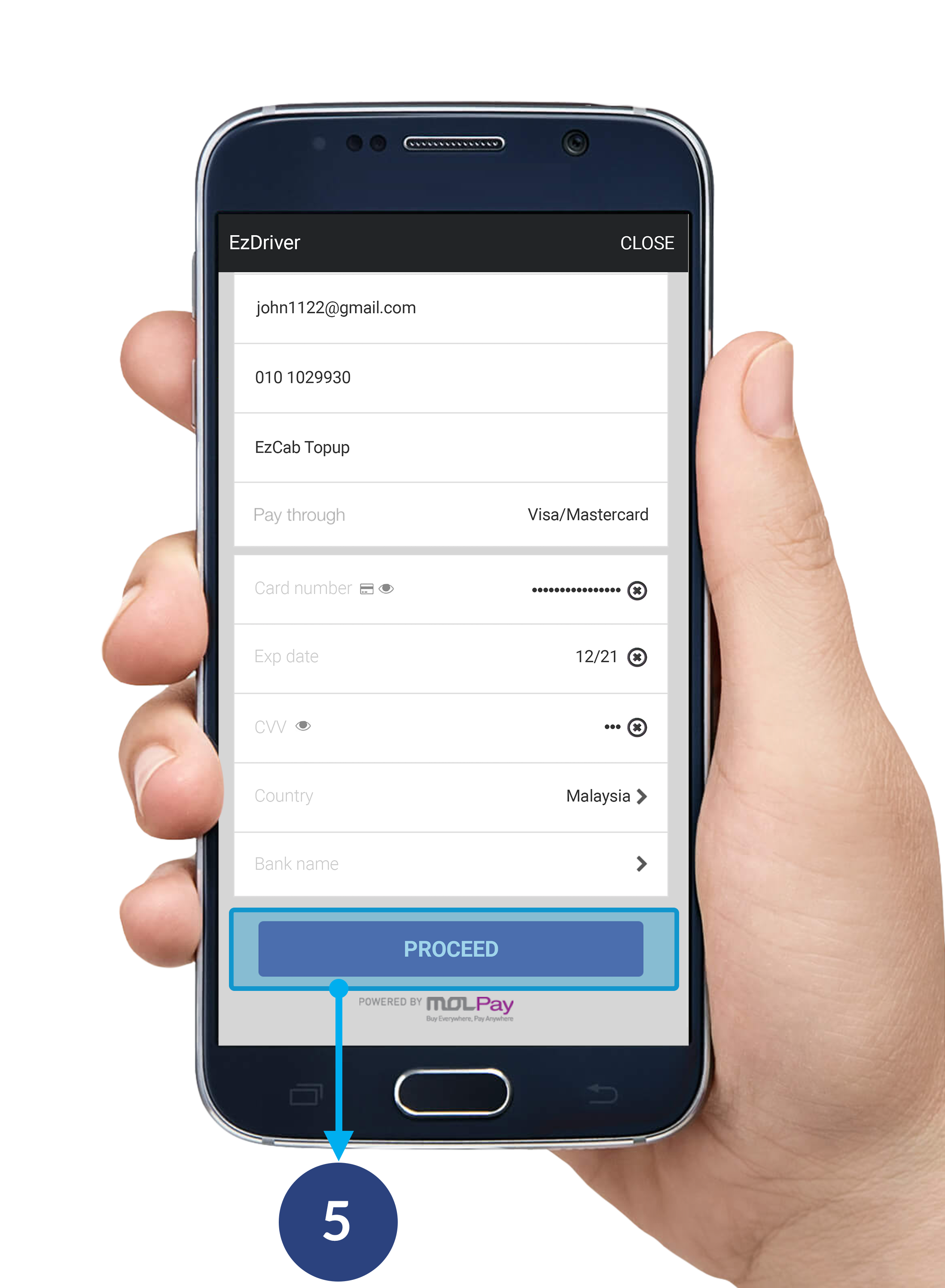
Key in your Card number , Exp date , CVV & Bank name details.
Click PROCEED on MOLPay page to confirm your order.

Step 6

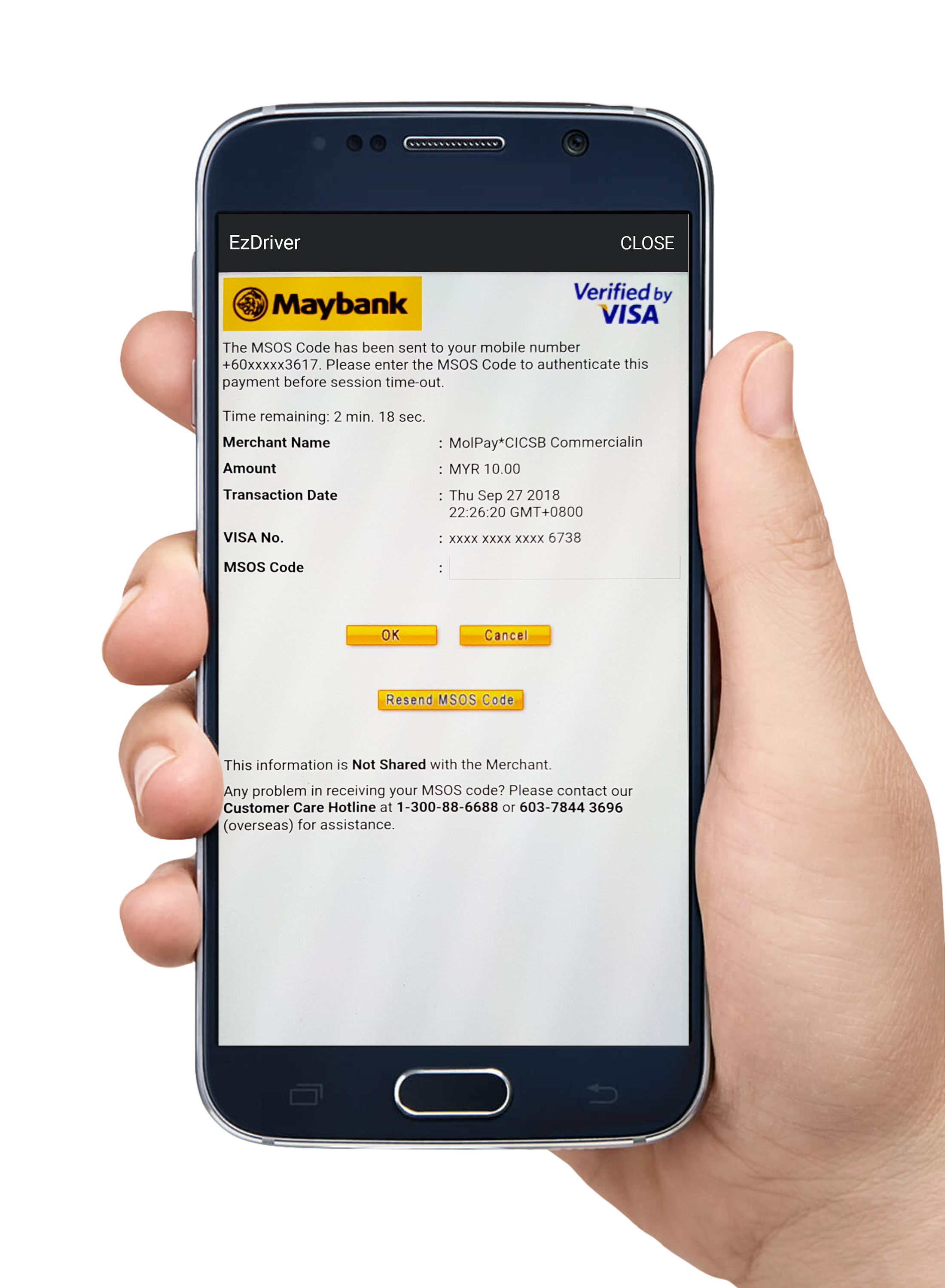
Proceed to complete your online transaction.
*Example payment page via Maybank2U

Step 7

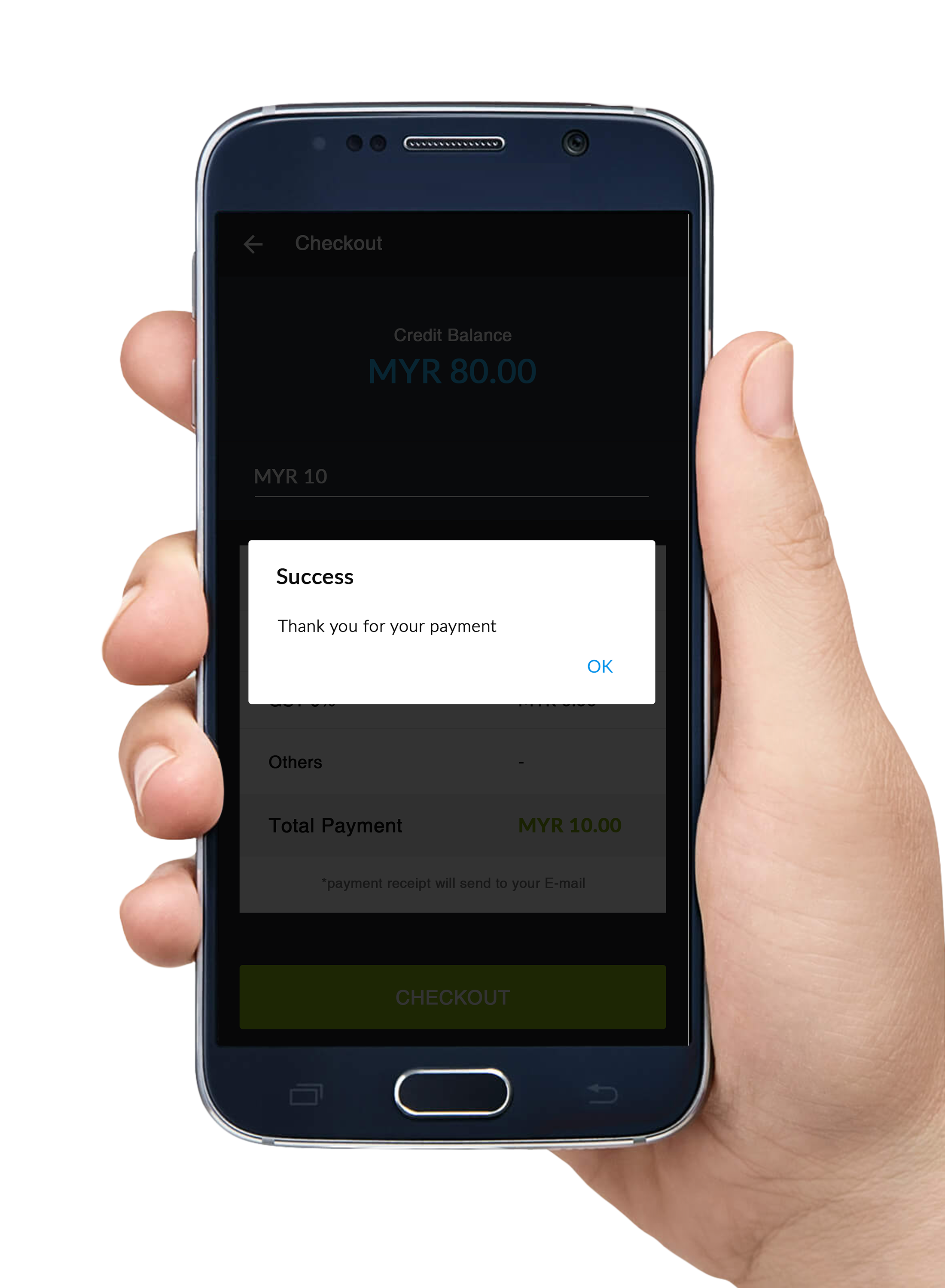
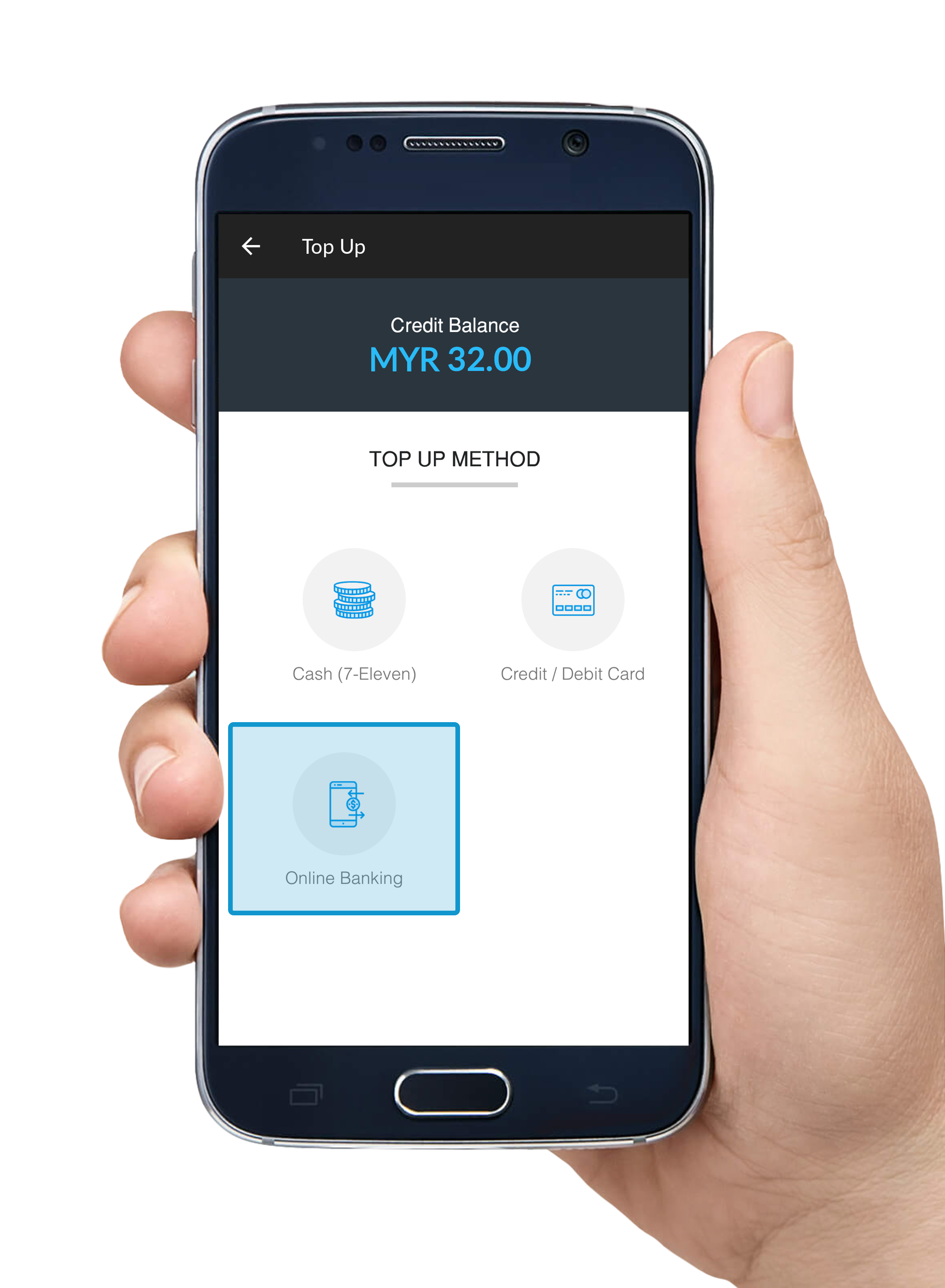
Your transaction status will be sent via a pop up notification after all the steps above are completed.

Top Up Using Online Banking

Step 1

Click the "+" button on your bottom-right corner.
*Please make sure that you're on Standby Mode.

Step 2

Choose Online Banking and choose the bank you prefer to use.

Step 3

Enter the amount you wish to top up.

Step 4

Click CHECKOUT to continue to MOLPay page.

  • Receipt: A simple receipt to show the details of your payment.

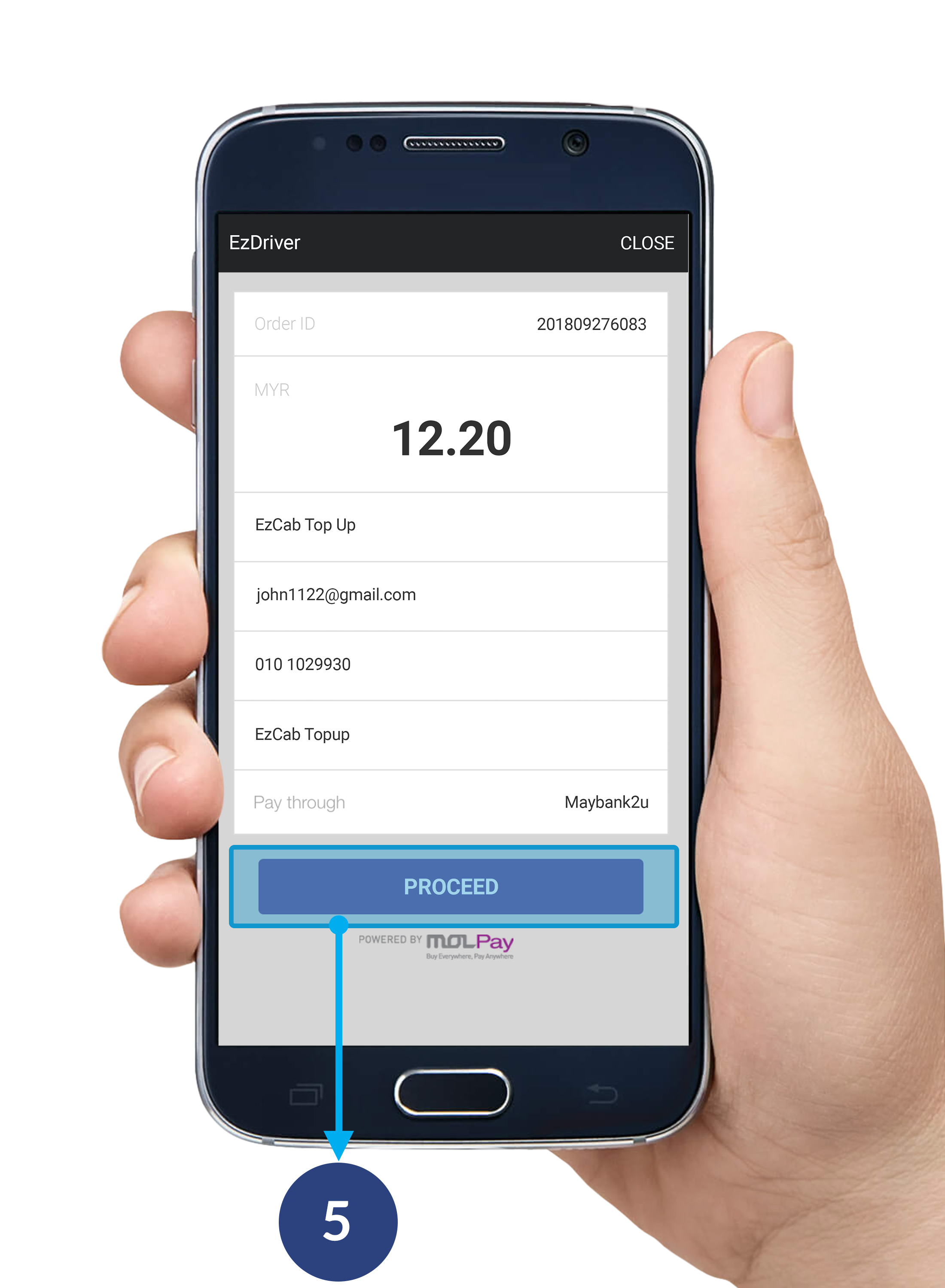
Step 5

Click PROCEED on MOLPay page to confirm your order.

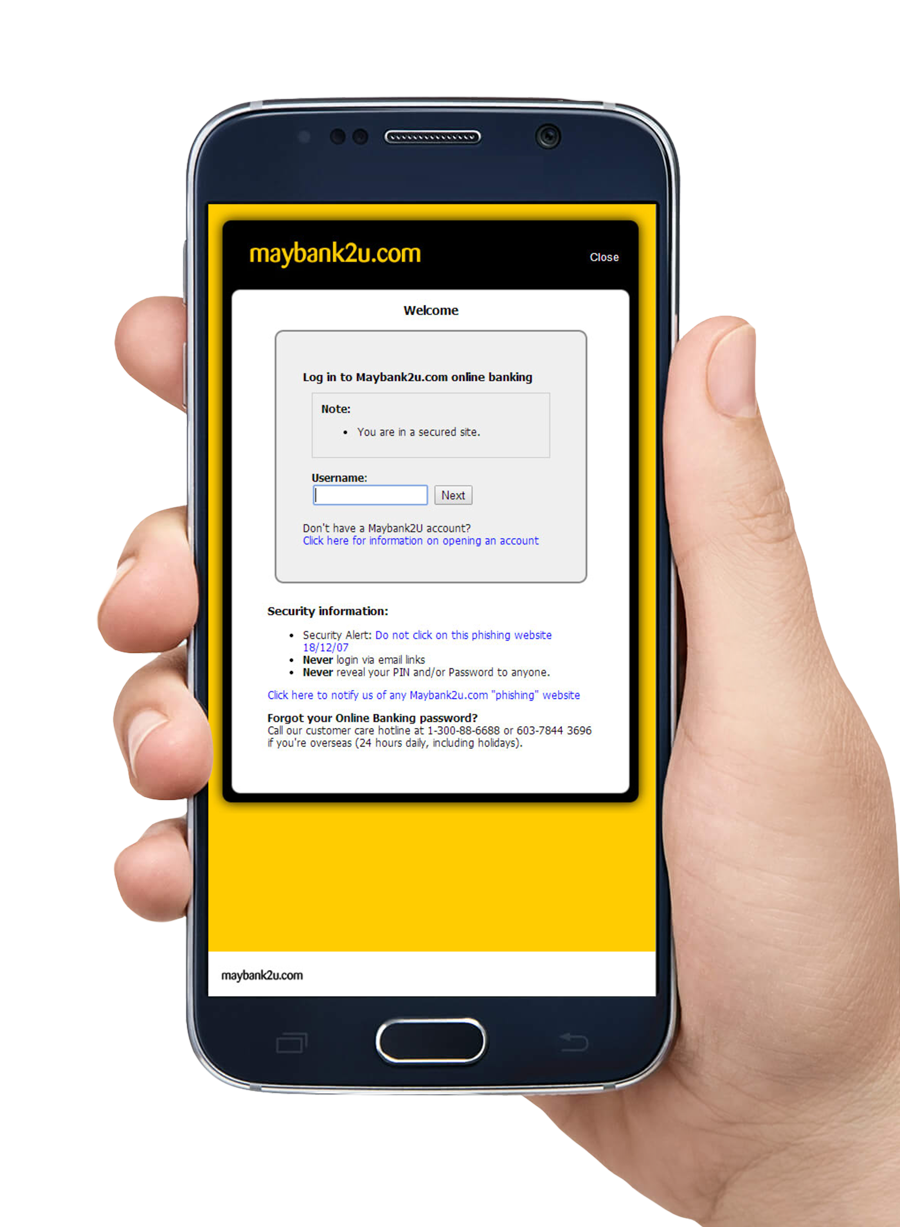
Step 6

Proceed to complete your online transaction.
*Example payment page via Maybank2U

Step 7

Your transaction status will be sent via a pop up notification after all the steps above are completed.

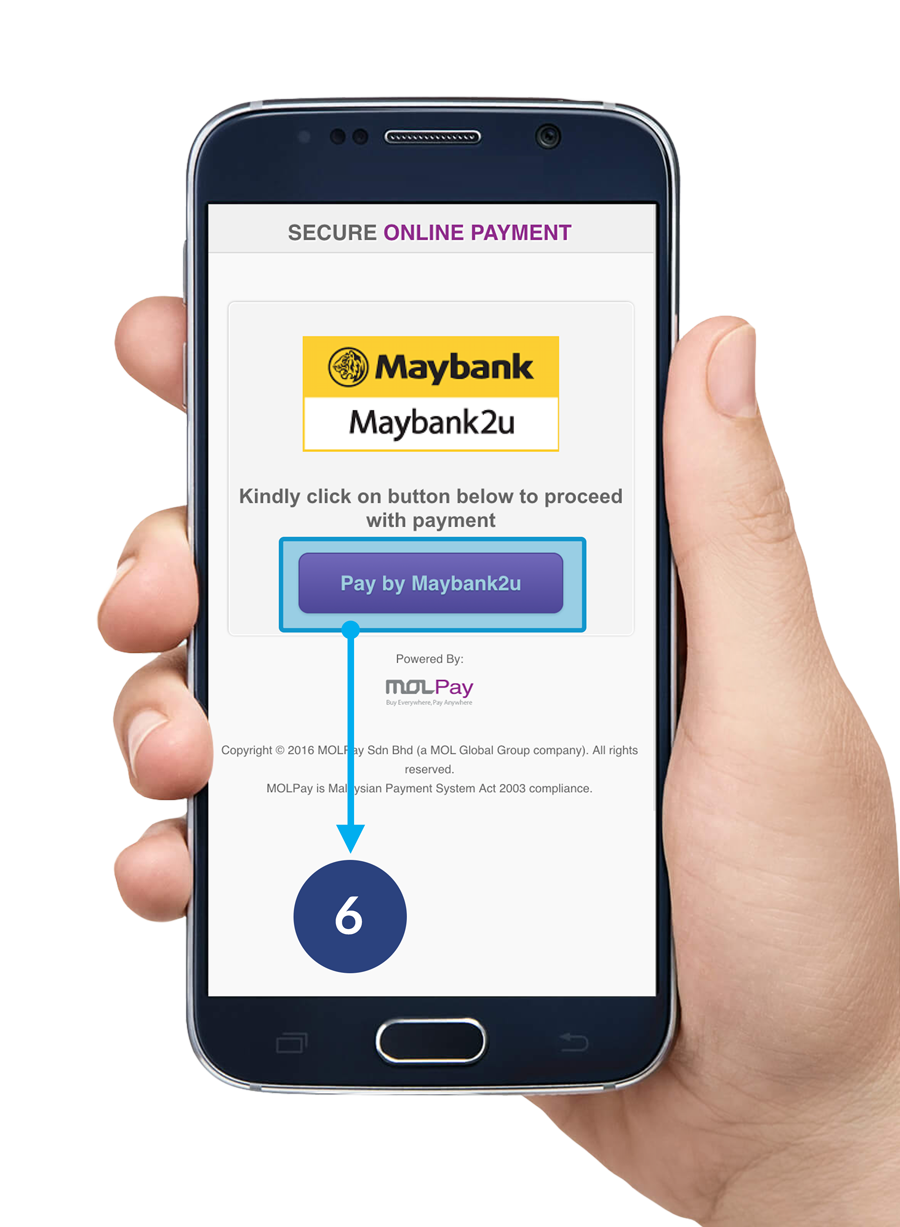
Step 6

Proceed to Maybank2U by clicking Pay By Maybank2U button. 
*Example payment page via Maybank2U

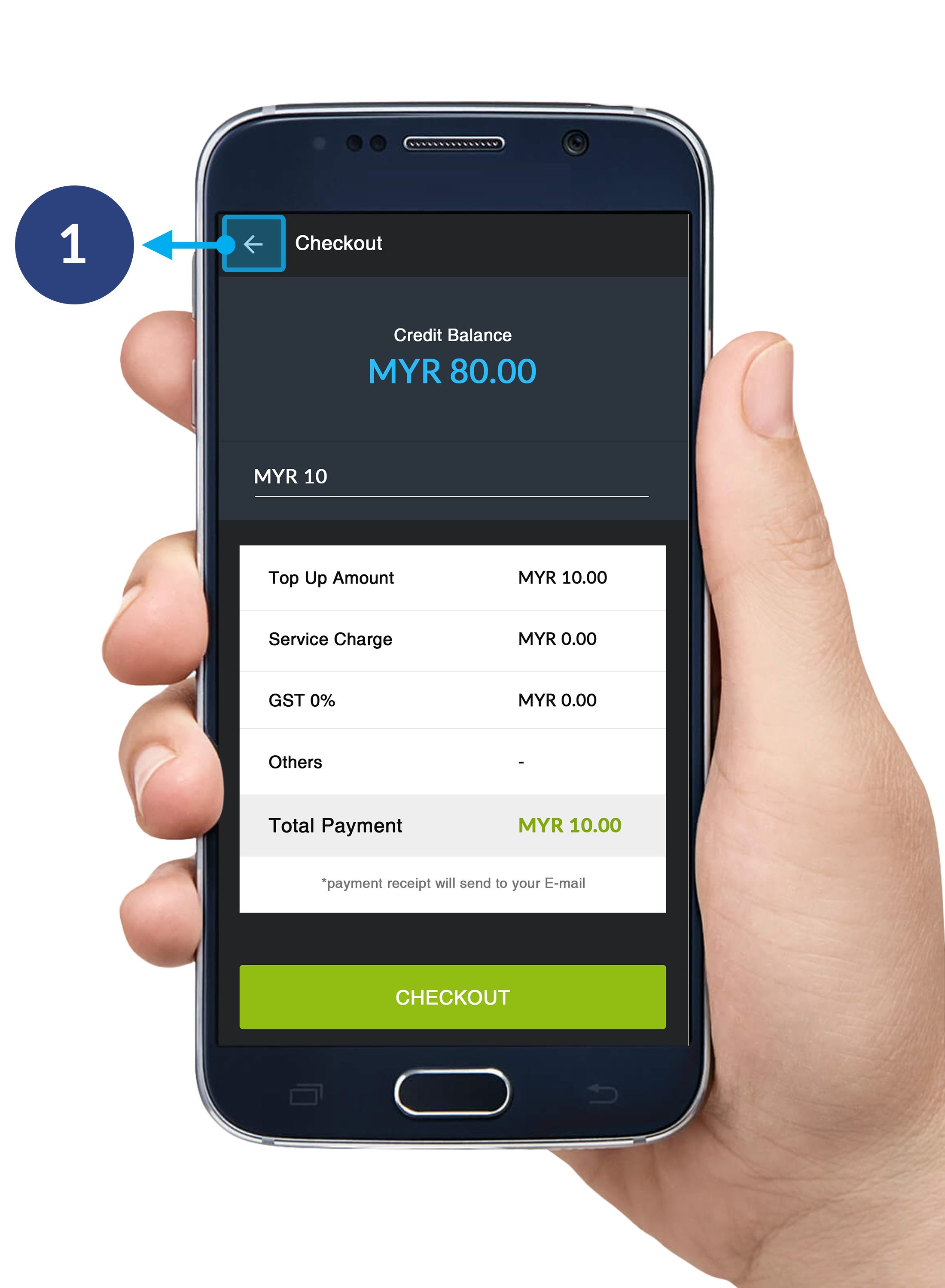
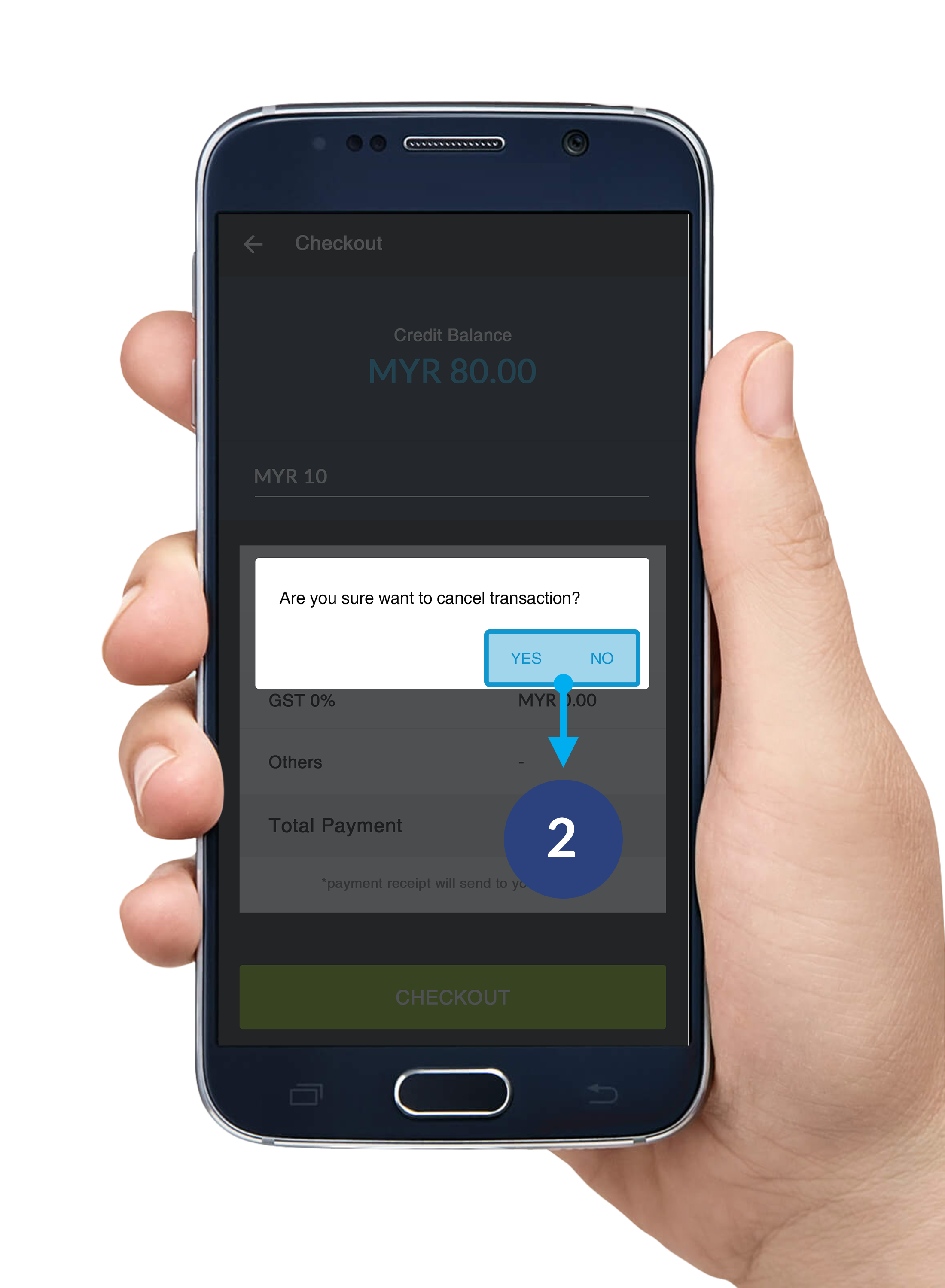
How To Cancel Top Up

Step 1

To cancel your top up, click the button on your upper-left corner.

Step 2

A pop-up alert box will be shown. Click Yes to confirm your cancellation. Click No to continue your top up process.

Driver’s App Menu

Thursday, 18 May 2017

Driver’s App Menu Explained

Exploring driver’s app menu

Please select the topic below

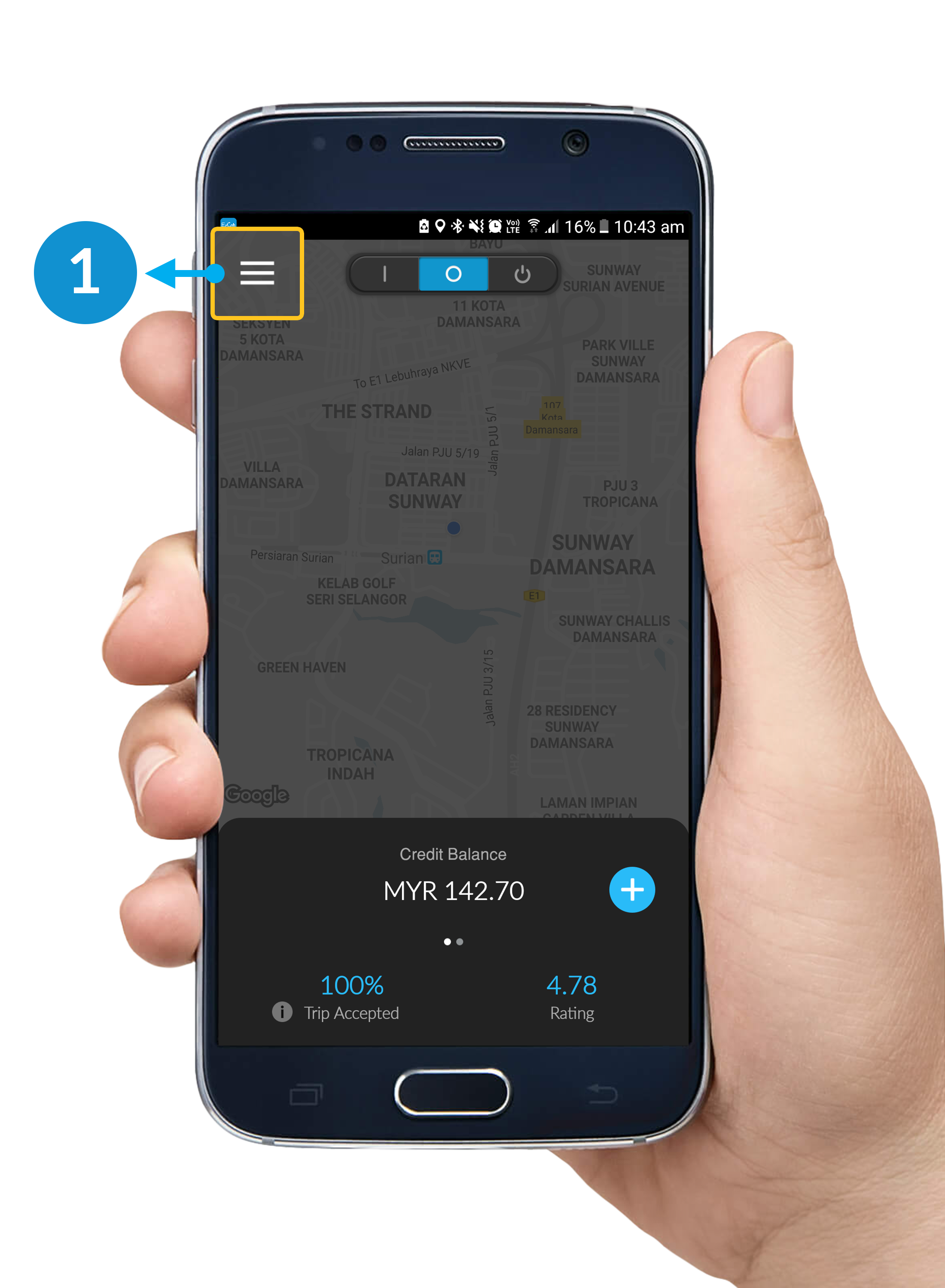
How To Open Driver's Menu Bar

Step 1

To open driver's menu bar, click the button on your upper-left corner.
*Please make sure that you're on Standby Mode.

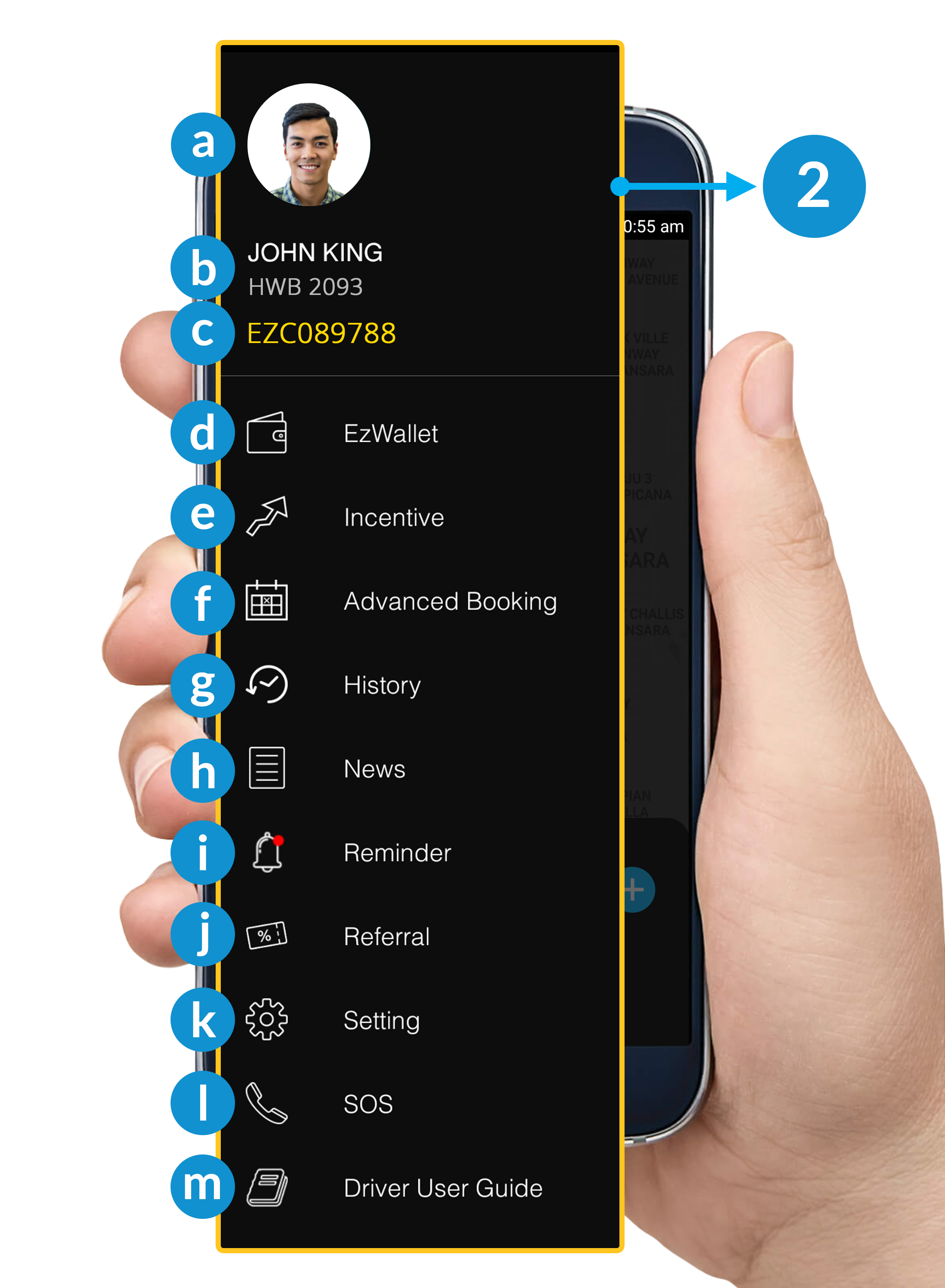
Step 2

After clicking the menu button, driver's menu bar will slide from left.

Driver's Menu Bar

a. Profile Picture
b. Profile Detail: Name & Car details.
c. EVP No. : Your E-hailing Vehicle Number will show here.
d. EzWallet:  To top up and cash out your credit, view here for details
e. Incentive: Aimed to encourage and help you to earn more
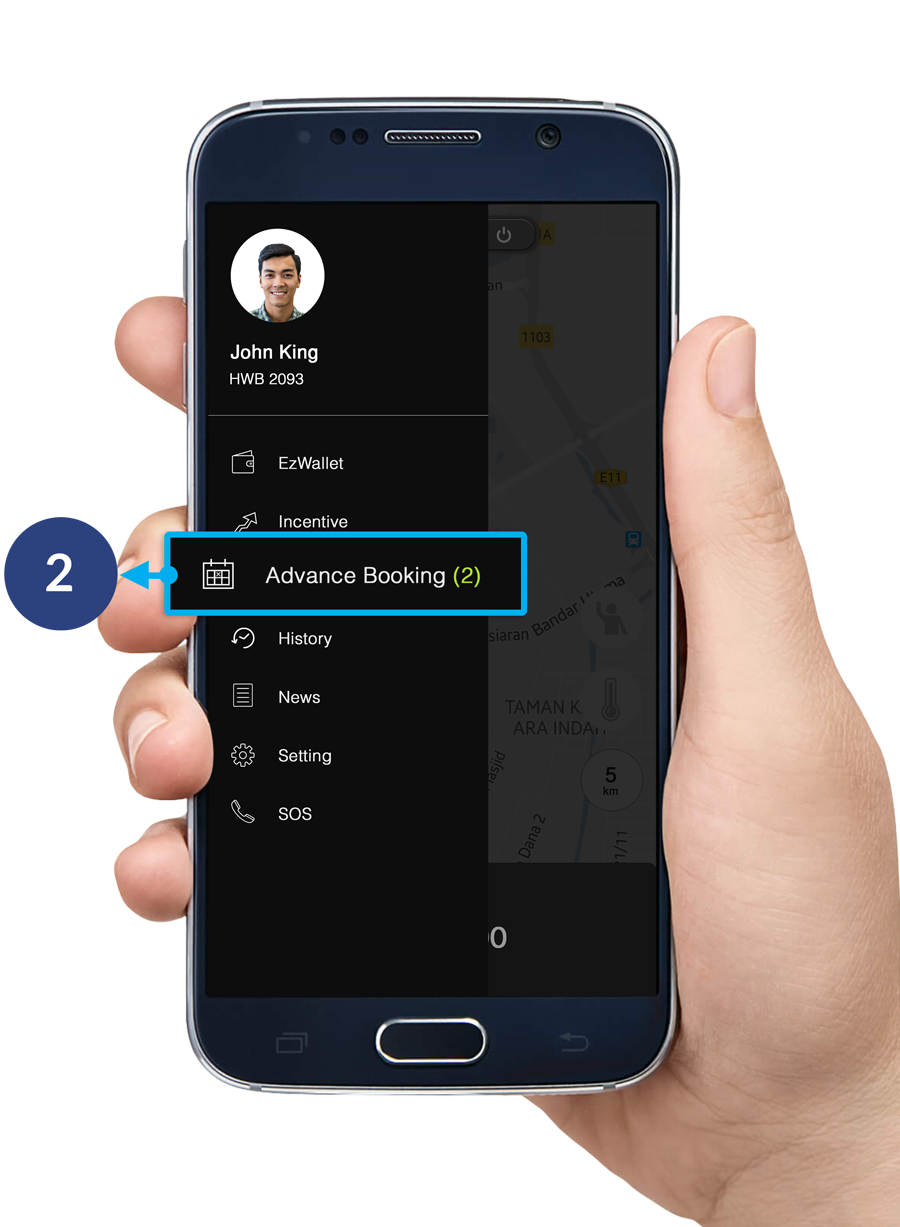
f. Advance Booking: To view all your booking reservation from customers.
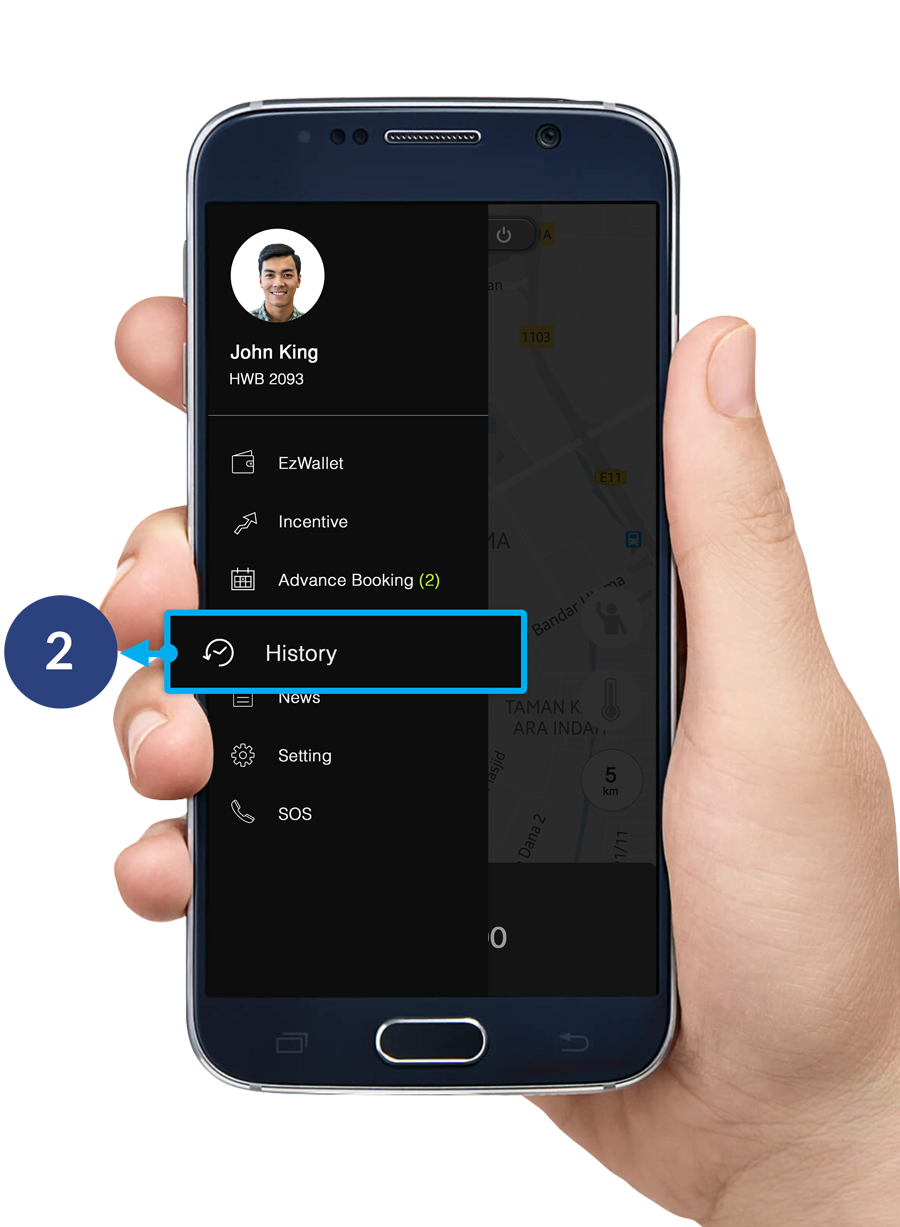
g. History: To view all your previous order.
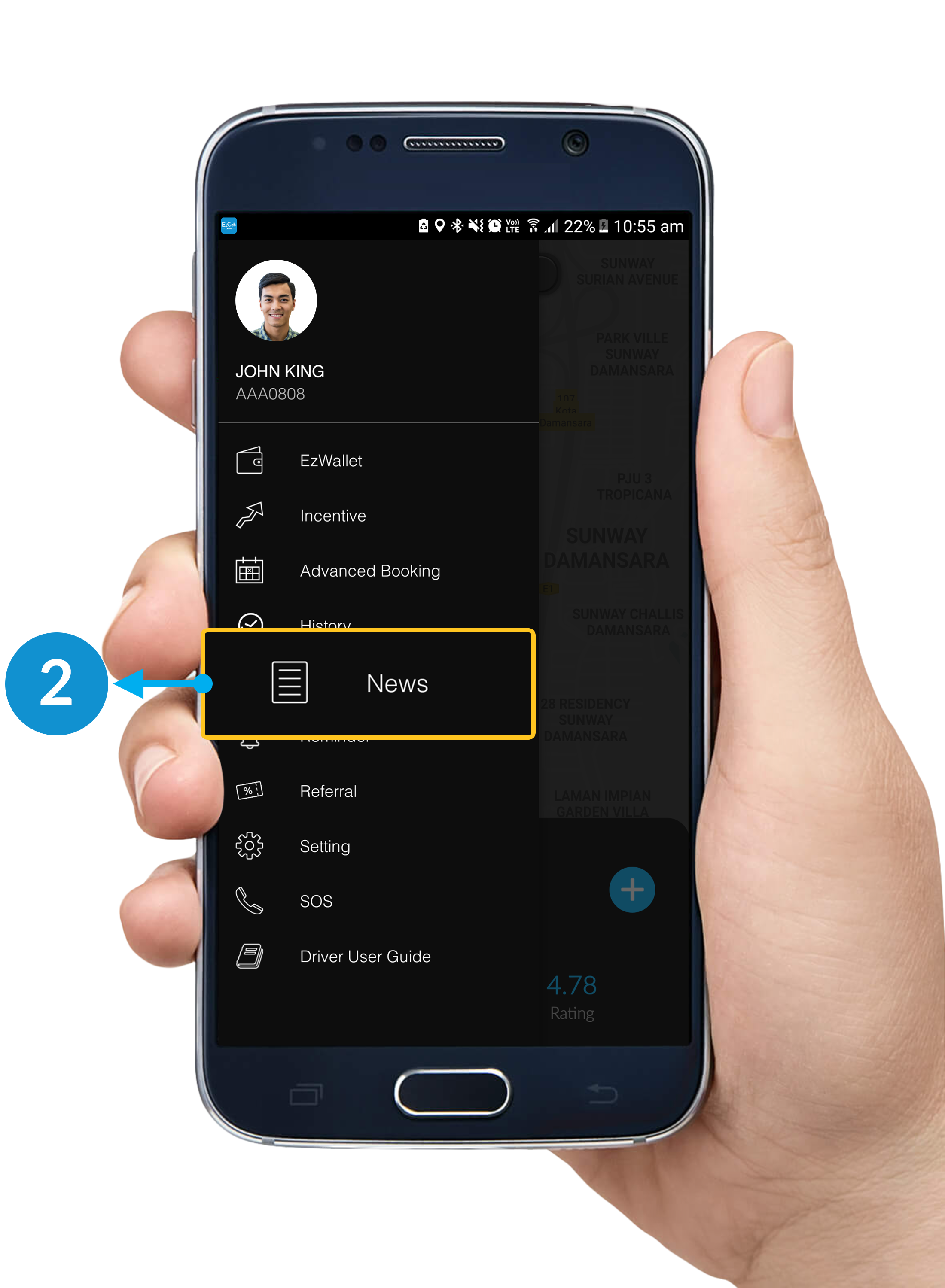
h. News: Latest news announced by EzCab.
i. Reminder: To remind you update expiry date of your documents.
j. Referral: Share your referral code to user to earn incentive.
k. Setting: To view your profile detail and change or update your EzDriver App.
l. SOS: Emergency button. Click to request help if you're facing any trouble.
m. Driver User Guide: Refer all Guidelines here.

How To Check Advance Booking

Step 1

Click the button on your upper-left corner.
*Please make sure that you're on Standby Mode.

Step 2

Click Advance Booking.

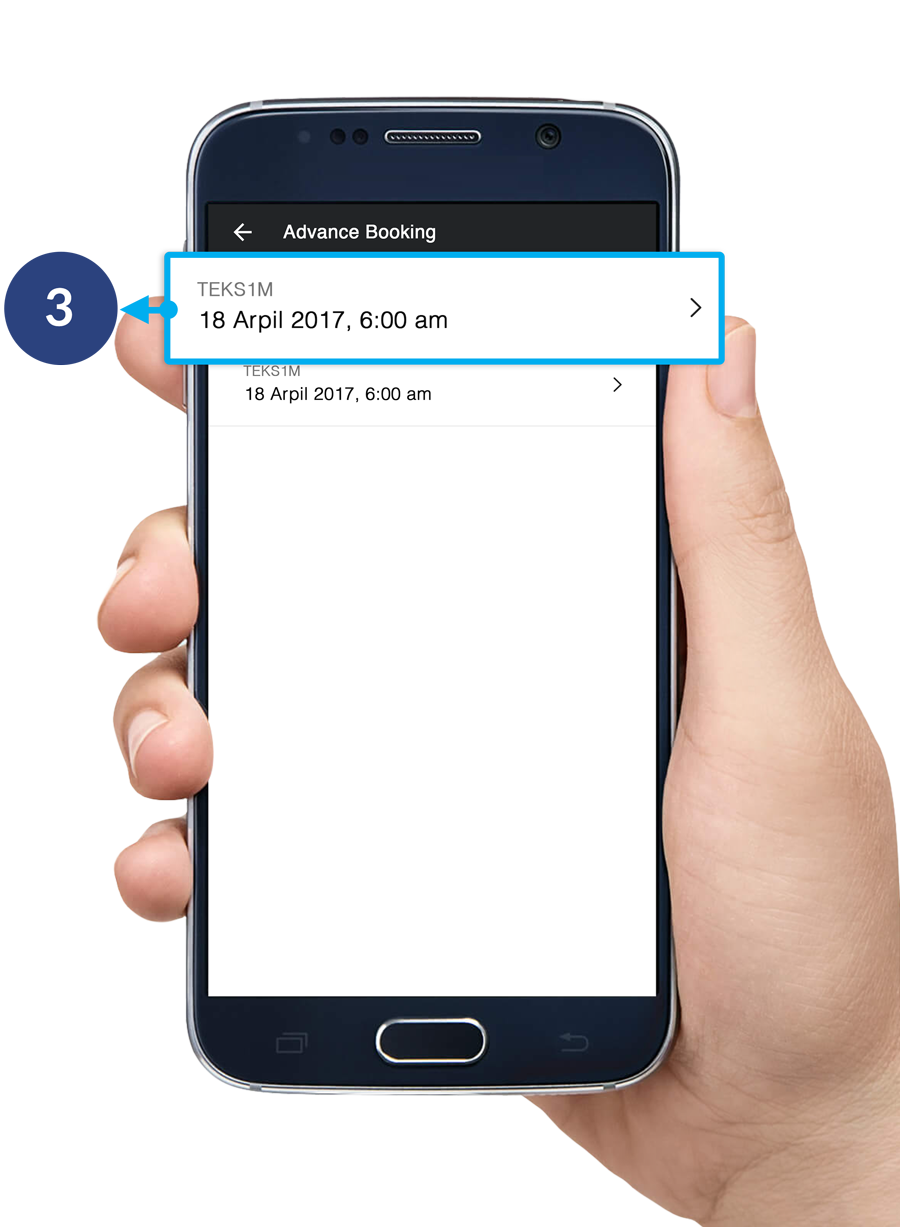
Step 3

This page will show you all of your advance bookings. Click the arrow button on the right to view details for each booking.

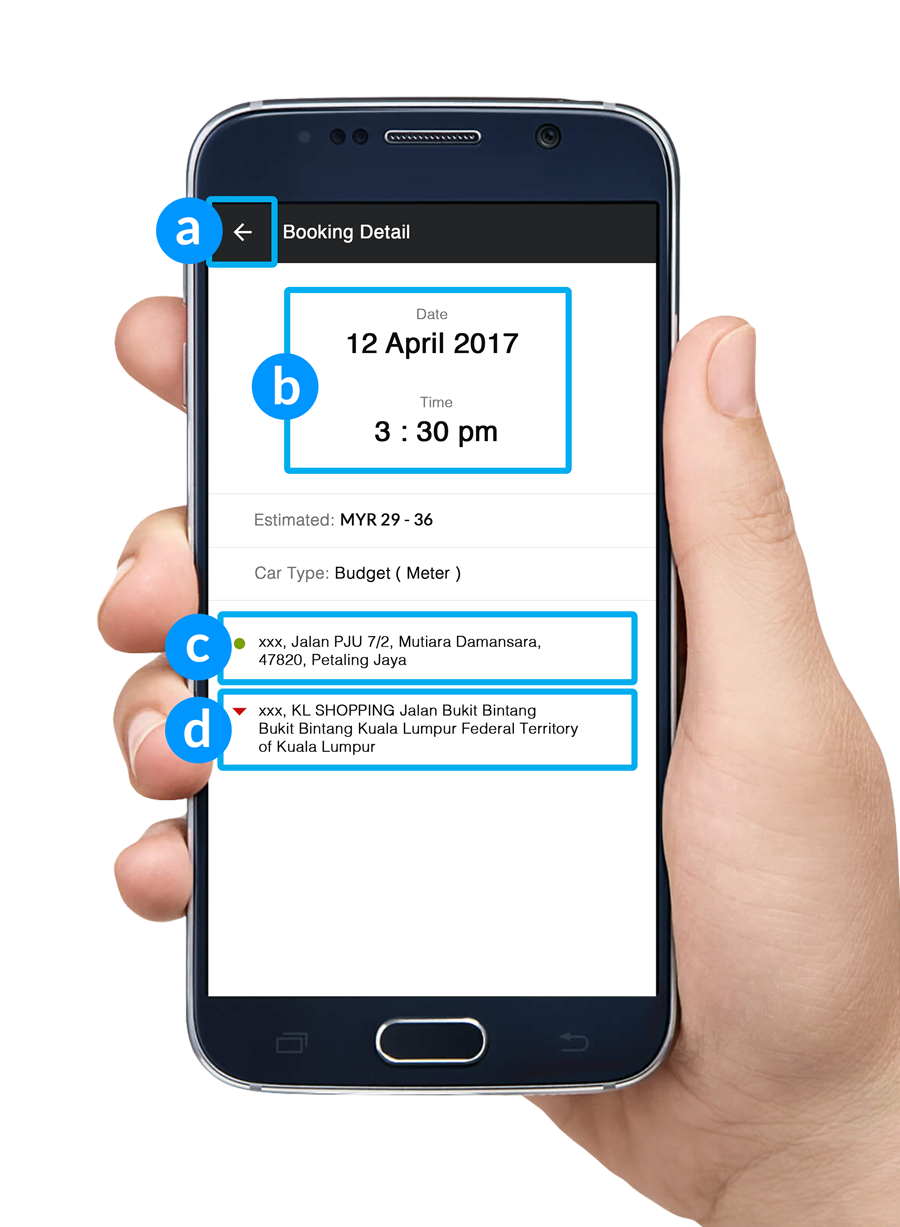
Booking Details

a. Back Button: Back to previous page.
b. Pick Up Date & Time: Date & Time to pick-up customer.
c. Pick Up Address: Location to pick-up customer.
d. Drop Off Address: Location to drop-off customer.

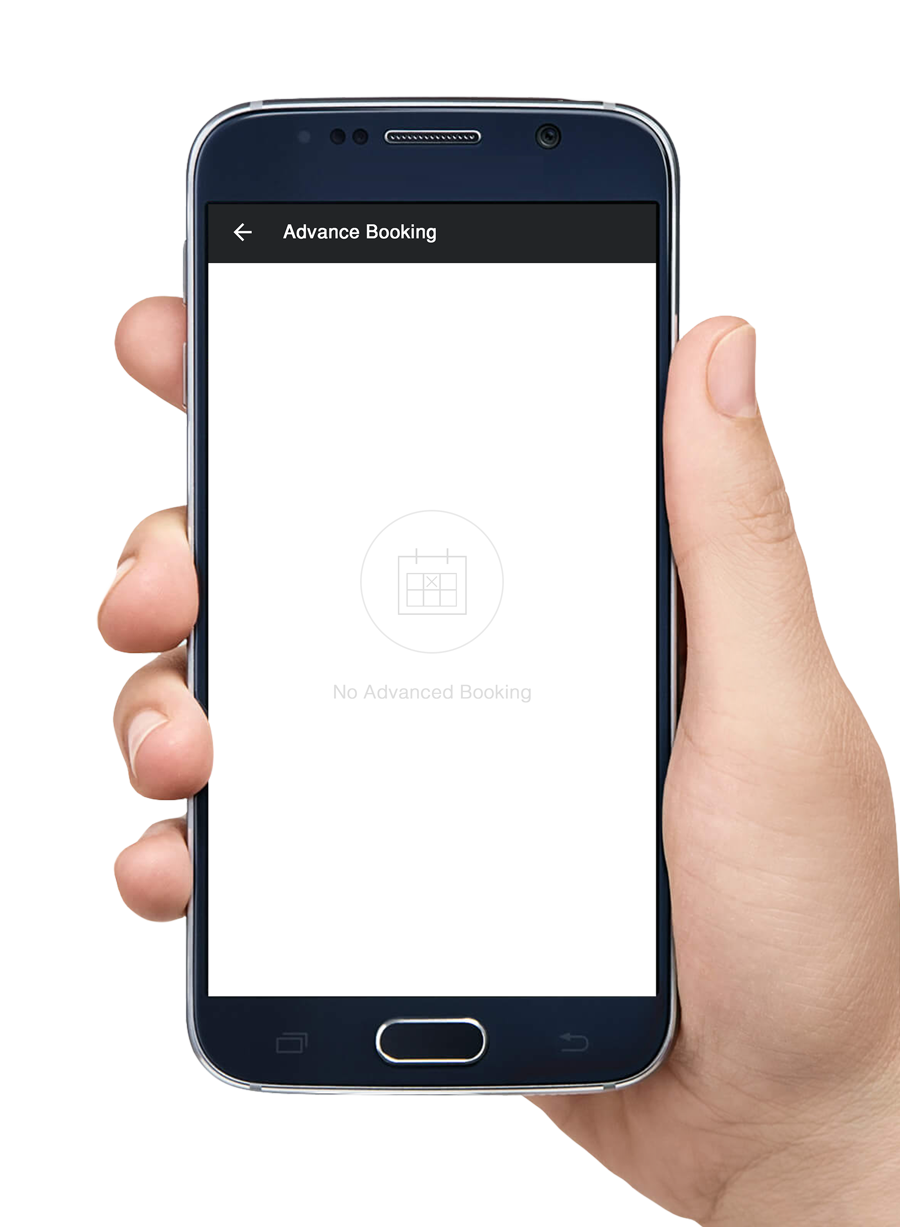
Advance Booking Listing Page

If you do not have any advance booking , the screen will appear as above.

How To Check History

Step 1

Click the button on your upper-left corner.
*Please make sure that you're on Standby Mode.

Step 2

Click History.

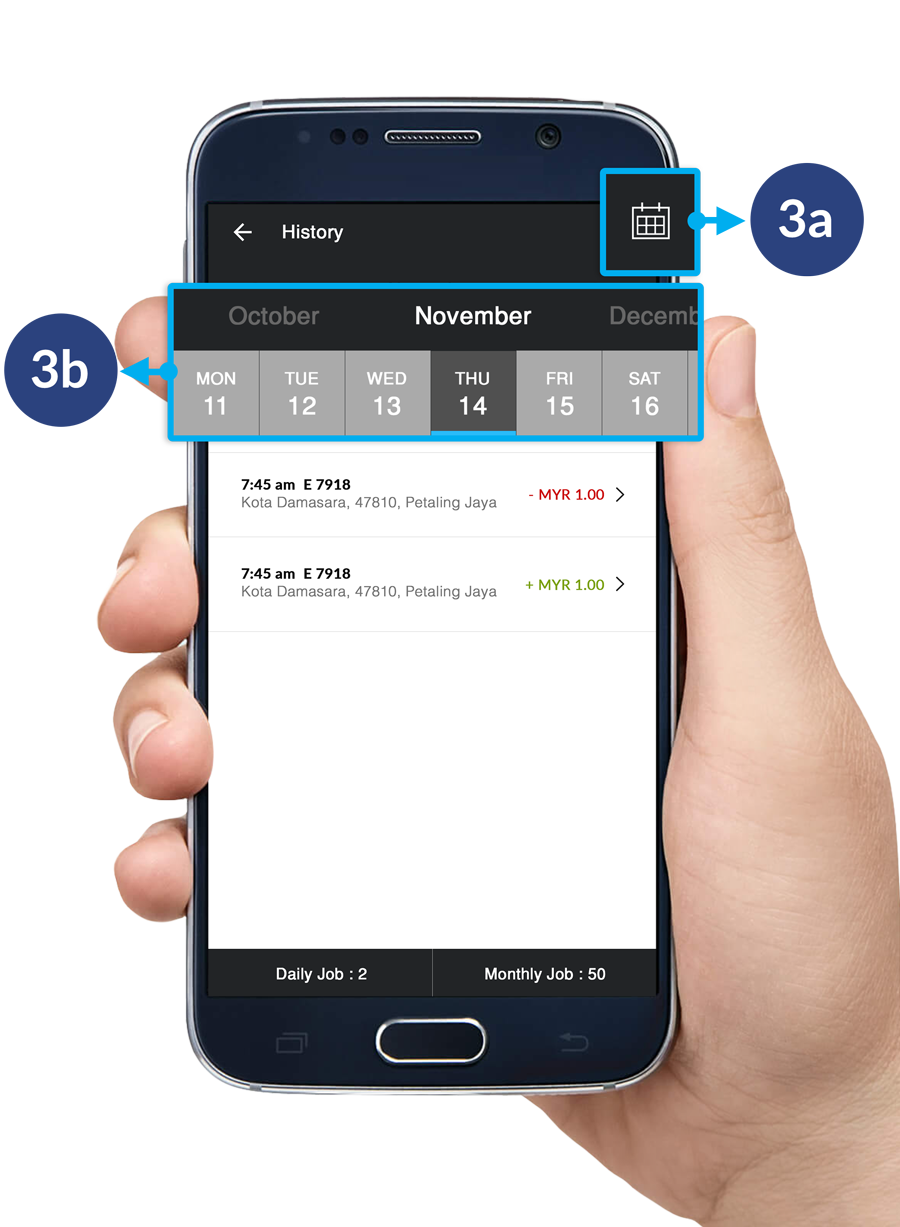
Step 3

This page will show you all of your history. Click on the calendar button on your upper left to view a specific date. 

3a. Click the calendar button on your upper-right corner.
3b. Slide the month and date you wish to view.

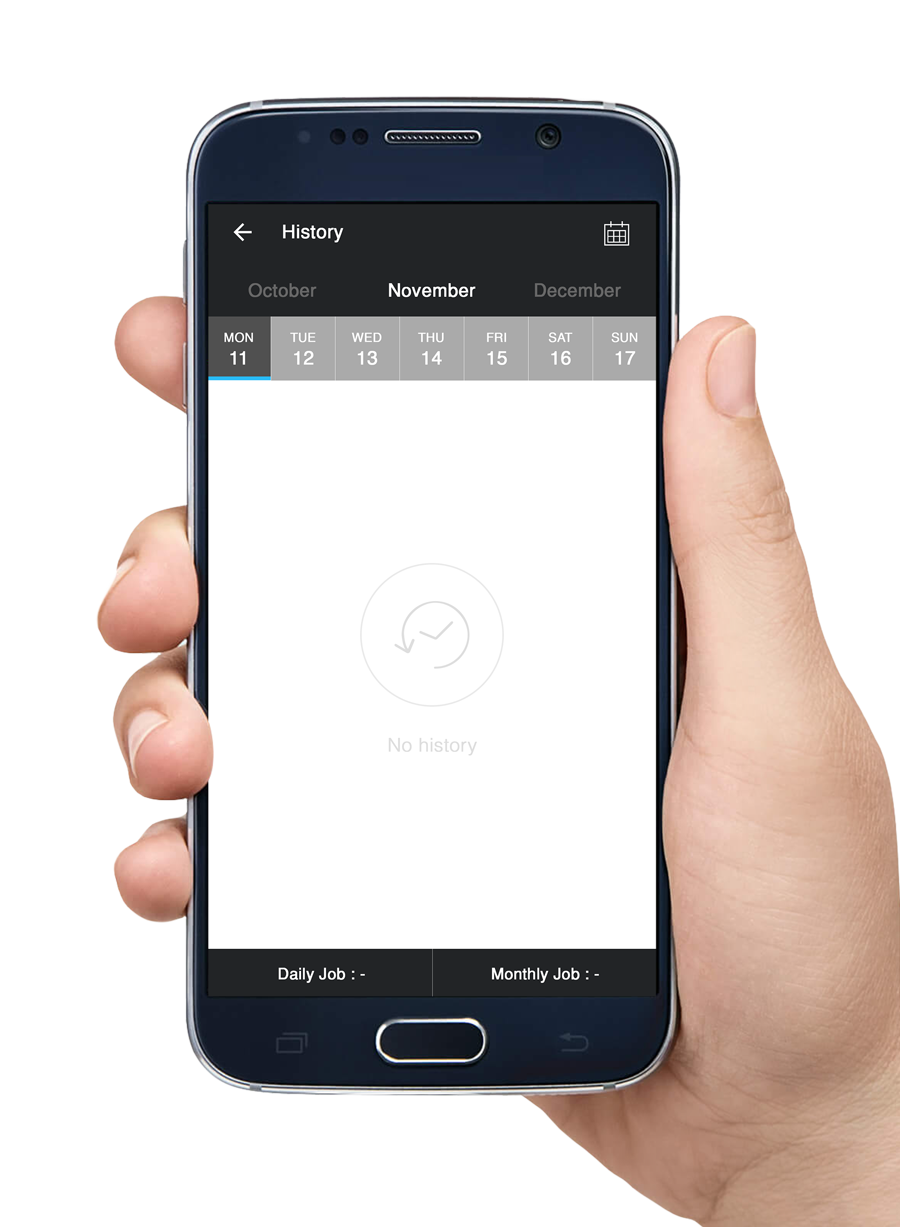
History Listing Page

If you do not have any history order, your screen will appear as above.

How To View Latest News

Step 1

Click the button on your upper-left corner.
*Please make sure that you're on Standby Mode.

Step 2

Click News.

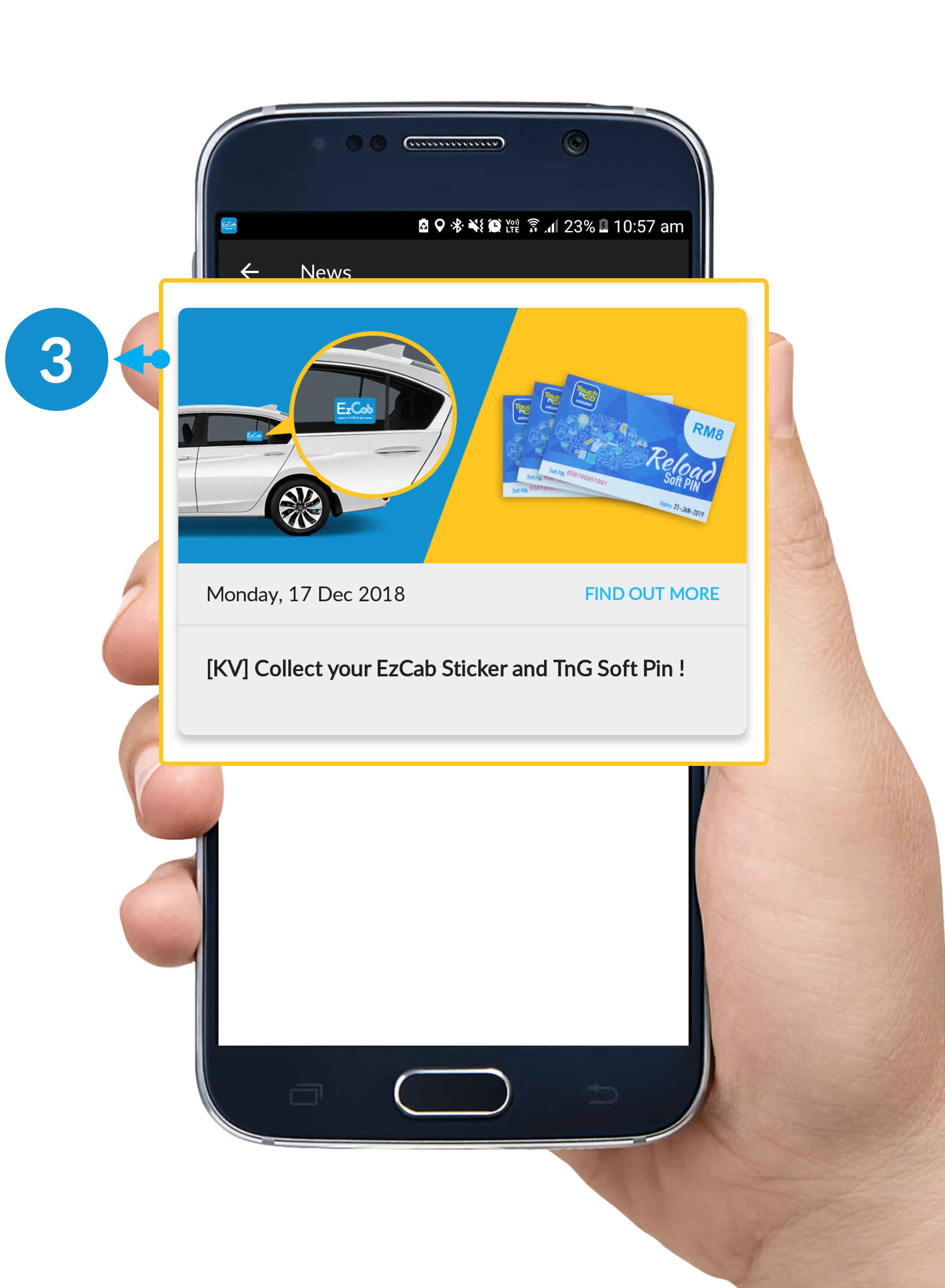
Step 3

This page will show you all your news. To view more details of the news, click on the news.

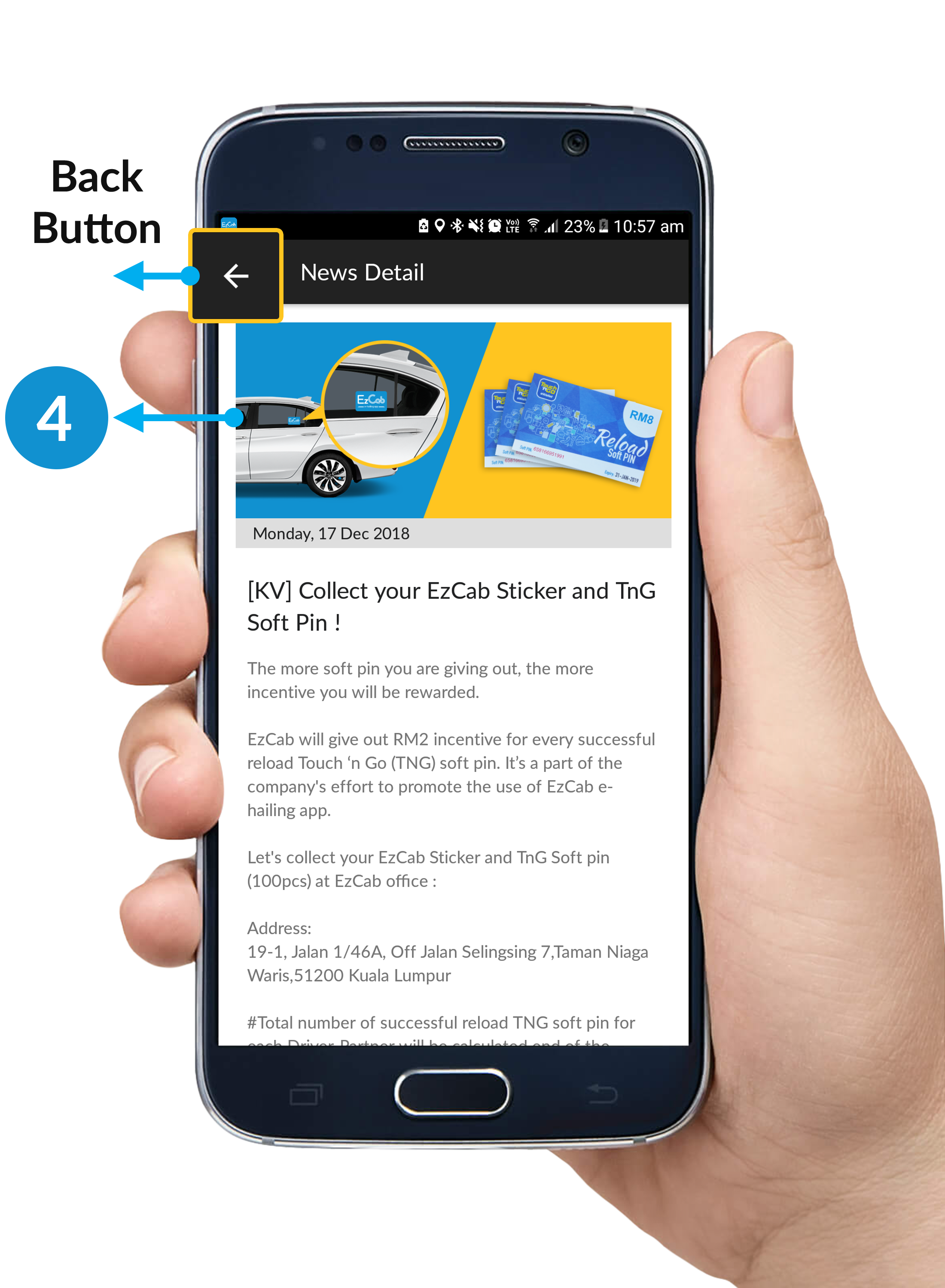
Step 4

This is the news detail.

  • Back Button: Back to the previous page.

How To Update Personal Details in Setting

Step 1

Click the button on your upper-left corner.
*Please make sure that you're on Standby Mode.

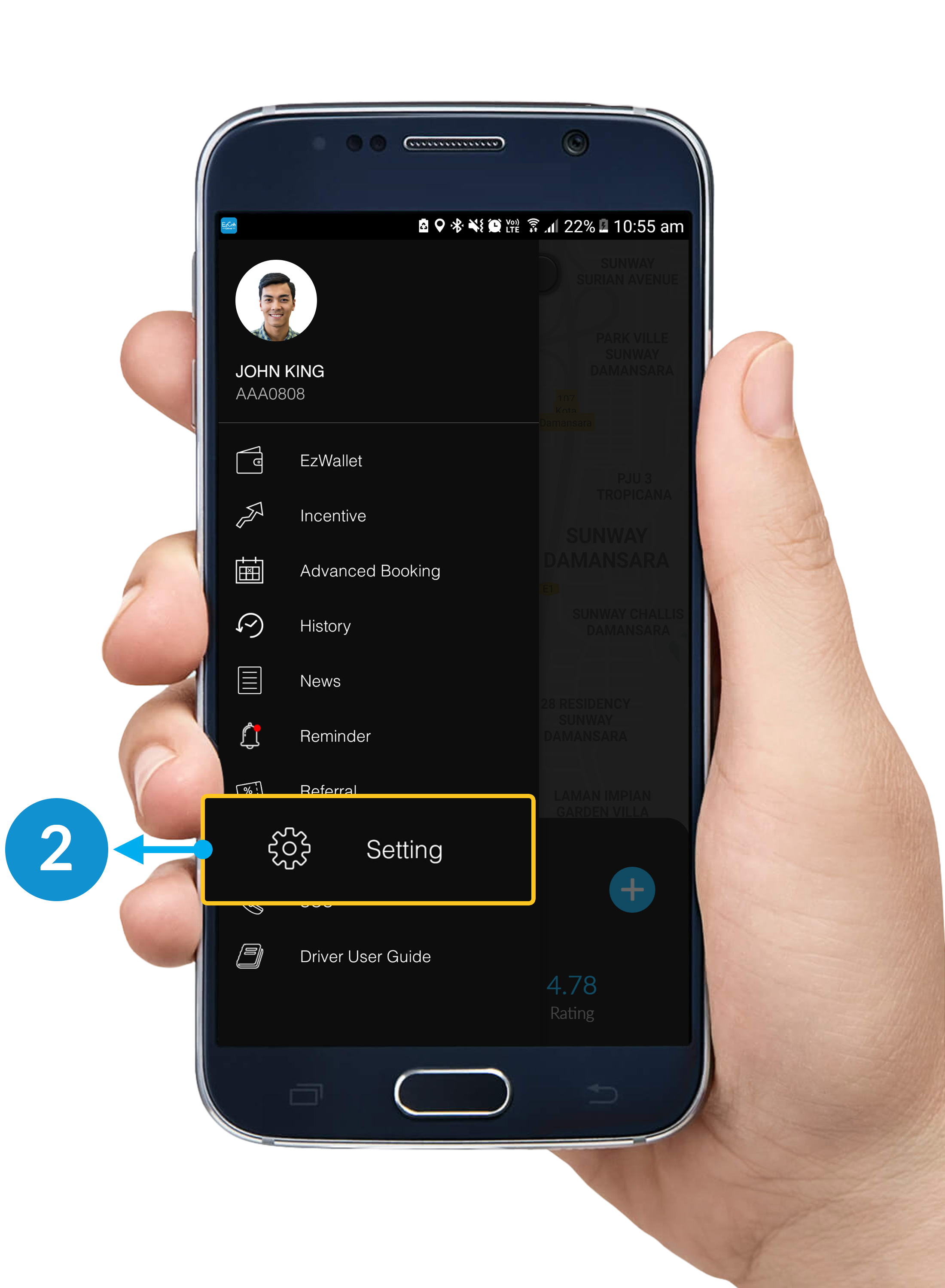
Step 2

Click Setting.

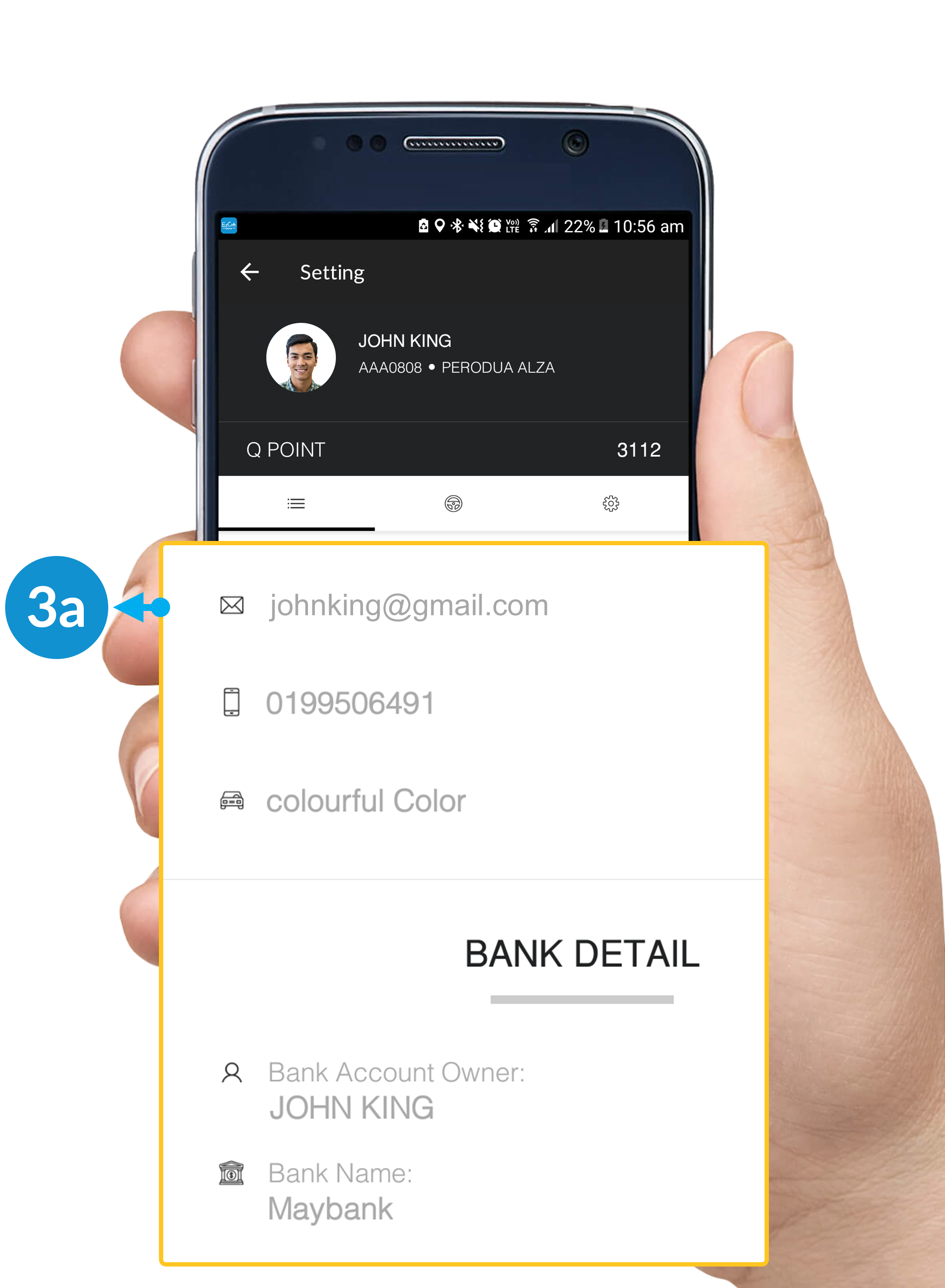
Step 3a

3a. Profile Setting:

  • Email Address.
  • Phone Number.
  • Colour of Car.

If you need further assistance to update your details, kindly email to support@ezcab.com.my.

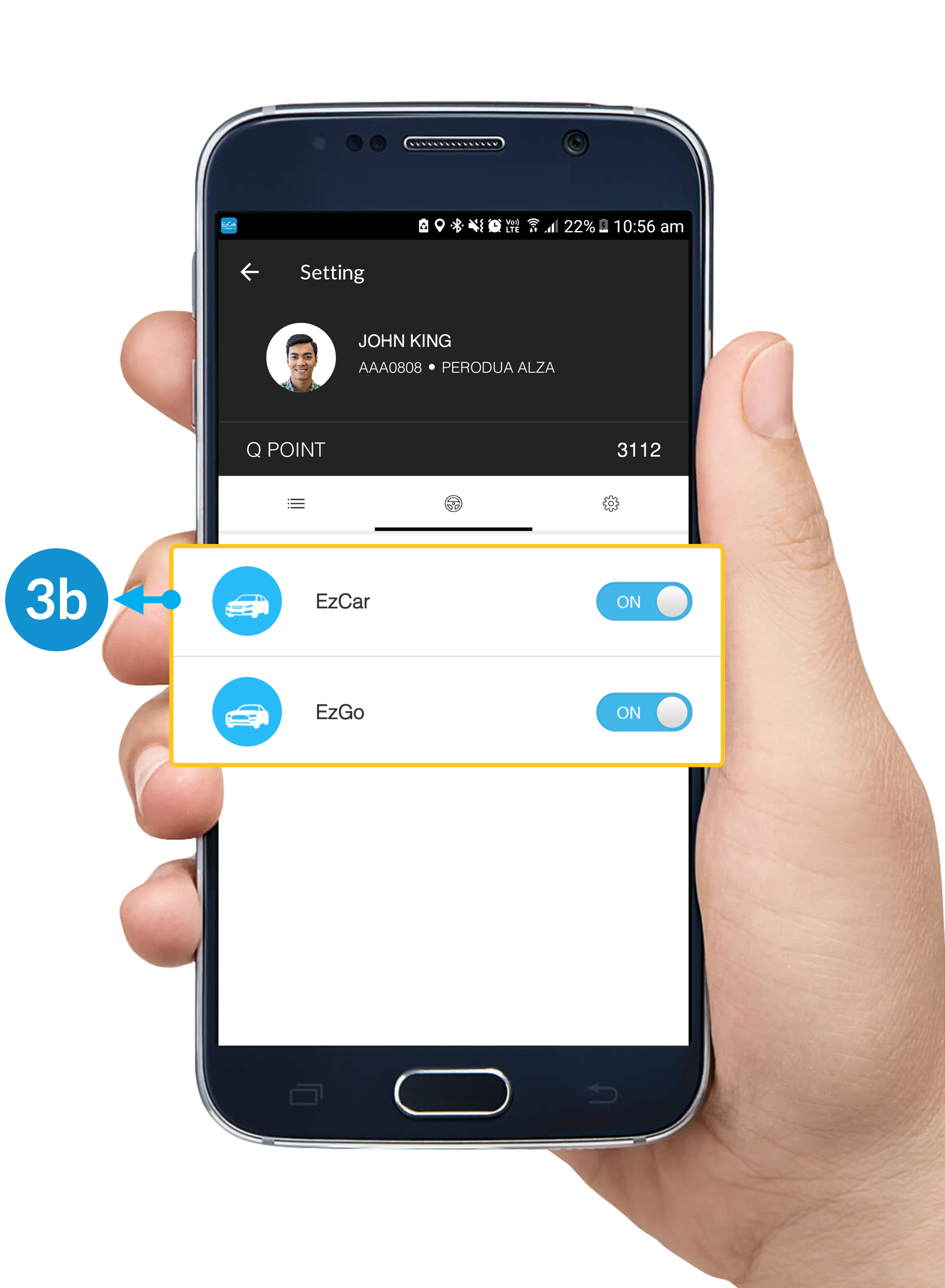
Step 3b

3b. Service Setting:
Kindly switch ON/OFF according your preference on Services Type.

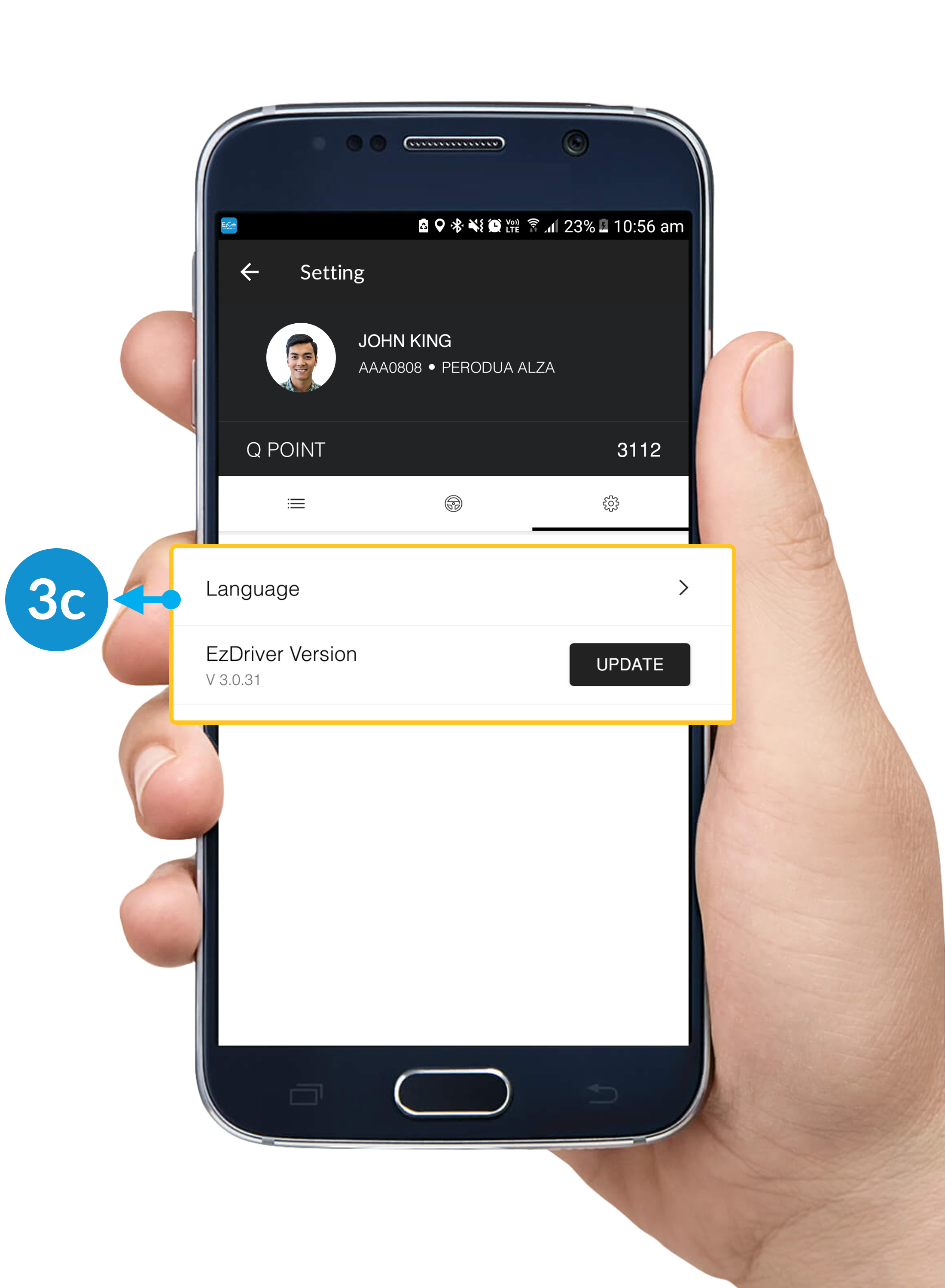
Step 3c

3c. Setting:

Language Setting: Select the language you want to use.
Update Button: Click to update your EzDriver App to the latest version.

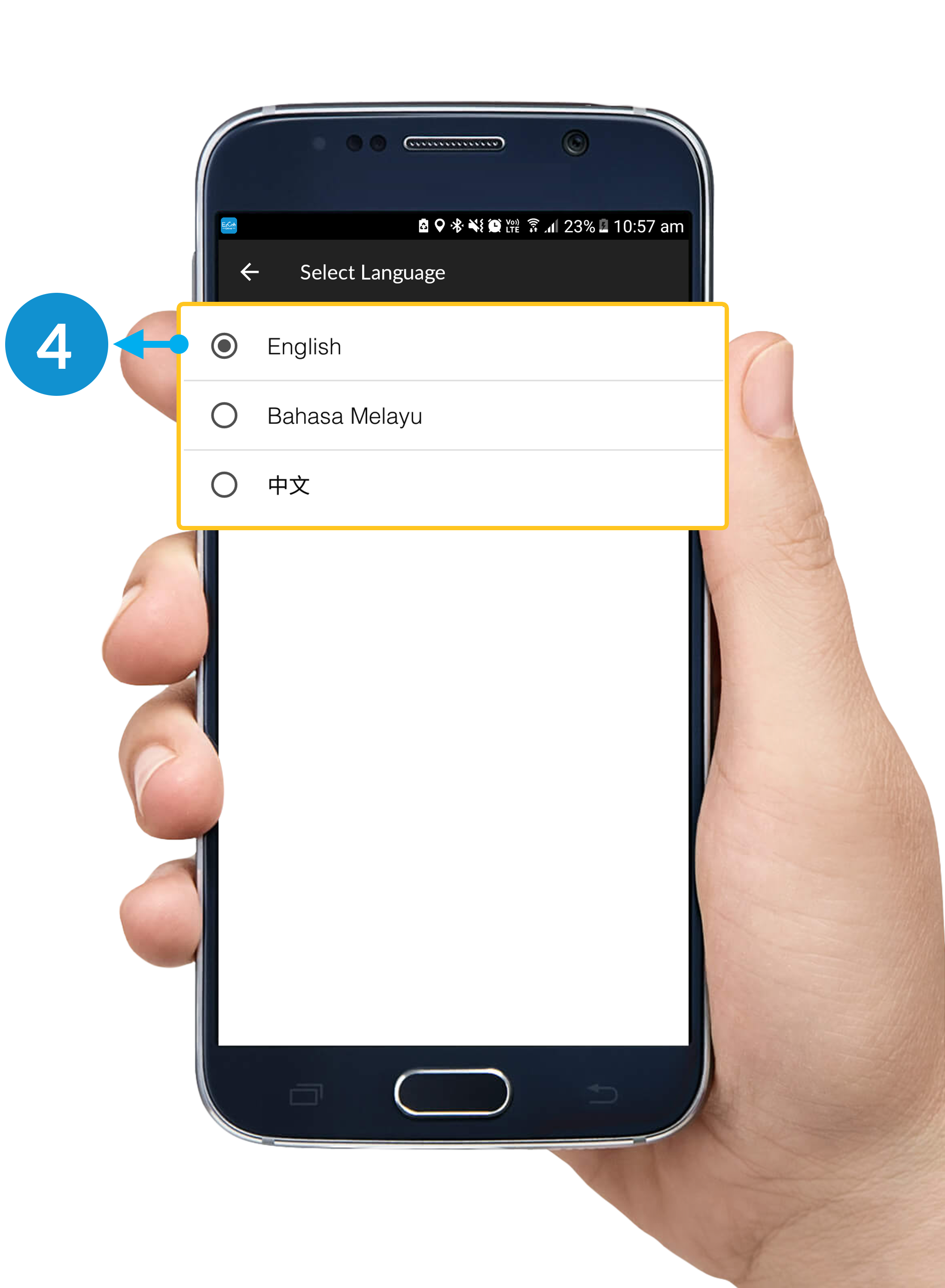
Step 4

To change your language settings, follow
Step 1 > Step 2 > Step 3c > Step 4:

Language Select: Select the language you wish to change.
Back Button: After choosing the language, click the back button on your upper-left corner.

How To Use SOS

Step 1

Click the button on your upper-left corner.
*Please make sure that you're on Standby Mode.

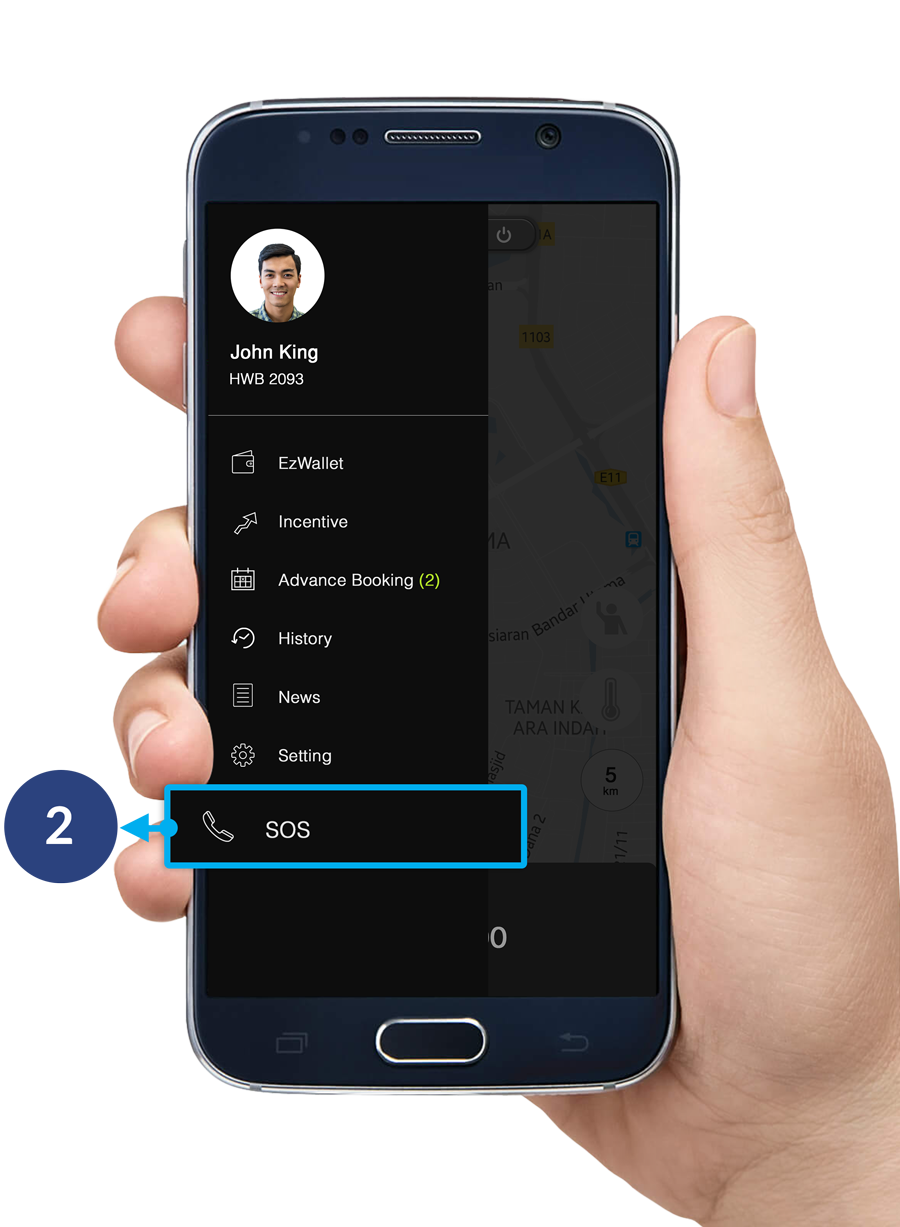
Step 2

Click SOS.

Step 3

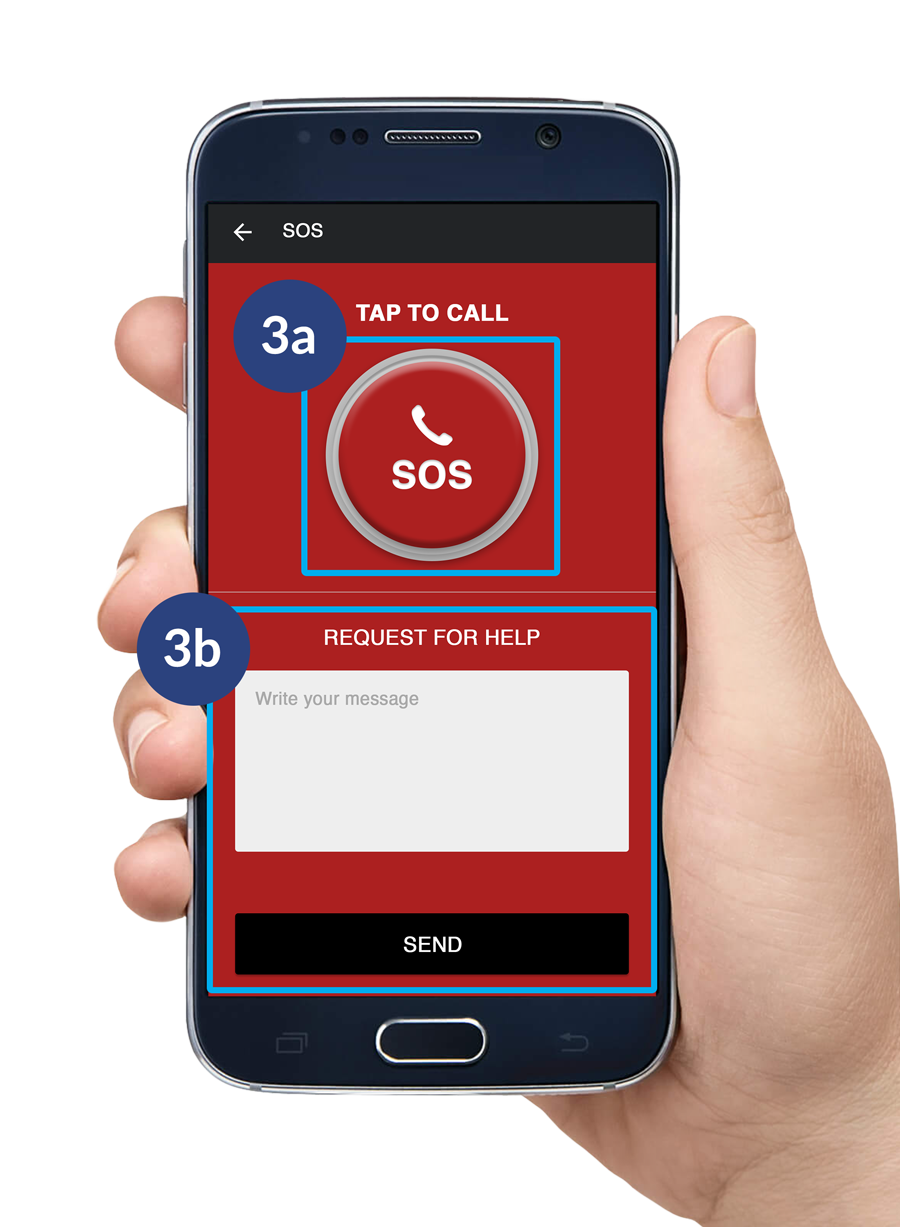
There are 2 ways to use the SOS.
3a. SOS Button: To call for help.
3b. Text & Send: Enter your message and click the send button to get help.